11. Configure and distribute MCP services and API services
Full-length chapter. Content is checked against the 2026.10 mainline code and the live console; menus and features depend on the current license, account permissions, and delivered environment.
Back to overview · Full table of contents · Download full PDF
This chapter is for tenant administrators, Security Admins, and ordinary members. It explains how to put an enterprise's existing remote MCP services and HTTP APIs on the gateway and provide them uniformly to members and business systems. The full path is: an administrator connects the service and checks the tool list, configures upstream authentication, publishes and distributes to members, and uses traffic rules to control which tools and methods can be called; members get connection configuration in the workspace and write it into a client; administrators trace every call in Call activity, Token management, and Operation Audit.
The gateway provides two kinds of service:
| Service type | Admin entry | How you call | When to use |
|---|---|---|---|
| MCP service | Admin Console › Capabilities › MCP Services | MCP clients call by tool; the gateway takes the MCP protocol | Proxy a remote MCP service, or turn HTTP APIs into tools |
| API service | Admin Console › Capabilities › API services | A business system calls the upstream original API with a gateway token; the gateway forwards as a whole | A business system accesses upstream by the original API |
Rules shared by both:
- Save is not publish, and publish is not distribute. A new service defaults to Unpublished and Not distributed. You must turn on Publish and configure Available scope before members can use it.
- Callers only hold a token the gateway issued. Upstream URL and credentials are kept by the gateway and injected on forward; they are not given to the caller.
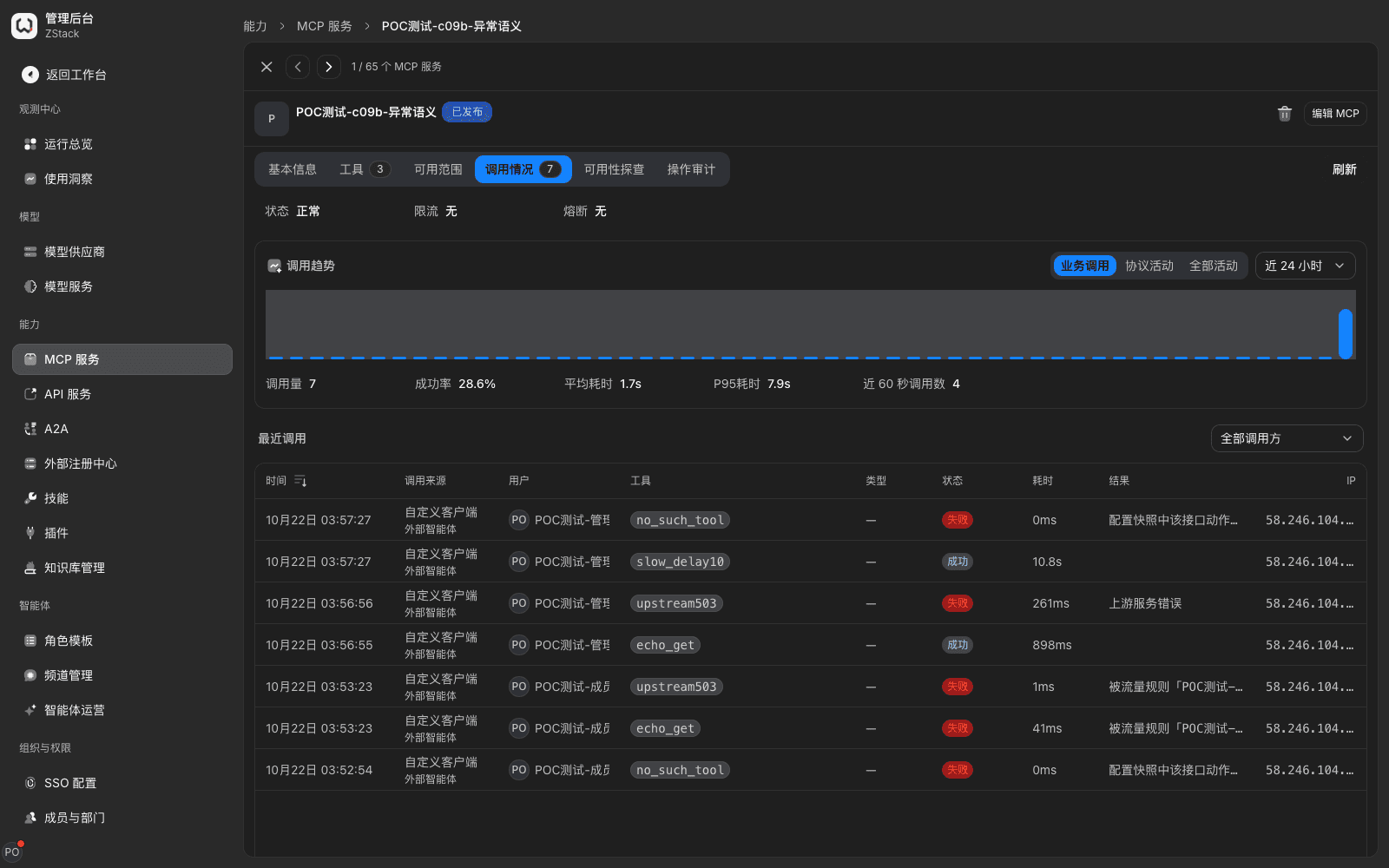
- Every call records caller, source, tool, status, and latency, and can be viewed on the service detail Call activity.
11.1 Six ways to connect an MCP service
When to use: enterprise assets come in different shapes — a remote MCP service, an OpenAPI document, a cURL command, a Postman collection, or only an HTTP API URL. The gateway provides an import method per shape; after import they become MCP tools uniformly.
Prerequisites: tenant-administrator permission; the upstream URL is reachable from the network the gateway is on.
Procedure
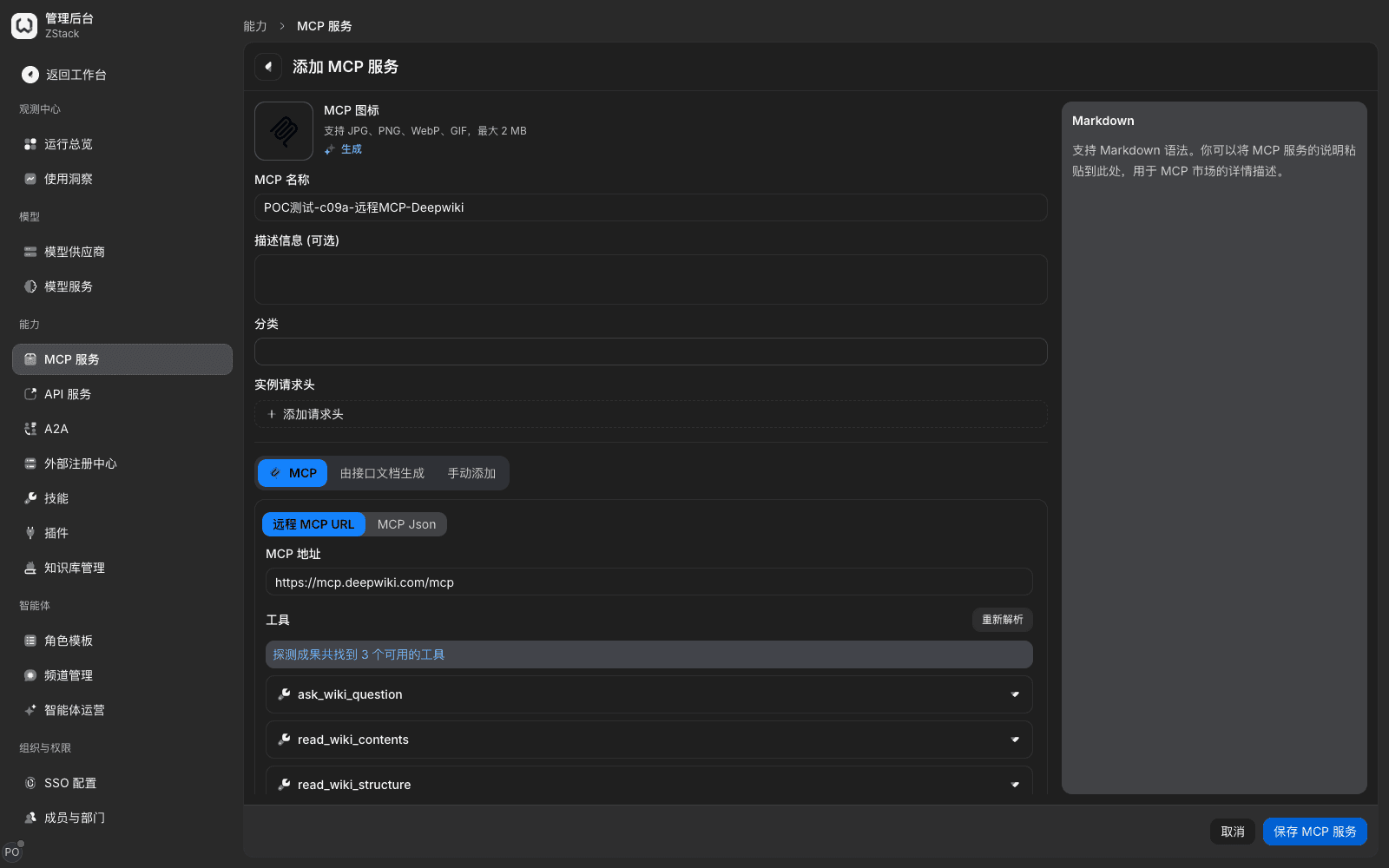
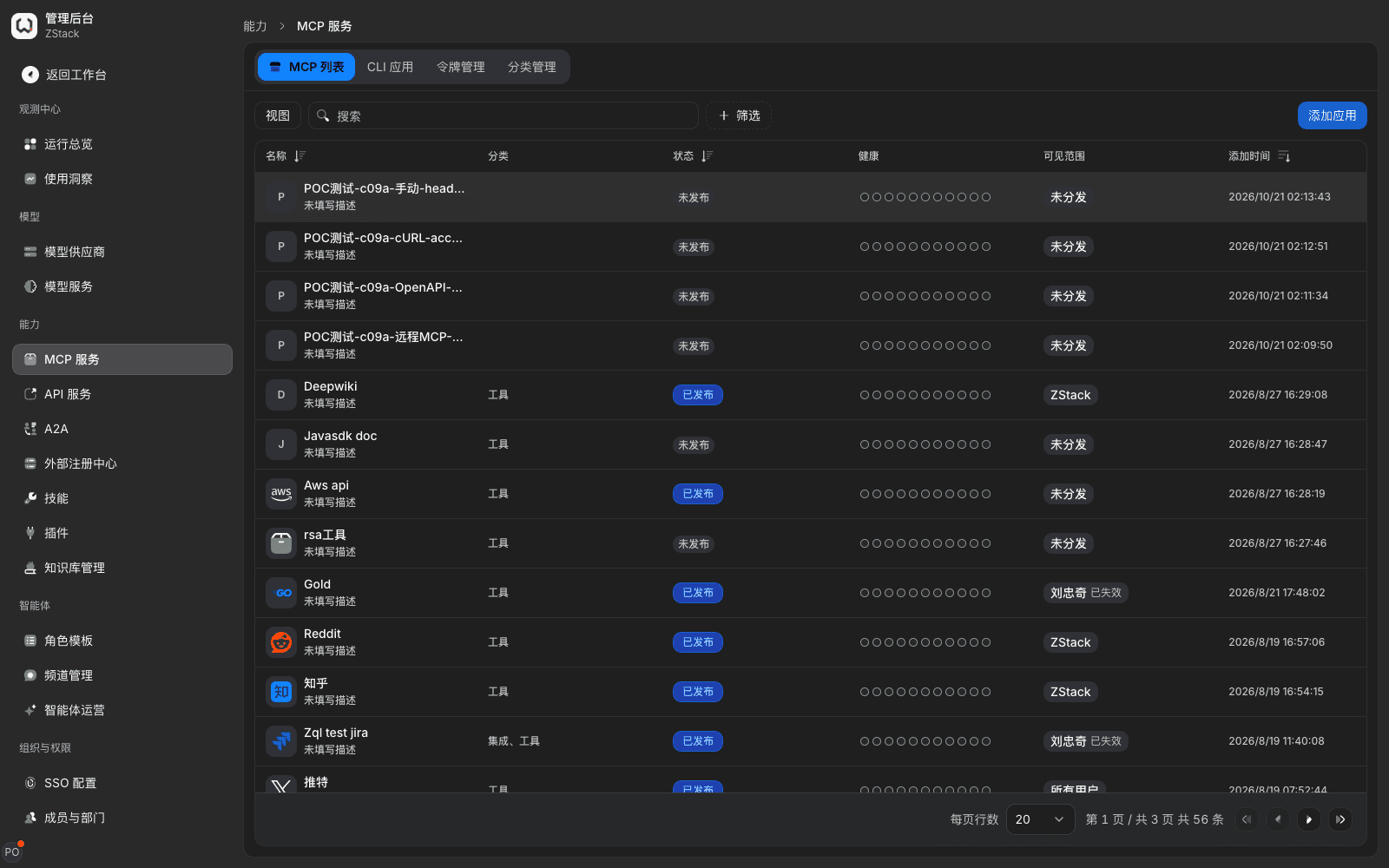
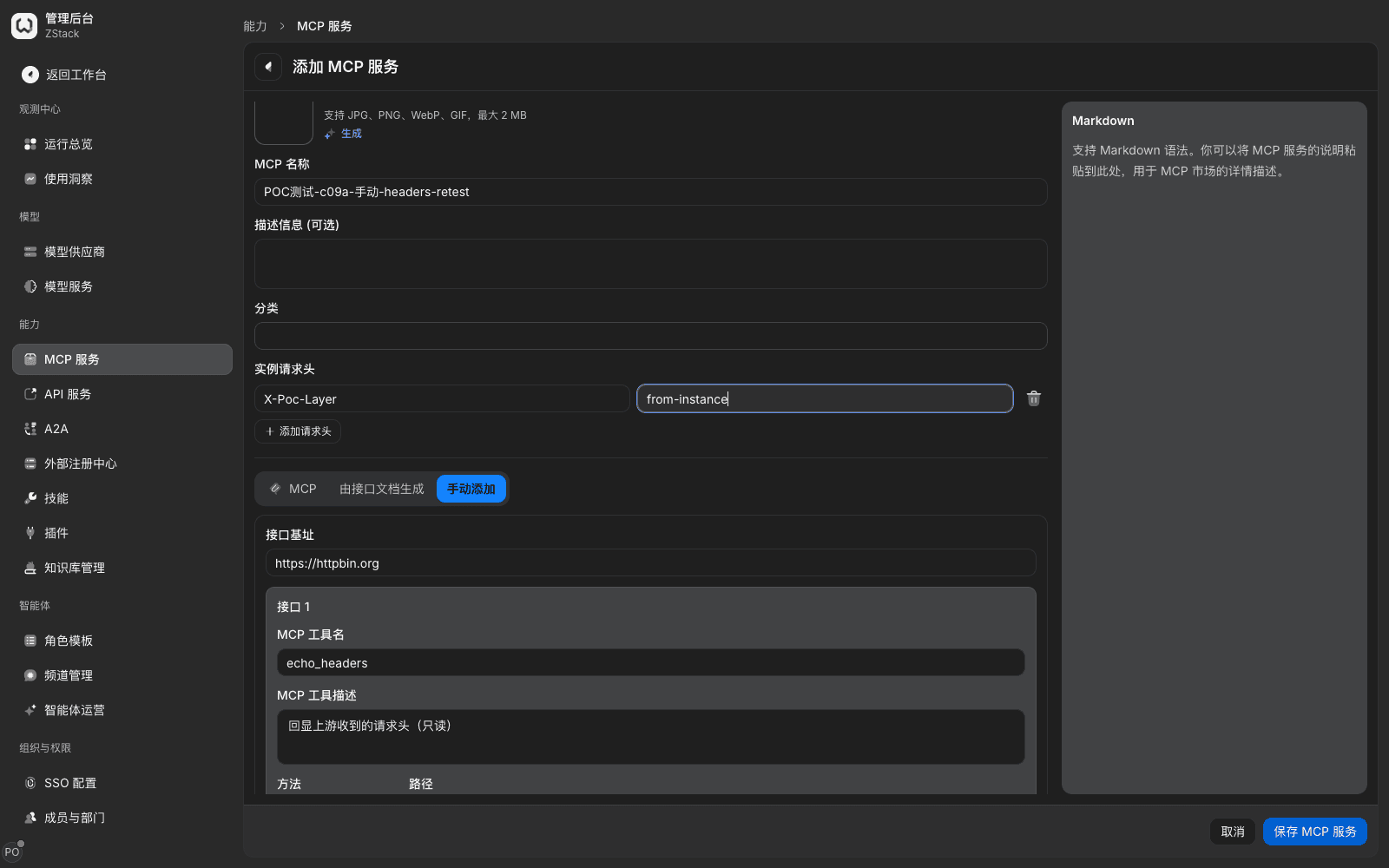
- Open Admin Console › Capabilities › MCP Services. On the MCP list tab, in the upper right choose Add app, fill in MCP name, Description (optional), Category, Instance headers, and a note for members.
- Choose an import method by asset shape:
| Method | What you provide | Whether tools are parsed before save |
|---|---|---|
| Remote MCP URL | Upstream MCP URL, for example https://mcp.example.com/mcp | Yes, auto-probe |
| MCP Json | JSON in mcpServers format | No; view tools after save |
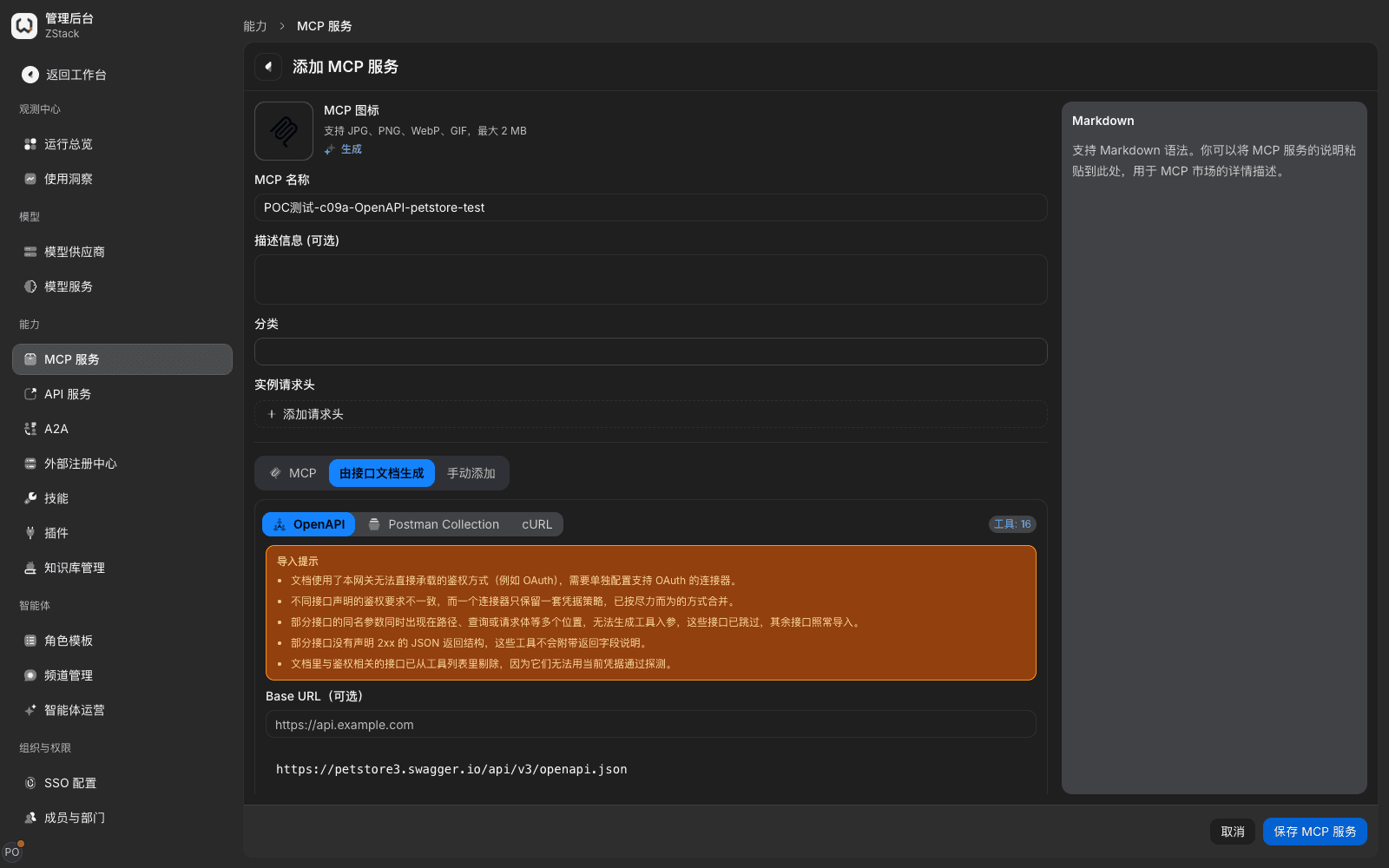
| OpenAPI | Document content or document URL; you can fill Base URL | Yes, shows Tools: N |
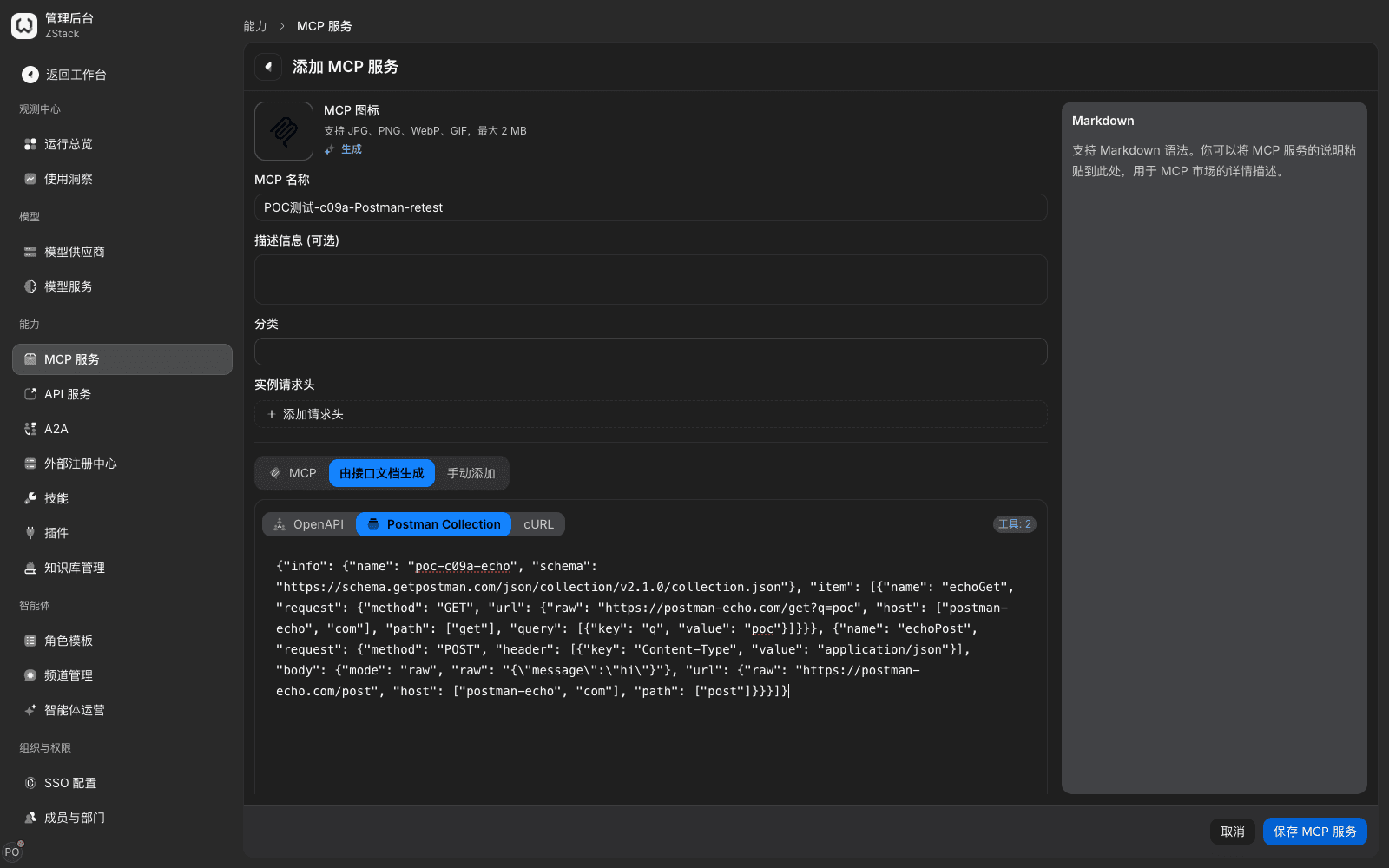
| Postman | Postman v2.1 collection | Yes, shows detected tool count |
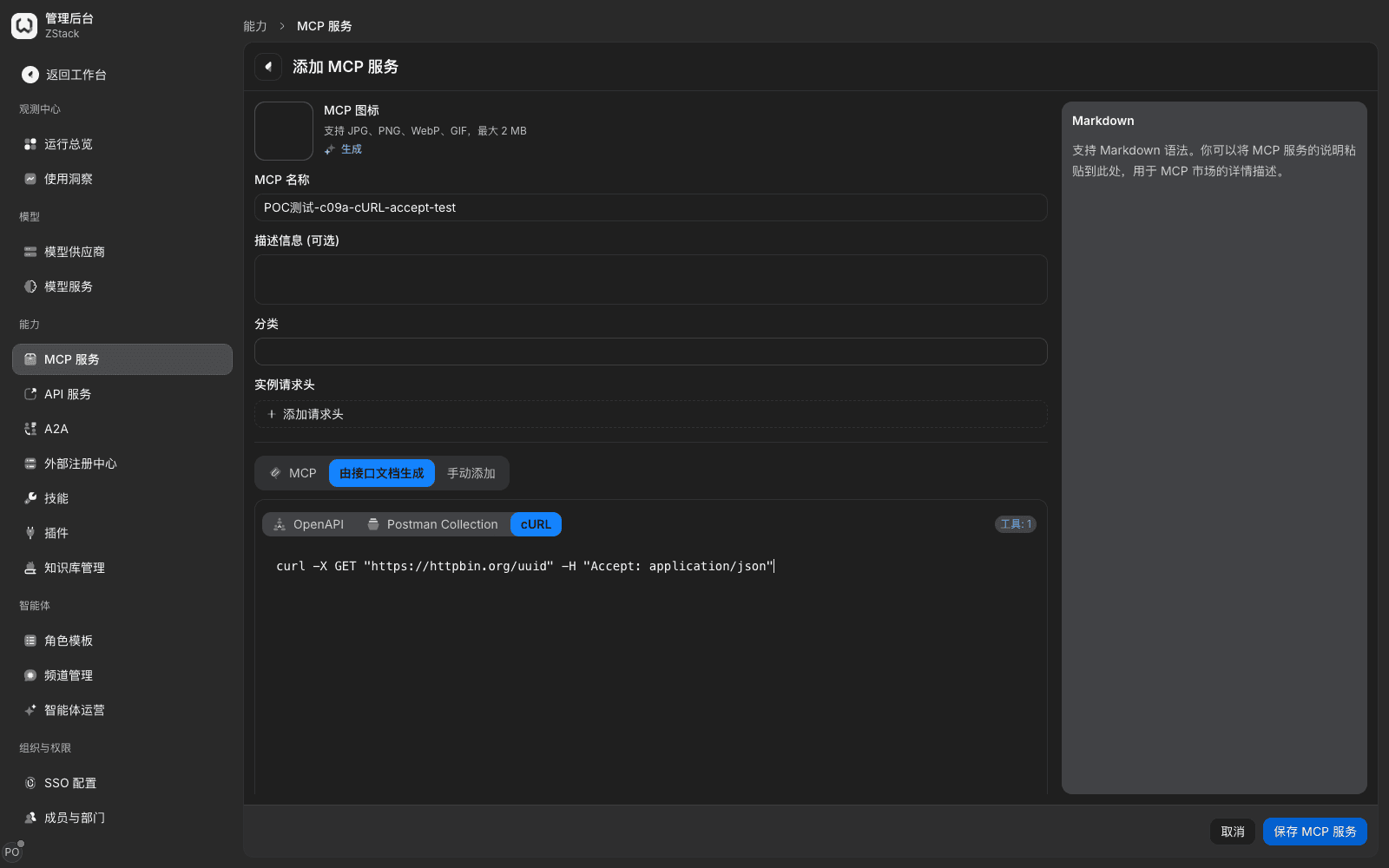
| cURL | One executable command; include -H "Accept: application/json" | Yes, shows Tools: 1 |
| Add manually | API base URL, plus each API's MCP tool name, Method, Path, and inputs | Yes |
- Check the tool preview, then choose Save MCP service.
What you will see
- Remote MCP URL probes the available tool count; expand to see each tool's description and inputs. Document-imported methods show Tools: N in the upper right.
- After save you return to the list. The new service status is Unpublished, visibility Not distributed.
Note
- The name is stored and displayed as typed; hyphens and case are not rewritten. The service key name in the client is generated from it; do not put spaces in the name.
- Import hints explain skipped APIs and why: authentication the gateway cannot carry (for example OAuth), same-named parameters appearing in both path and query or body, APIs that do not declare a 2xx JSON return structure (those tools do not come with return-field notes), and similar. Remaining APIs are imported as usual.
- Remote MCP supports Streamable HTTP and the older HTTP and SSE transports. It does not support stdio services started by a local command. Service detail shows the probed Protocol version and Transport. When the upstream still uses older HTTP and SSE, the page says that transport is deprecated and the service owner should upgrade, but it does not affect use.
- To add or remove APIs, use Edit MCP and paste the document again. Before save it shows Preview detected N tools.
11.2 View the tool list and side-effect badges
When to use: before go-live, confirm which tools the service has and which change data, so you can decide who to distribute to and whether extra limits are needed.
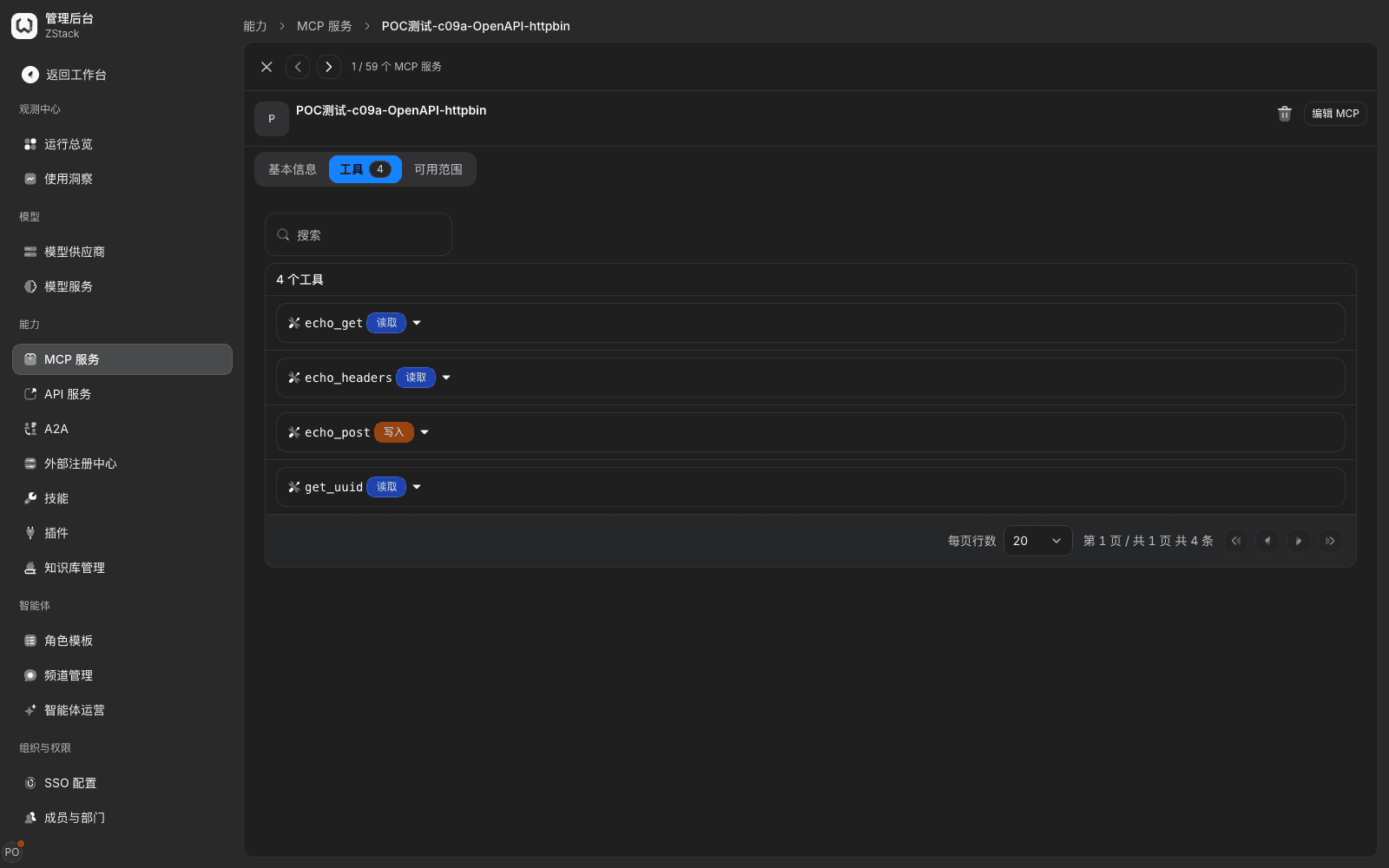
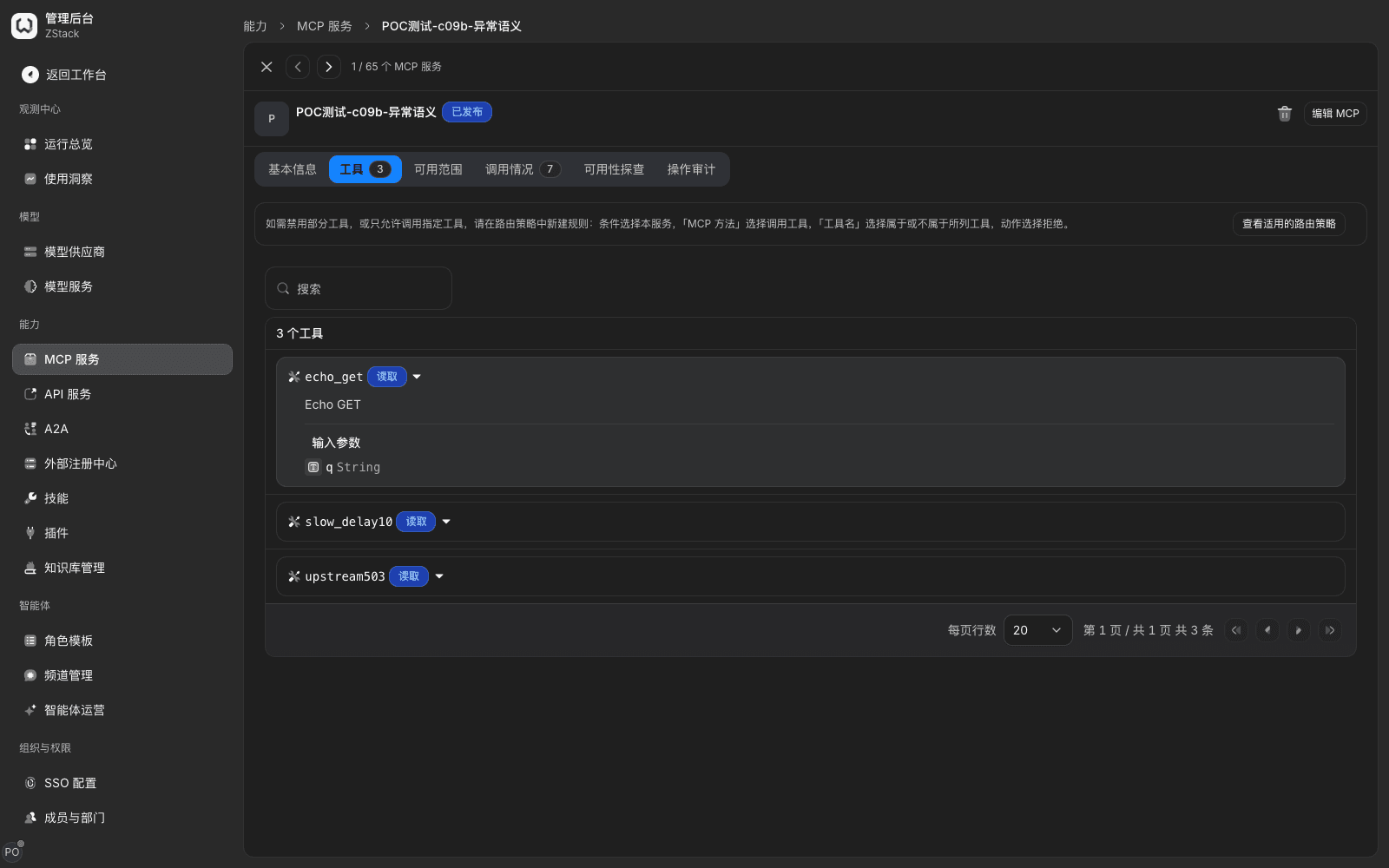
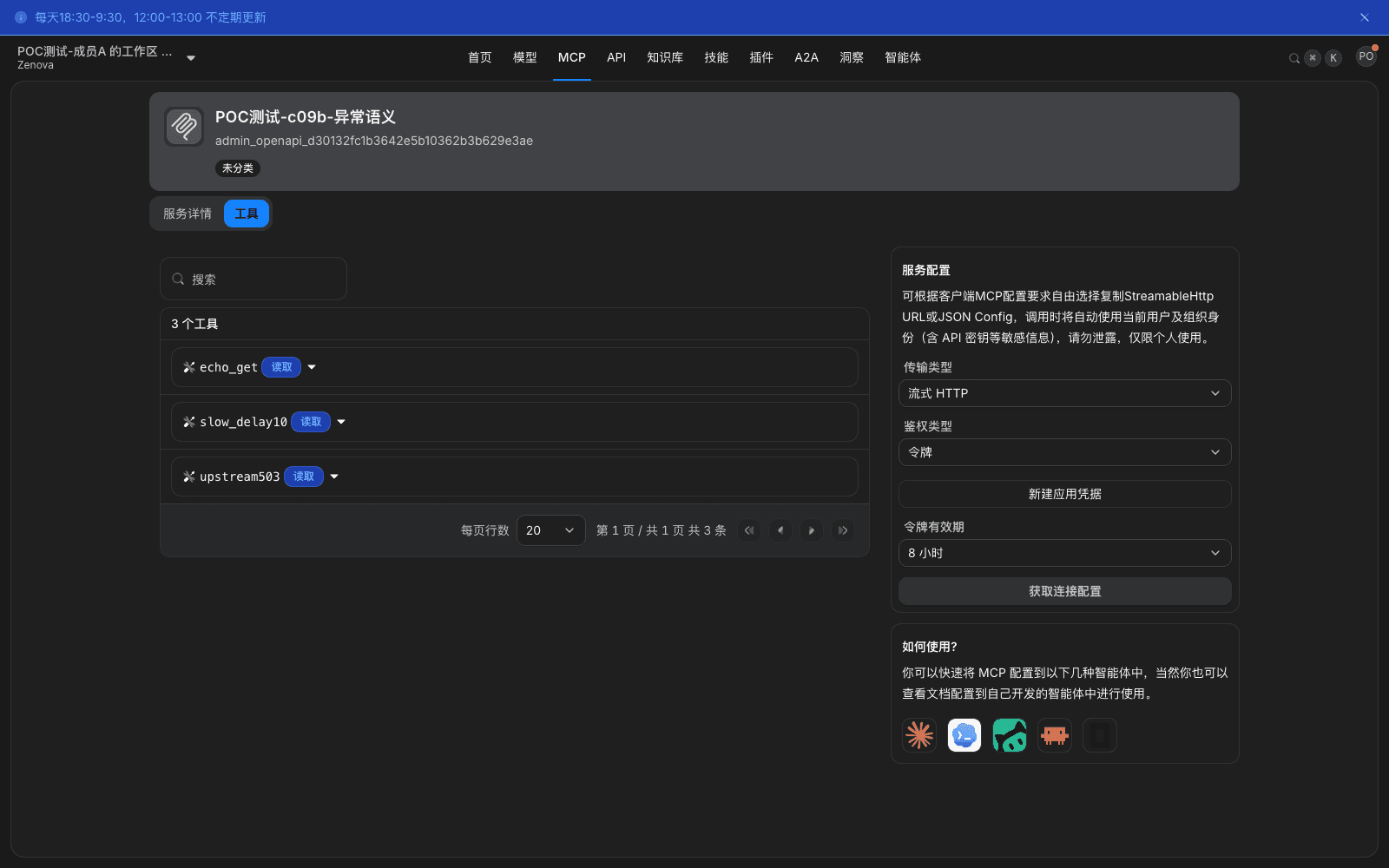
Procedure: open the service detail Tools tab, expand a tool to see description and input structure, and look at the side-effect badge next to the tool. When the upstream also provides resources or prompts, the detail page gets extra Resources and Prompts tabs.
What you will see
- Each tool has a side-effect badge: read-only APIs are Read, ones that change data are Write, write-class distinguished in orange. Tools generated from a document are inferred from the HTTP method; remote MCP tools follow the upstream declaration.
- The top of the page says: To disable some tools, or only allow listed tools, create a traffic rule: conditions are prefilled with this service and MCP method equals Call tool, then choose Tool name belongs or does not belong to the listed tools, and choose Deny as the action. Choosing New traffic rule opens the rule-edit dialog directly, with conditions prefilled as described.
- The Resources and Prompts tabs list what the upstream declared. When the upstream provides none, they show The other side provided no resources. or The other side provided no prompts. When members call through the gateway, upstream resources and prompts are also proxied by the gateway.
Note
- The Tools tab is display only; it does not provide per-tool disable or description edit. To forbid a tool, configure in a traffic rule by specific capability + tool name (see Section 11.10).
- Upstream tool changes (read-only becoming write, a new write tool) take effect on re-parse and do not go into approval. For a security-sensitive service, prefer a traffic rule that only allows listed tools, so new tools are denied by default.
11.3 Publish and configure available scope and validity
When to use: decide who can use a service and until when. Available scope is allow-only: ticked subjects can use it, unticked cannot.
Prerequisites: Publish is already on in Basic information.
Procedure
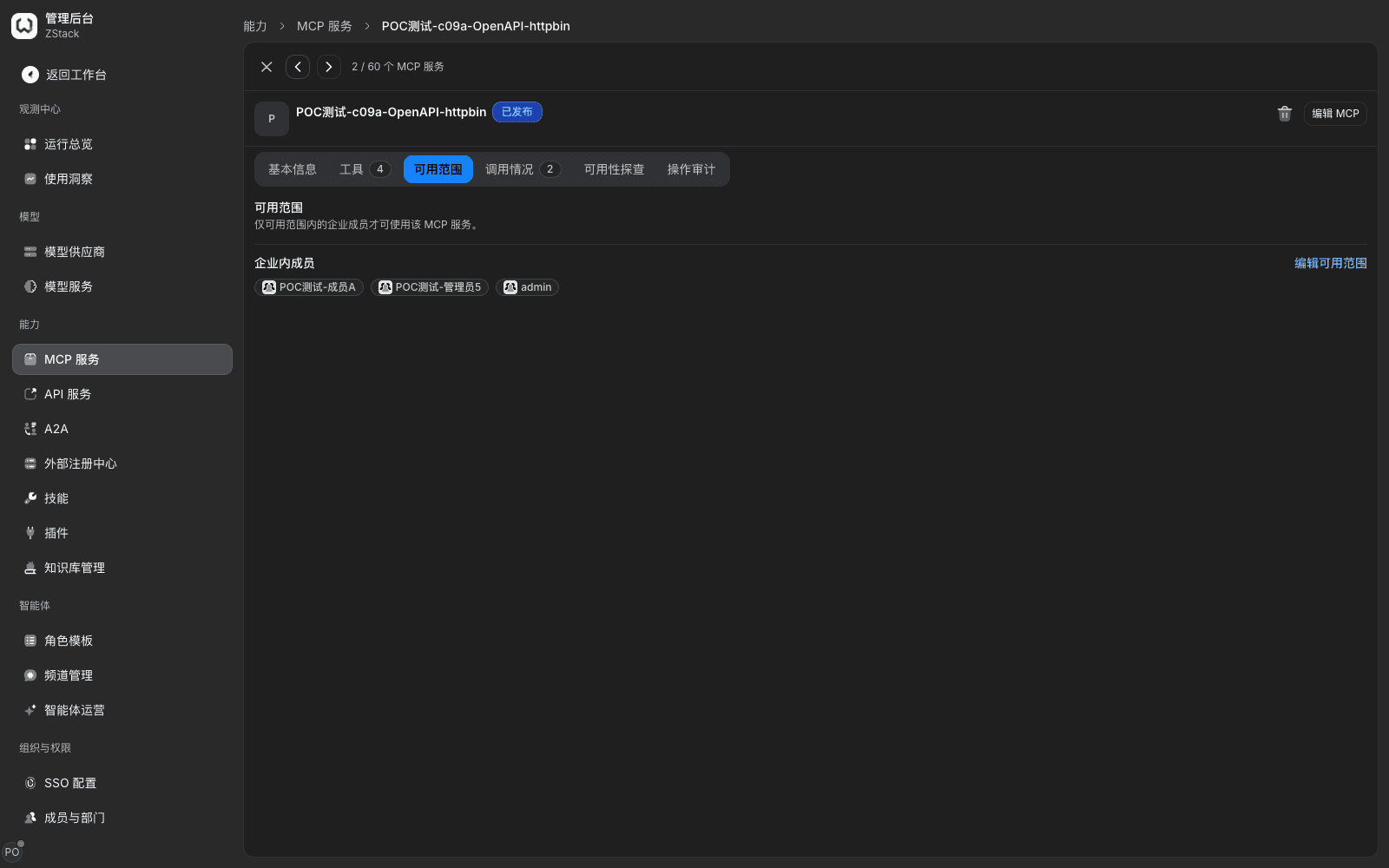
- Open the service detail Available scope tab, choose Edit availability scope, search and tick members. The right side shows selected members. Choose Next.
- In Configure target validity, confirm the default validity (default Long-term). To set it separately for some members, tick Assign separate validity to selected roles, select that member, uncheck Follow default, choose Custom, then set start and end.
- Choose Save.
What you will see
- The page says Distribution saved. Distributed members are listed under Enterprise members.
- Members in scope see this service card in workspace › MCP and can get connection configuration. Cards for members outside scope are labeled Needs administrator distribution. After a member is removed from scope and you save, connection configuration they already got is immediately unusable.
Note
- Available scope is only authorization; it does not provide a denylist. For this class of members can use it, except these people, write a deny rule in traffic rules: condition Specific capability belongs to this service and Caller belongs to those people.
- When you use Custom validity, date and time must be picked item by item. If the panel closes unexpectedly and settings are lost, reopen Edit availability scope and set them again. Distribute a new service to pilot members first; use a grant with an end time for a temporary project.
11.4 Configure upstream authentication and two layers of headers
When to use: the upstream needs a credential to call. The gateway keeps the credential and injects it on forward. Callers never see the upstream key.
Procedure
- Open service detail Basic information, and in the Authentication row choose Edit.
- Choose credential source: Platform unified configuration has the administrator save one enterprise credential that all calls share; Use the user's personal credential has members use their own accounts (see Members complete personal authorization in this section).
- For platform unified configuration, choose an authentication method (Bearer token, API key, Basic Auth, Cookie, Custom request header) and fill in the credential for the chosen method. For Custom request header, fill in name and value, then choose Confirm.
What you will see
- The page says Configuration saved. Basic information shows Unified credential: configured and the chosen authentication method. Credentials are stored encrypted and plaintext is not echoed. Leave empty on edit to keep the current value. Credential content the upstream echoes is replaced with
[REDACTED]when returned to the client.
Headers have three layers, all sent to upstream with the call:
| Layer | Where configured | Use |
|---|---|---|
| Instance headers | Instance headers on Add app or Edit MCP | Non-auth parameters the service always carries, for example a tenant number |
| Credential headers | Filled when Authentication is Custom request header; for personal credentials, filled by the member | Information actually used for authentication |
| Caller-attached headers | Under MCP authentication Platform unified configuration, Use the user's personal credential, or No authentication | Carried by the caller on every request; the platform does not store the value. Cannot occupy auth headers such as Authorization |
Note
- Both header layers reach upstream. Avoid the same name when you configure. Do not put real credentials in tickets or screenshots.
- After you switch to Use the user's personal credential, members who have not provided a personal credential are denied even if they hold an old token. The upstream does not receive a request without a credential.
Members complete personal authorization
When a service is connected with Use the user's personal credential, members each complete authorization:
- Open the service in workspace › MCP. The right-hand Service configuration shows the authentication type.
- When authentication is OAuth, the page says Complete your personal authorization before you can use this. Choose Complete authorization, sign in to the upstream account on the opened page, confirm authorization, then return to the workspace.
After authorization the prompt disappears and the service can be called. After the upstream revokes authorization, the Complete authorization button appears again.
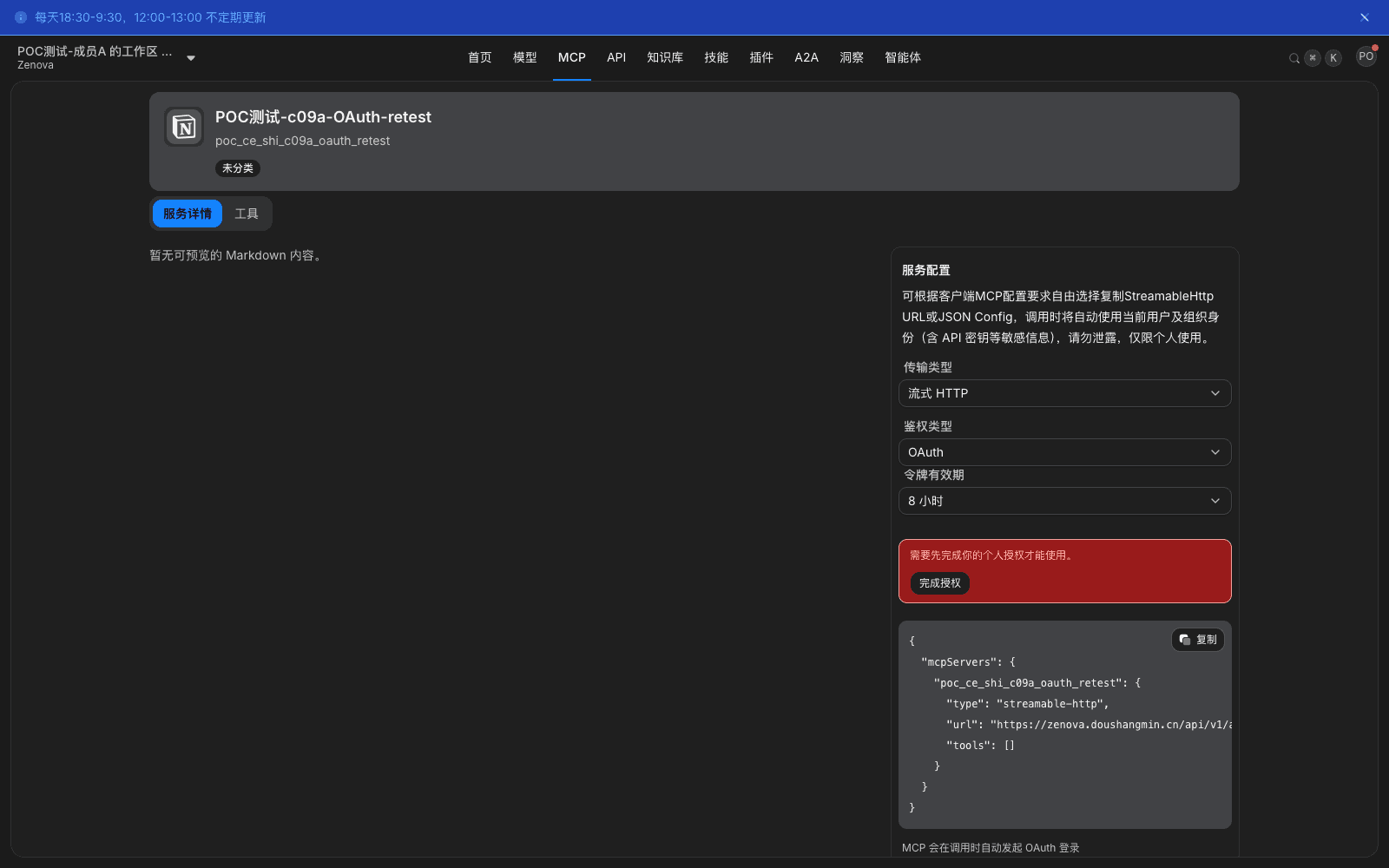
Note: personal credentials are maintained by the member; administrators cannot see plaintext. Authorization takes effect per member; members cannot share it.
11.5 View call activity and availability probes
When to use: confirm who used the service, with which client, which tools they called, why it failed, and whether the upstream is online.
Procedure
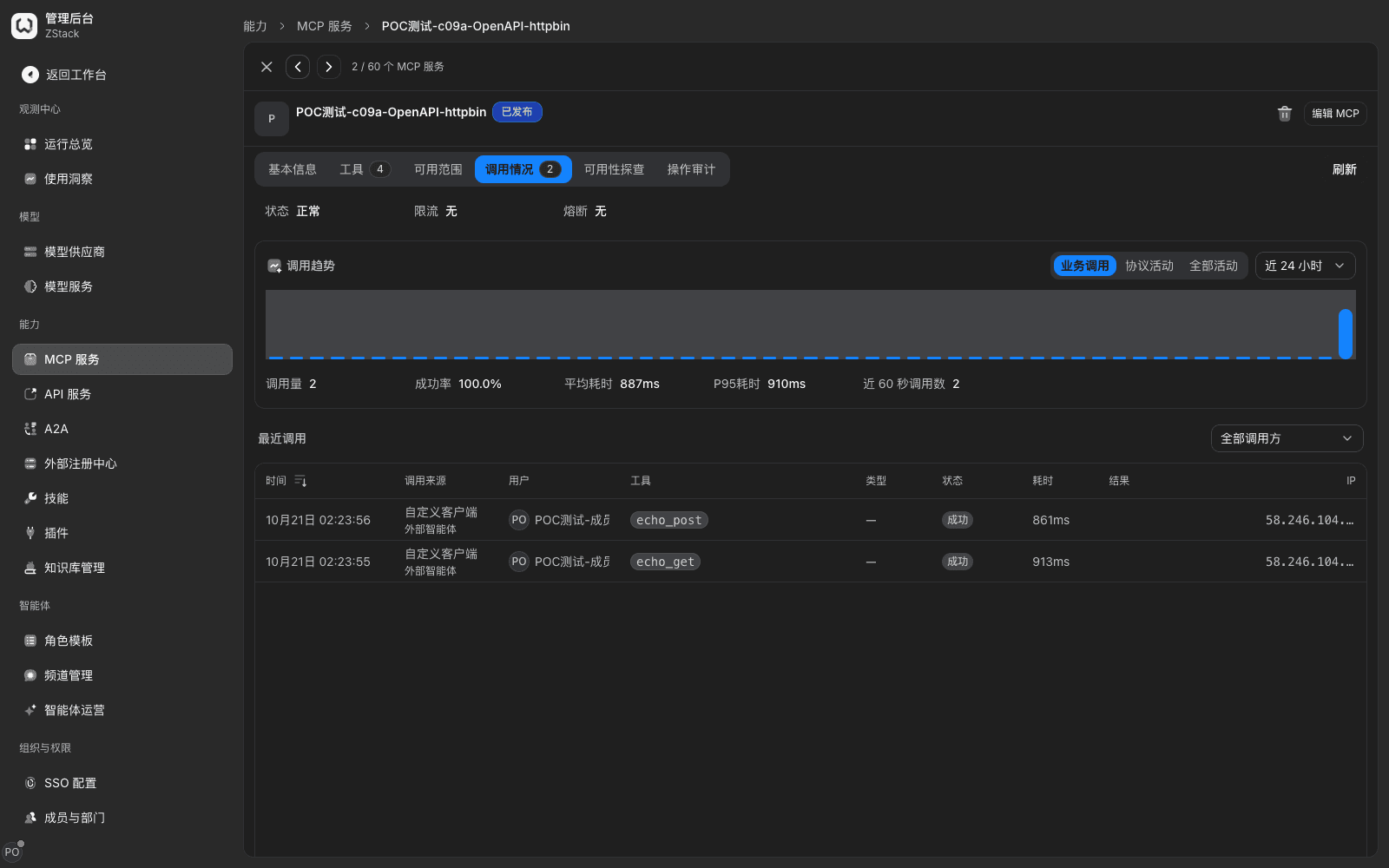
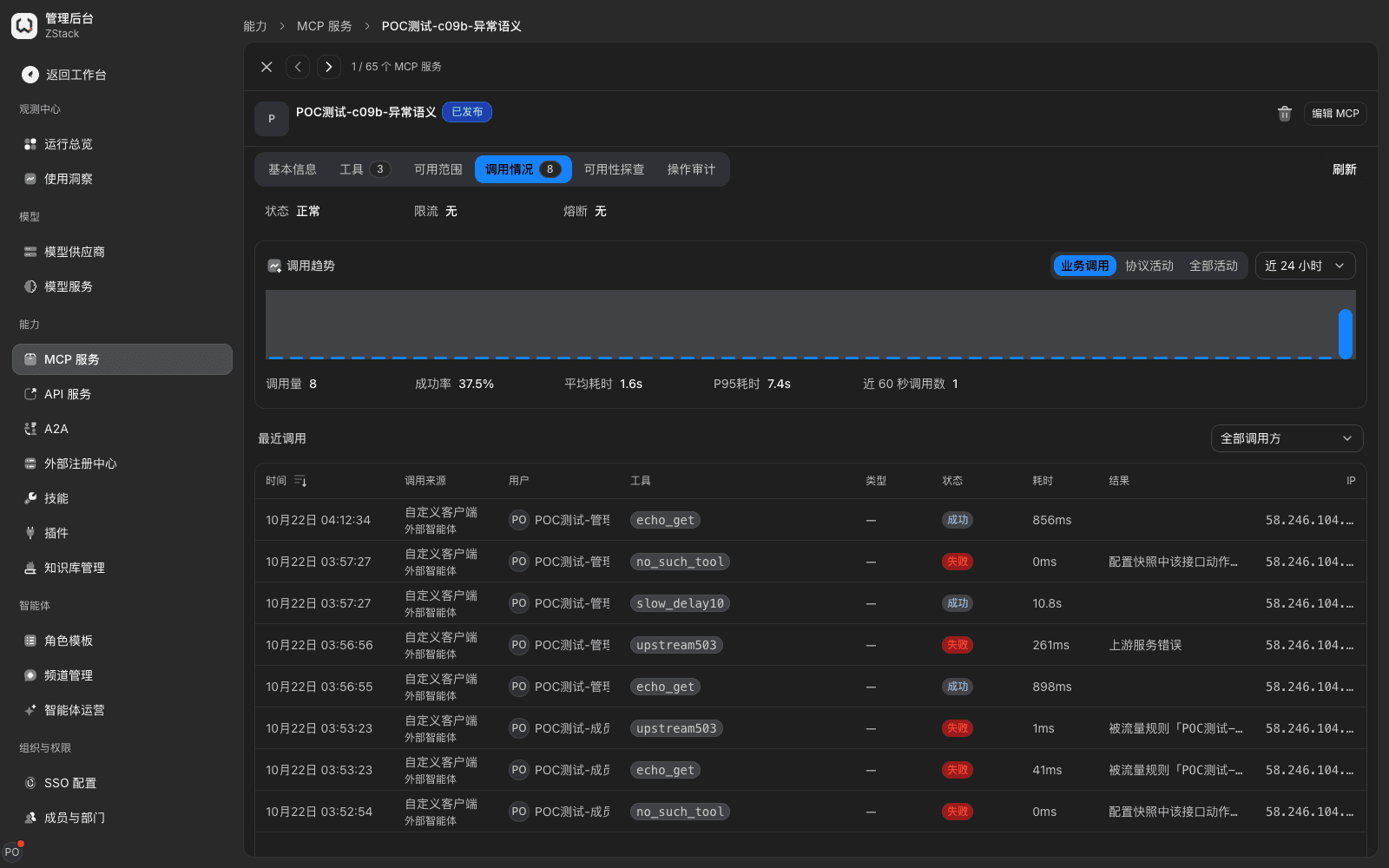
- Open the Call activity tab of a published service, view Call volume, Success rate, Average latency, P95 latency, Calls in the last 60 seconds, and in Recent calls check time, source, user, tool, status, and latency.
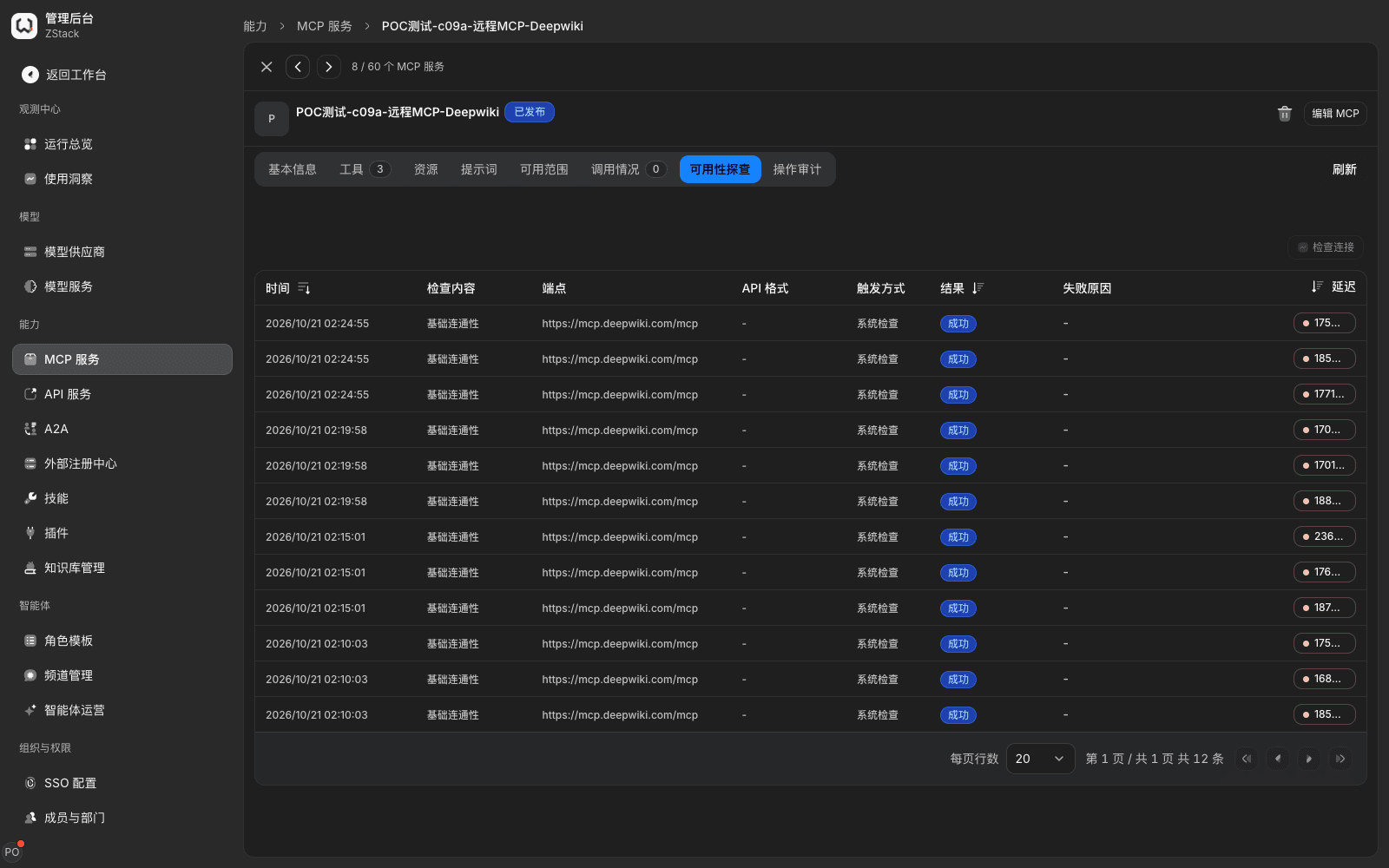
- Open the Availability probes tab and choose Check connection to probe.
What you will see
- Recent calls are listed newest first. Source distinguishes Custom client, External agent, and similar; user is the real caller. Calls in the last 60 seconds is 0 when idle.
- After a remote MCP service is probed it shows MCP service connection available, and keeps records and latency of Basic connectivity and System check / Manual check.
- After a document-imported HTTP-conversion service is probed it shows This service has no remote endpoint to probe: this kind of service is proxied directly by the gateway to the upstream API, with no remote MCP connection to probe. That is a normal conclusion.
Note
- Authentication failures such as a missing or invalid token show as
401on the client and do not enter call records. Diagnose from the client error code (see Section 11.8). - Viewing full payloads requires message archiving to be turned on at deploy time. Every view is written to the audit record.
11.6 Issue an MCP token and export connection configuration
When to use: a member connects the service into their MCP client; an administrator views and reclaims tokens in one place.
Procedure (member)
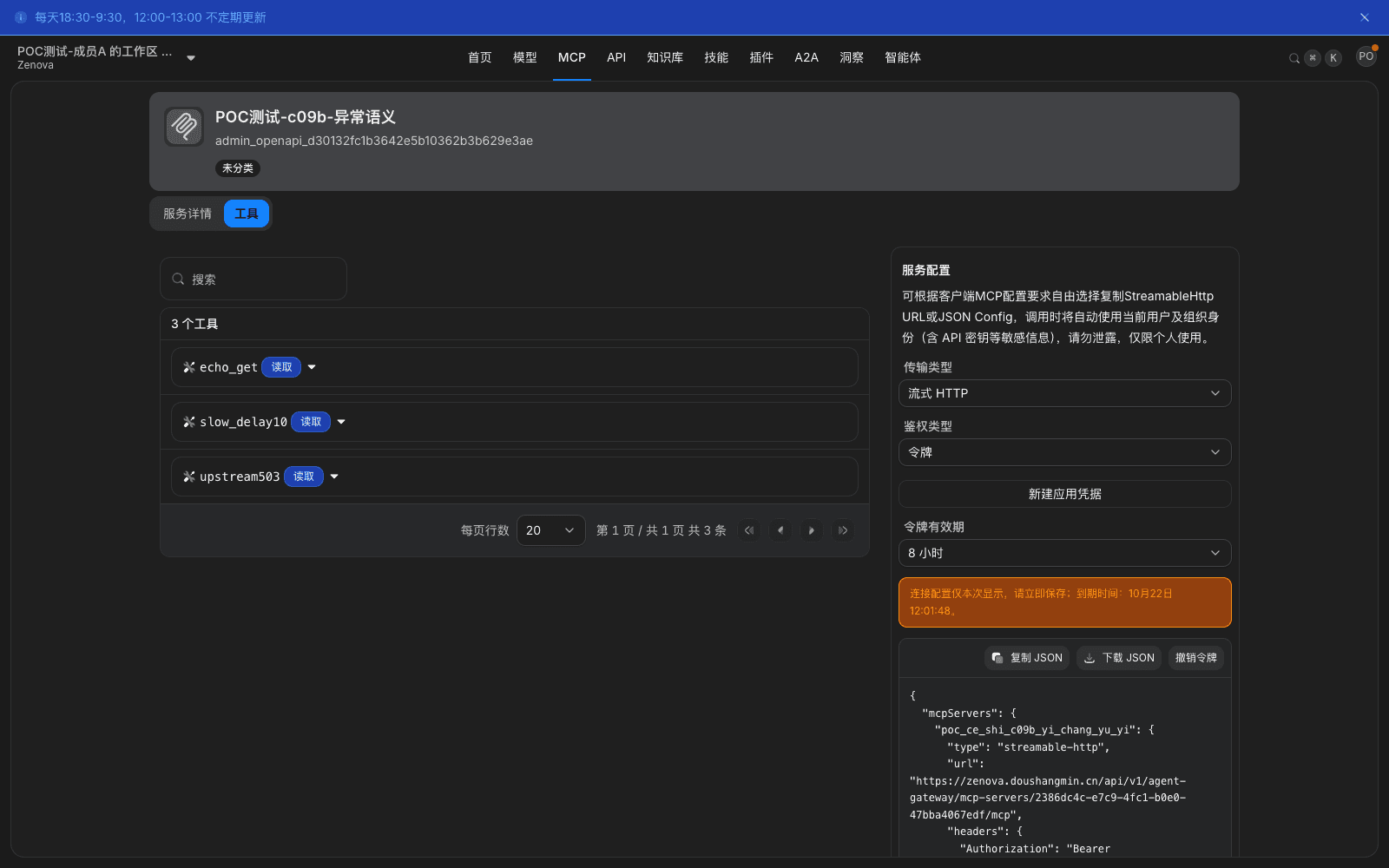
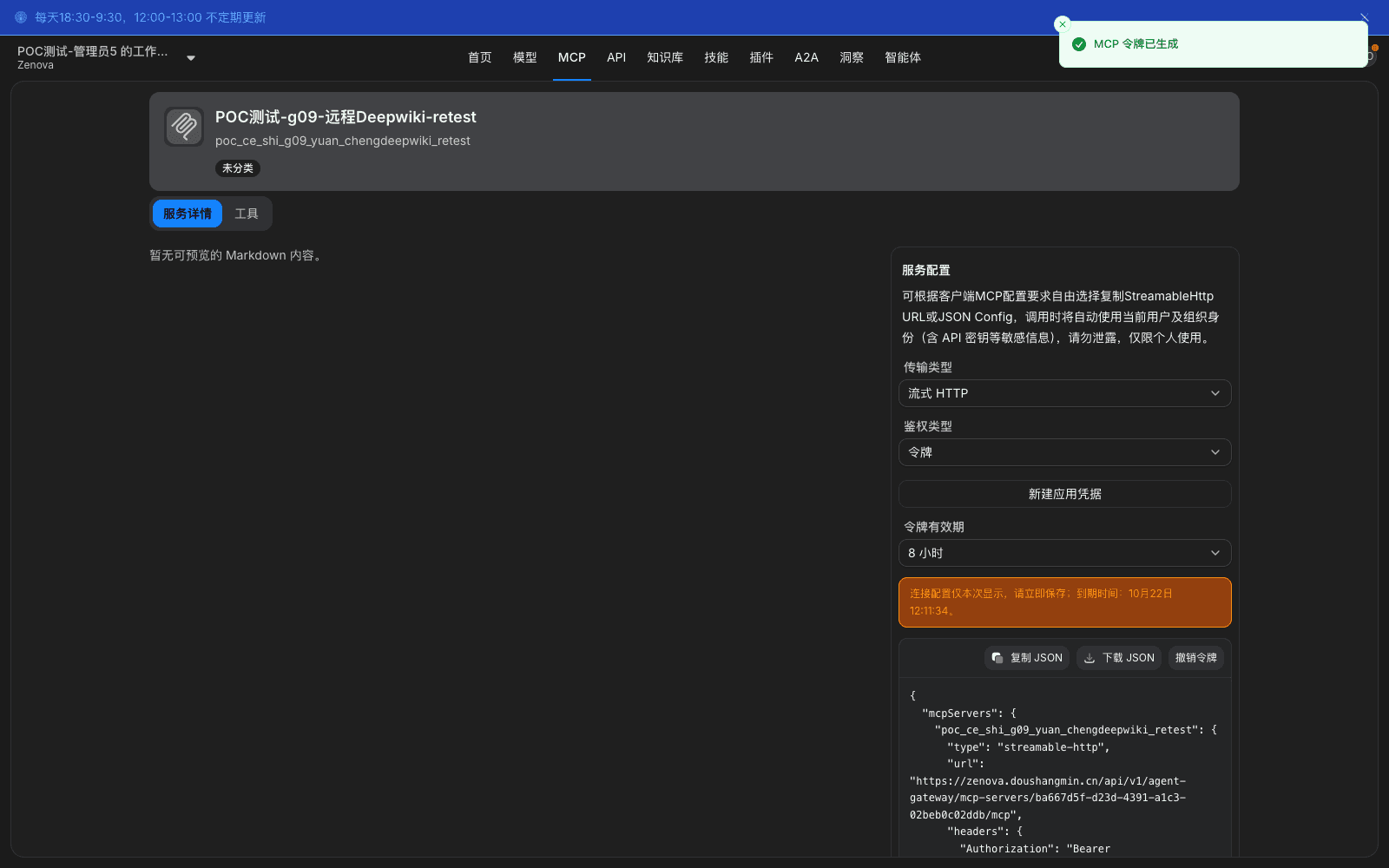
In workspace › MCP, open a service distributed to you, choose a token validity (for example 8 hours), then choose Get connection config. The page says the configuration is shown only this time. Choose Copy JSON or Download JSON.
Exported configuration looks like this (the token starts with zg_mcp_; the sample is omitted):
{
  "mcpServers": {
    "service_name": {
      "type": "streamable-http",
      "url": "https://<网关地址>/api/v1/agent-gateway/mcp-servers/<服务 ID>/mcp",
      "headers": {
        "Authorization": "Bearer <MCP_TOKEN>",
        "x-zenova-auth-mode": "token"
      }
    }
  }
}
What you will see
- The panel shows expiry and provides Copy JSON, Download JSON, Revoke token. The configuration URL is the gateway unified entry; it does not contain the upstream URL, upstream credentials, or internal addresses.
- Admin Console › Audit & compliance › Operation Audit gets an MCP connection token · Issue record, with operator and time. Copy and download are not traced separately.
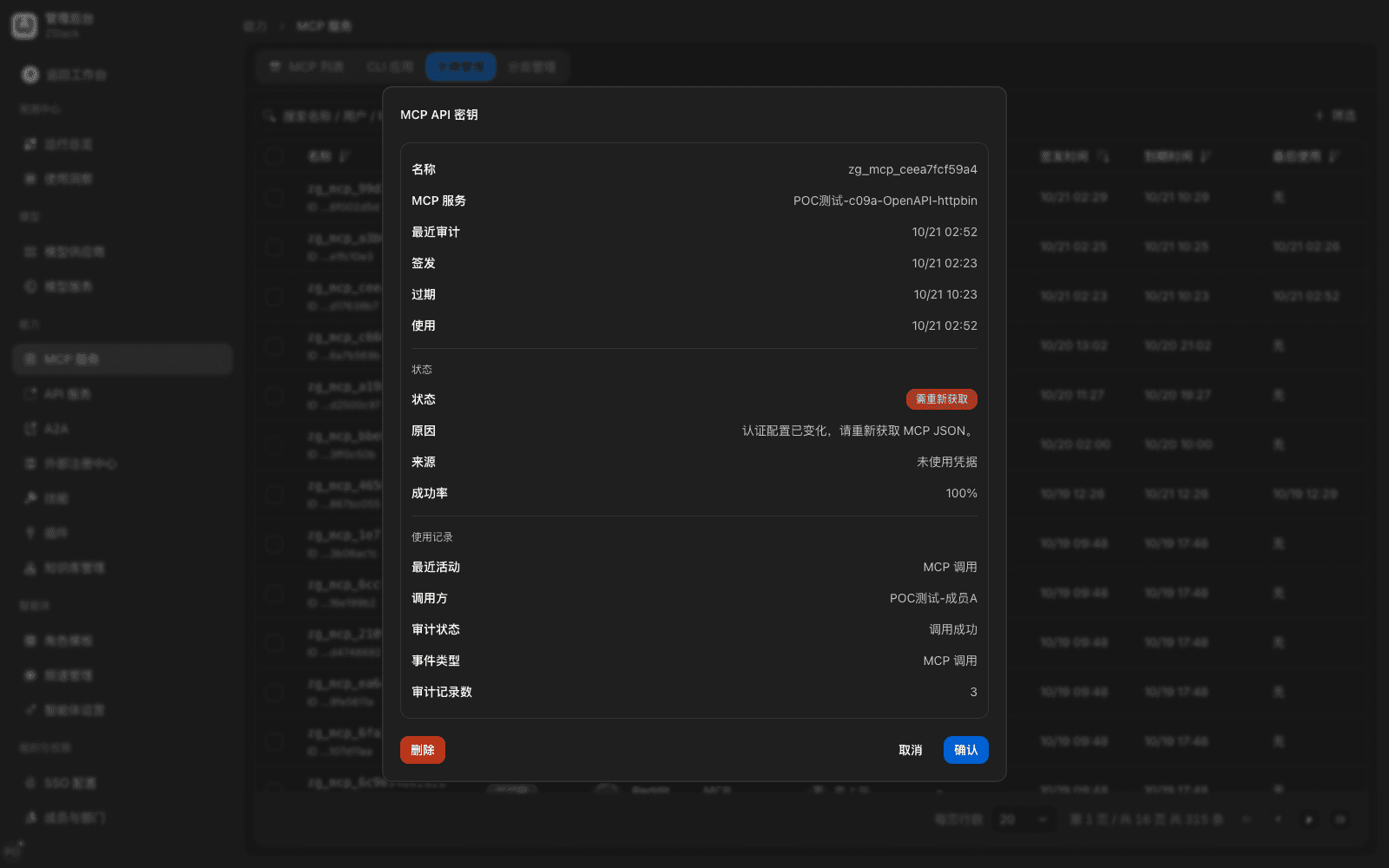
Procedure (administrator): open MCP Services › Token management, search by name, user, or service, open a token to check issue and expiry, recent activity, source, audit status, and event type. Delete the token when you need to reclaim it.
What you will see
- The list shows token status, owning service, user, and issue and expiry times. Source, recent activity, audit status, and event type in the detail are readable English, for example Credential unused, MCP call.
Note
- A token represents the issuer themselves and is for personal use only. Plaintext is shown only once at issue; if you did not save it, issue again. After you delete the service or remove a member from scope, related tokens immediately cannot call.
11.7 Connect in an external client and aggregate several services
When to use: write the exported connection configuration into a common client, and use several MCP services in one client at the same time.
Procedure
- Write the configuration as the client requires. Clients that support
mcpServers(Claude Code, Codex, and similar) merge the exported entries into their MCP configuration; do not overwrite existing entries. - To use several services at once, get each service's connection configuration separately, and merge each
mcpServersentry into the same configuration file:
{
  "mcpServers": {
    "service_a": { "type": "streamable-http", "url": "https://<网关地址>/api/v1/agent-gateway/mcp-servers/<服务 A ID>/mcp", "headers": { "Authorization": "Bearer <令牌 A>" } },
    "service_b": { "type": "streamable-http", "url": "https://<网关地址>/api/v1/agent-gateway/mcp-servers/<服务 B ID>/mcp", "headers": { "Authorization": "Bearer <令牌 B>" } }
  }
}- In the client confirm it is connected and lists tools, then call one read-only tool from each.
What you will see
- One task can call tools of different services in sequence, with results returned separately. Matching calls appear in each service's Call activity and are attributed to the real caller. A denied call on one service does not affect the other.
Note: service key names are generated from service names and do not collide; merge does not need to change URLs or tokens. Merge is done only on the client side. Tokens have independent validity; one expired only affects that service's calls.
11.8 Gateway endpoint behavior and error semantics
When to use: confirm behavior when connecting a client, and diagnose failures.
Protocol and session
- The gateway entry supports five MCP protocol versions:
2024-11-05,2025-03-26,2025-06-18,2025-11-25echo the version the client requested at handshake;2026-07-28does not need a handshake — the client declares the version in theMCP-Protocol-Versionrequest header. You do not specify a version on the gateway side when you connect. - The main entry
…/mcp-servers/<服务 ID>/mcpuses Streamable HTTP. Calling a tool without a handshake first still returns normally and does not depend on a session ID. When the handshake response carriesMcp-Session-Id, the client echoes it on later requests as usual. The session with upstream is kept inside the gateway.GETwithout a session returns405;DELETEwithout a session returns400. Some clients fail a session-delete request on exit; that does not affect call results. - Clients that only support the older HTTP and SSE transport use the two URLs under the same service,
…/sse(establish the event stream) and…/messages(deliver requests). Token and available-scope rules are the same.
Errors the client receives
| Situation | What the client receives |
|---|---|
| No token | HTTP 401, error_reason: token_missing |
| Token invalid, forged, revoked, or removed from available scope | HTTP 401, error_reason: token_invalid |
| Call a tool that does not exist | HTTP 200 + isError: true, SNAPSHOT_HTTP_ACTION_NOT_ACTIVE |
| Upstream returns 5xx | HTTP 200 + isError: true, INTEGRATION_UPSTREAM_SERVER_ERROR, marked retryable |
| Denied by a traffic rule | HTTP 200 + isError: true, execution denied: <原因码> |
| Unsupported method | JSON-RPC -32601 method not found |
| Illegal JSON | JSON-RPC -32700 |
Error responses do not contain internal stacks, internal addresses, or upstream keys. Upstream error bodies are wrapped as untrusted content so you can reconcile with records.
Note
- Tool-class errors return HTTP
200plusisError: true. That is an MCP-protocol requirement; the client should treat it as a tool failure, not a network error. - Forged, revoked, and removed-from-scope tokens all look like
token_invalidto the client. Diagnose by whether this service issued it, whether it is still in scope, whether it has been deleted. - A long-running tool returns a timeout error only after it exceeds the gateway timeout cap. Confirm that cap before you connect.
11.9 The platform as an MCP authorization server
When to use: an MCP client that supports OAuth does not need to copy a token by hand. On first connect it jumps to the gateway to sign in and authorize, and the gateway issues a token.
Prerequisites: the tenant allows the OAuth access method in security policy; the member is in the service's available scope.
How it works
- The client visits the MCP URL without a token. The gateway returns
401, with a protected-resource metadata URL inWWW-Authenticate. The client discovers the authorization server from that. - The client reads protected-resource metadata (
authorization_serverspoints to the gateway,scopes_supportedincludesmcp), then reads authorization-server metadata and gets the authorize, token, and register endpoints. The gateway declaresrefresh_tokensupport; the token endpoint does not require a client secret. - The client obtains a client ID through dynamic client registration (
POST /api/v1/mcp/oauth/register), starts authorization with authorization code + PKCE S256. After the member signs in and confirms, the client exchanges a token starting withzg_mcp_, then calls as usual.
What you will see
- Successful registration returns
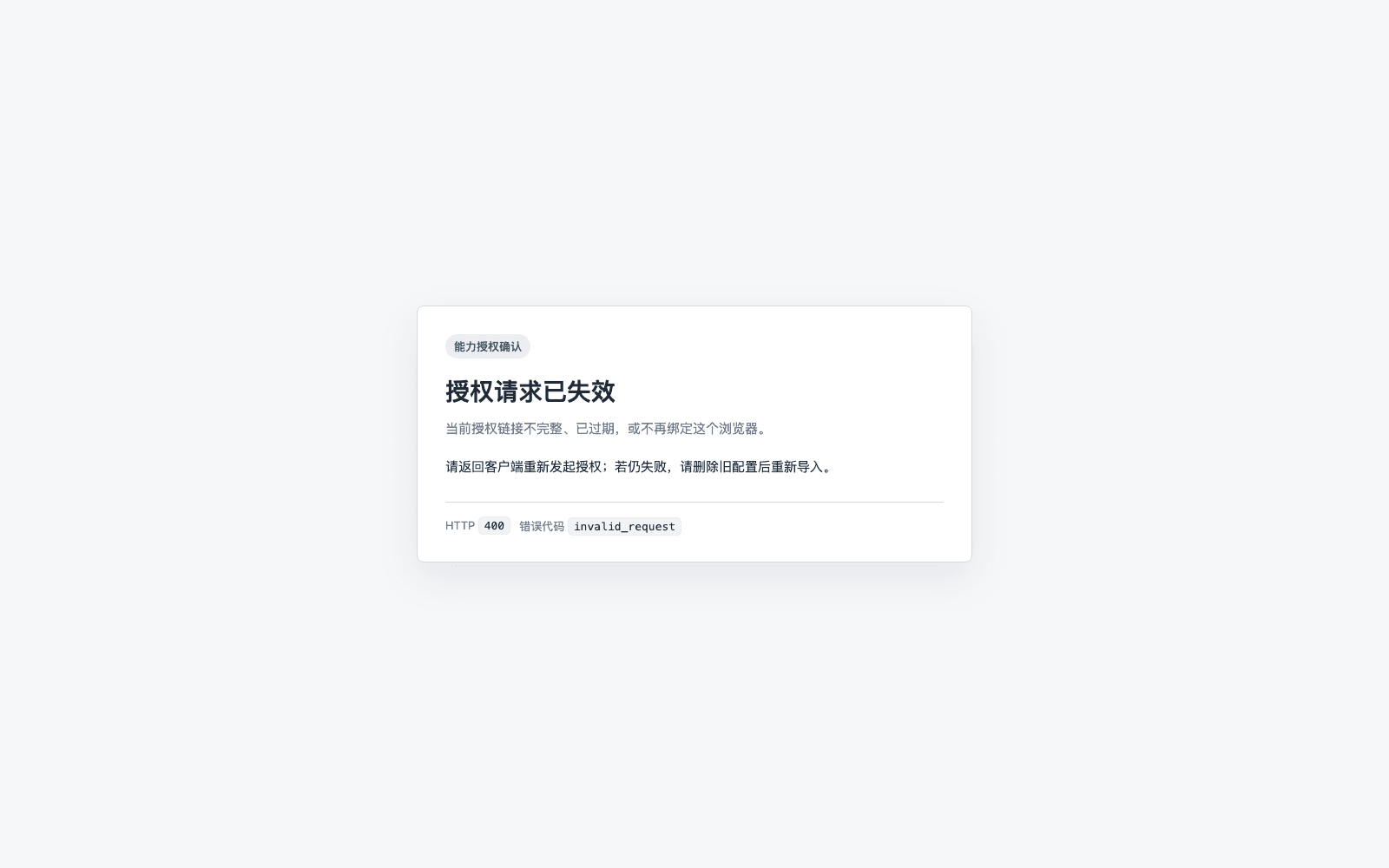
201, echoing client name, callback URL, authorization scopes, and PKCE capability. - When the authorization link is incomplete, expired, or no longer bound to the current browser, the page shows The authorization request has expired, and says to return to the client and start again (HTTP
400,invalid_request).
Note
- OAuth tokens and hand-issued tokens are bound by the same available-scope, validity, and revoke rules.
- When the tenant uses enterprise SSO, register and allow the gateway's authorization callback on the identity-source side. If it is not registered, the client stops on the enterprise sign-in page and never gets an authorization code; then connect with connection configuration first.
11.10 Control MCP calls by tool and method with traffic rules
When to use: available scope decides who can use this service; traffic rules further decide which tool and which class of method they can call.
Prerequisites: the caller is already in the service's available scope; the Dynamic routing licensed module is required.
Procedure
- In Admin Console › Traffic › Traffic rules choose New rule.
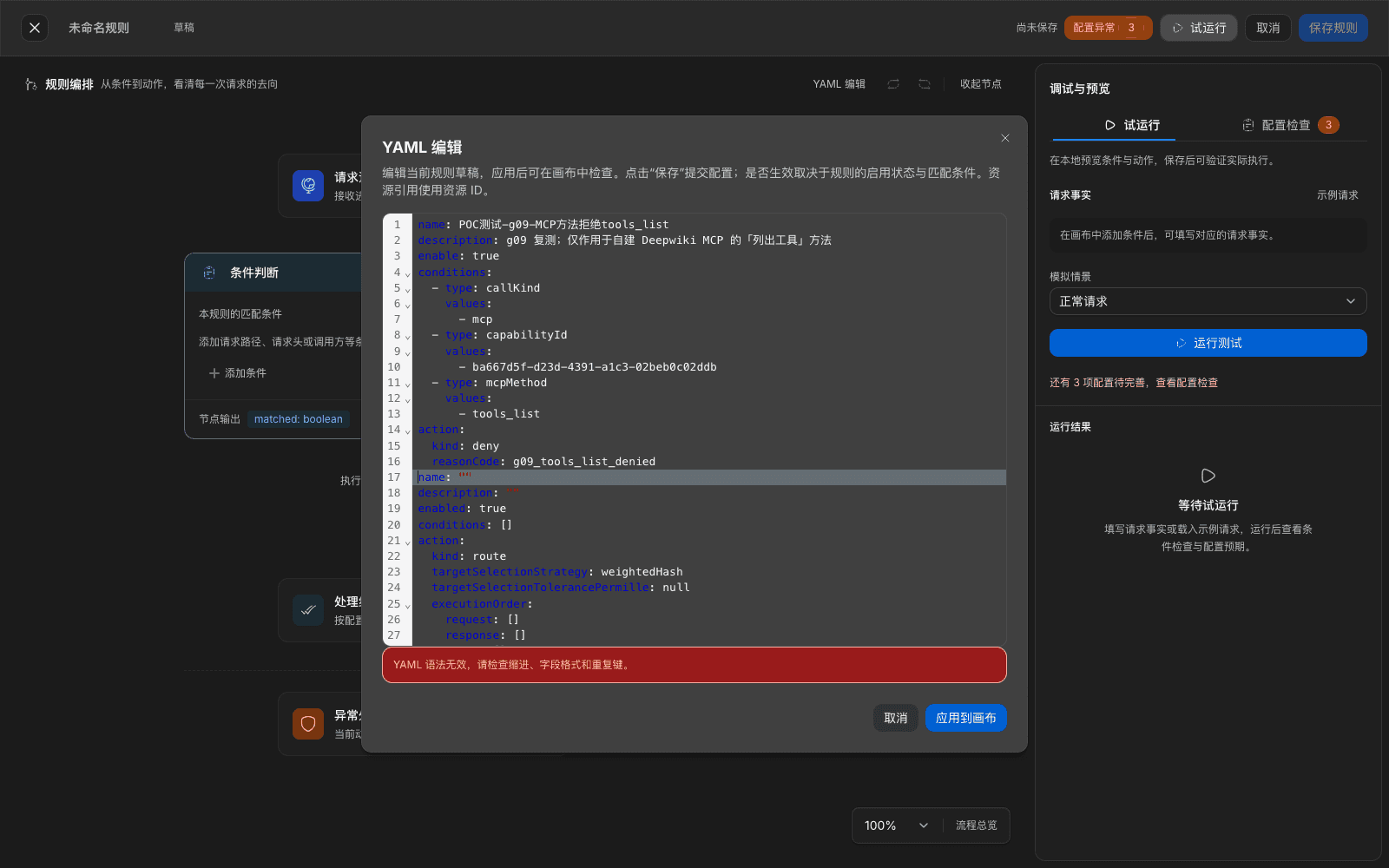
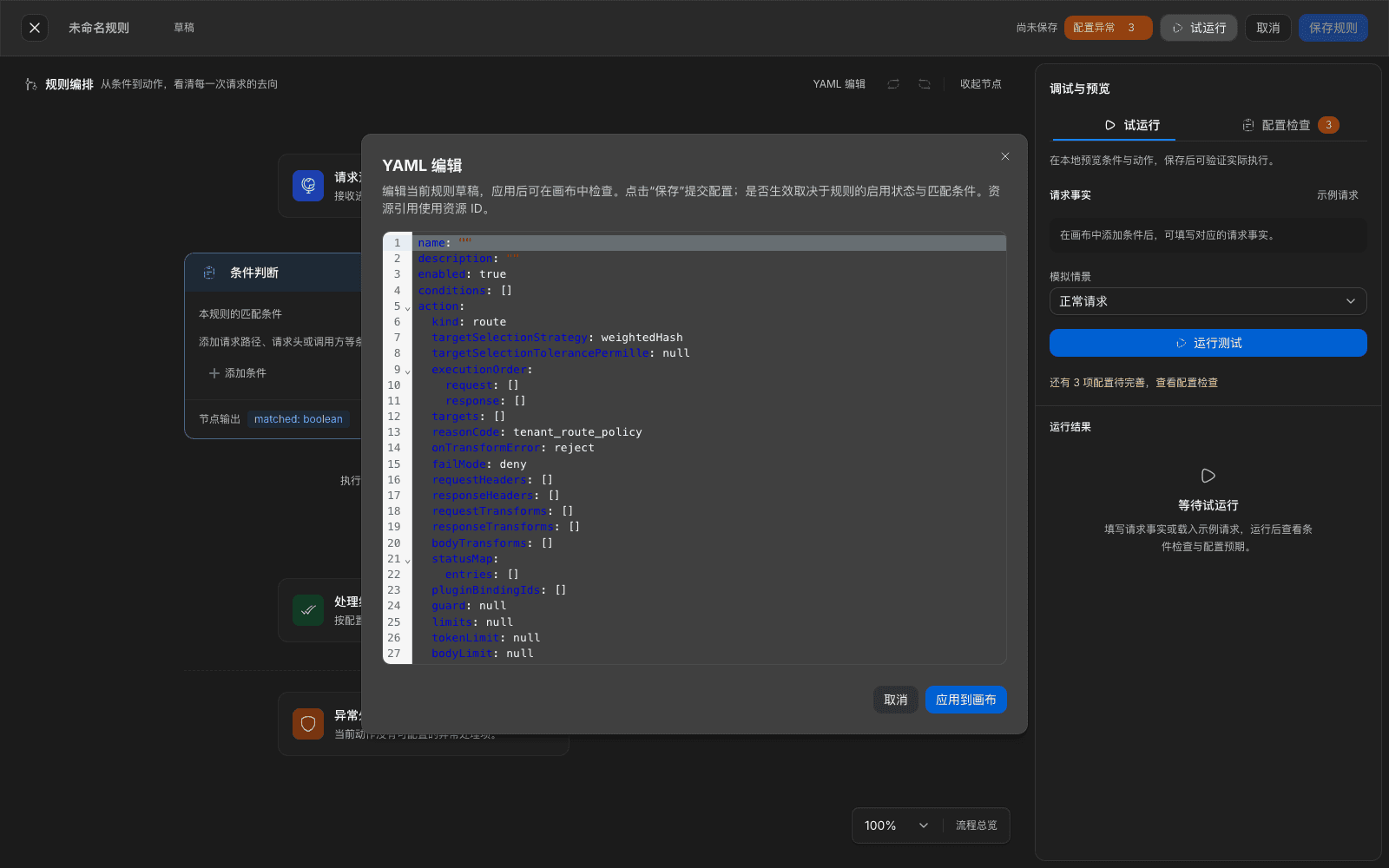
- Add conditions (AND between conditions): Call type is MCP call, Specific capability is the target service. To limit by tool add Tool name; to limit by method add MCP method.
- Choose Add disposition action › Deny this call, fill in a reason code, then choose Save rule. In the confirm dialog check match conditions, actions, and hit order, then choose Confirm and apply.
What you will see
- A denied
tools/listreturns JSON-RPC errorexecution denied: tenant_route_policy, HTTP still200.tools/callon the same entry is not affected — a rule that only stops List tools does not stop Call tool. - MCP method options are Call tool, List tools, Resources, Prompts. When the upstream provides no resources or prompts, the gateway passes through an empty set.
Note
- Resources and Prompts match a method family as a whole; they cannot be narrowed to a single resource or prompt. For finer tool-level authorization, split tools into different services and distribute separately.
- Rules are evaluated in order. When a Stop matching rule sits in front, a later narrower rule may never hit. Check order in the confirm dialog before save. When you use a Caller condition you must also narrow Call type to one kind.
11.11 Configure an API service (HTTP pass-through)
When to use: a business system accesses by the upstream original API and does not convert it into MCP tools. The gateway owns authentication, distribution, credential injection, and records. Request and response are forwarded as-is.
Procedure (administrator)
- Open Admin Console › Capabilities › API services, choose New service, fill in Name, Upstream endpoint URL, add instance headers and a category as needed, then choose Save.
- To inject a credential upstream, configure it in the Authentication row of Basic information. Then turn on Publish, and distribute on the Available scope tab (same method as Section 11.3).
Procedure (member)
- Open the service in workspace › API and read the How to call notes.
- Choose a token validity, choose Generate token, copy Proxy URL and the token, then append the upstream path after the proxy URL and send:
curl "<代理地址>/get?q=hello" \
  -H "Authorization: Bearer <API_SERVICE_TOKEN>"
What you will see
- Return through the gateway matches calling upstream directly. Query parameters and request body reach upstream as-is. Request headers the upstream sees are only standard items, without headers the gateway uses internally, and the caller's
Authorizationis not forwarded. - On delete, the confirm box states This removes this API service from the catalog and revokes its credentials. After delete it says API service deleted.
Note
- The upstream URL is concatenated as path of the upstream endpoint URL + call path. Delete cannot be undone. To pause temporarily, use Unpublish: the service can no longer be called, and issued tokens become invalid with it.
- An API service is an independent call type in traffic rules. You can configure deny and limits by Specific capability and Request header.
11.12 Manage categories and browse the catalog in the workspace
When to use: organize the workspace catalog with categories so members can find capabilities already distributed to them.
Procedure (administrator): open MCP Services › Category management, create a category and name it, on the right choose Add app, search and add services; remove from the category when you do not need them. App count updates with add and remove. Category filters on the left of member workspace › MCP update at the same time.
Procedure (member): in the workspace top navigation MCP, API, and similar tabs, type keywords in the in-page search box or filter by category on the left, then choose View details on a card.
What you will see: distributed services can get configuration; undistributed ones are labeled Needs administrator distribution. The detail Tools tab is read-only, listing tool name, side-effect badge, and inputs.
Note
- Categories only affect display and filtering, not available scope. Changing a category does not revoke distribution. One Add app is one affiliation change; the count is then correct, so you do not need to click twice.
- The catalog only shows published capabilities. Keep a service you need fully hidden as Unpublished. For a cross-type search use global search in the upper right; if it misses, use in-tab search and category filters.
Capability notes
| Not provided | Use instead |
|---|---|
| A built-in MCP debug client in the Admin Console | Call in an external client with connection configuration, then check the result in Call activity (Section 11.7) |
| Edit tool descriptions, or set three-level permissions per tool (forbid / allow with audit / unrestricted) | Configure a deny rule in traffic rules by Tool name, only allowing listed tools (Section 11.10) |
| Re-review after upstream tool semantics change | Use a traffic rule that only allows known tools |
| A denylist and exception allowlist inside available scope | Write a deny rule with a traffic-rule Caller condition |
| Server-side aggregation of several MCP services into one entry | Merge each service's mcpServers configuration on the client (Section 11.7) |
| Per-day or per-month call-count quotas and remaining usage; per-tool rate limit and circuit break | Quotas use Apply limits to rate-limit by minute. Circuit break applies to the service as a whole; isolate a tool as its own service |
| Pre-registered client ID and secret for upstream OAuth; view authorized apps by OAuth client | The gateway uses a client-metadata-document method; the upstream must support that or dynamic client registration (Section 11.9). Authorization records are traced per token in Token management and Operation Audit |
| Dedicated connectors for collaboration systems such as GitLab, Jira, Confluence | Connect generally through remote MCP, OpenAPI, or an API service |
| One-click deploy of a database as an MCP service | Connect the database's query API through OpenAPI or Add manually (Section 11.1) |
Previous: 10. Calling the APIs · Next: 12. External agents, skills, plugins, and external registries
10. Calling the APIs
Full-length chapter. Content is checked against the 2026.10 mainline code and the live console; menus and features depend on the current license, account permissions, and delivered environment.
12. External agents, skills, plugins, and external registries
Full-length chapter. Content is checked against the 2026.10 mainline code and the live console; menus and features depend on the current license, account permissions, and delivered environment.