9. Callers and API keys
Full-length chapter. Content is checked against the 2026.10 mainline code and the live console; menus and features depend on the current license, account permissions, and delivered environment.
Back to overview · Full table of contents · Download full PDF
This chapter is for tenant administrators and developers and operators who connect business systems. It explains the three judgments a model call goes through, which credentials call the gateway, the full lifecycle of an API key from issue through rotate, disable, and delete, what the client a key is attached to is, how caller identity appears in records, and how personal affiliation differs from public affiliation.
How members create keys and copy access configuration on their own workspace is in Chapter 8. Paths, request-header spelling, and the unified error format of each protocol are in Chapter 10. Availability scope and quota configuration of a grant are in Chapter 7.
9.1 Three judgments a call goes through
After the gateway receives a request it judges three things in order. Any step that does not pass is denied, with the matching error reason in the response:
- Authentication: whether the caller carries a valid credential, from which the gateway decides who is calling. An invalid credential returns 401.
- Authorization: whether the caller can use the requested model — decided by the availability scope of model groups that contain that model, and also limited by the group the key is bound to. Failure returns 403.
- Quota and traffic: whether the model name belongs to the service this key is bound to (not belonging returns 404), whether quota pools still have remaining, and whether a traffic rule hits (rate limit and over-limit return 429, 400, 413).
Only after all three pass is the request forwarded to the upstream provider. Every request whose caller has been identified, whether admitted or denied, is written to Operations overview › Requests and can be filtered by Access credential or initiator. Requests whose credential itself is invalid and cannot be attributed to any caller do not enter request records.
9.2 Credentials and caller identity
9.2.1 Credentials the gateway accepts
The model gateway only accepts model API keys. A key is a string starting with lp_, created by a member in the workspace, bound to one model group and one billing affiliation. Holder, callable models, billing destination, and current status can all be found on the key detail.
A workspace sign-in session cannot be used to call model APIs. Personal settings › Access keys (AccessKeyId / SecretAccessKey) are used to sign calls to platform management APIs, and also cannot call the model gateway. These two kinds of credential are not interchangeable with a model API key. When diagnosing, first tell which kind the request used.
9.2.2 Where caller identity comes from
Caller identity comes only from the platform's authentication result: the gateway looks up the key's owner from the key in the request header and records that owner as the initiator of the call. A user identity declared in the request body or in a custom header does not take part in identity judgment.
So the four items you see in a call record — Caller type, Initiator, Initiator email, Access credential — reflect the key holder, not whoever the request claims to be. Usage accounting by person and problem diagnosis by person both use these four.
Note: custom request headers the client sends that are not platform-agreed are forwarded as-is to the upstream model provider. Do not put internal user IDs, phone numbers, session tokens, or similar in custom request headers.
9.3 Personal affiliation and public affiliation
A key's billing affiliation decides whose head usage is counted against and which quota pool it occupies, and also who can create that kind of key. Common affiliations are two kinds:
| Affiliation | Who can create | Billing and quota | When to use |
|---|---|---|---|
| Personal · a model group | A member who has been distributed that model group | Counted under that member, occupying that member's quota pool; usage in personal usage is counted as Personal | Personal debugging, personal business scripts, automation that one person owns |
| Public · a model group / Public (all departments) | Members for whom the model group's provider did not require distribution, or members authorized to use public affiliation | Counted in the public quota pool, usage counted as Public; all callers using this affiliation share one quota | A team-shared service account, an access channel shared by several systems |
| Department, Functional group | Members who belong to that department or functional group and have been authorized | Counted in that org subject's quota pool | Cost accounting by team, limits by team |
What you will see: the same member can create both a personal-affiliation key and a public-affiliation key for the same model. In the Billing affiliation share of Model usage, personal, public, and department spend are counted separately.
Note
- Affiliation is decided at create and cannot be changed later. To change affiliation, create a new key, switch the business, then revoke the old one.
- When public affiliation is shared by several businesses, a burst from one business consumes quota that other businesses need. Unrelated businesses should each use their own keys. If needed, ask an administrator to set a quota pool on a single key.
- A personal-affiliation key cannot be transferred to another member. On transfer or departure, the successor creates a new one in their own identity.
9.4 View and manage issued keys
When to use: a business system errors and you need to confirm key status; at handover you inventory which keys are running and which service each hangs on; you suspect a key leaked and need to check its recent calls.
Prerequisites: sign in to the Admin Console as tenant administrator. The create-key entry is only on the member workspace; the Admin Console does not provide create.
Procedure
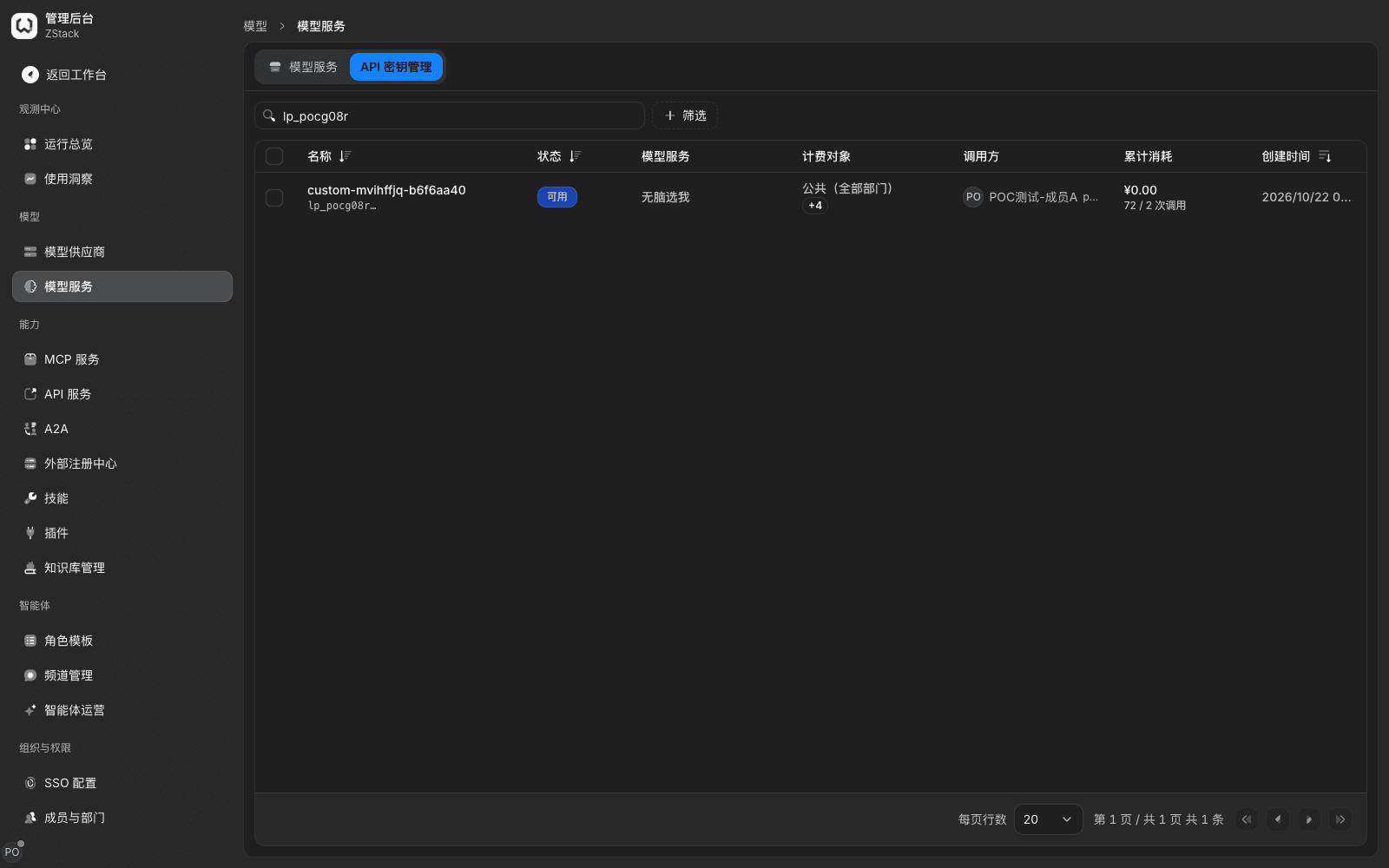
- Open Admin Console › Organization & Access › Model Groups › API key management.
- Type a name or prefix in the search box, or use Filter by status, model group, caller.
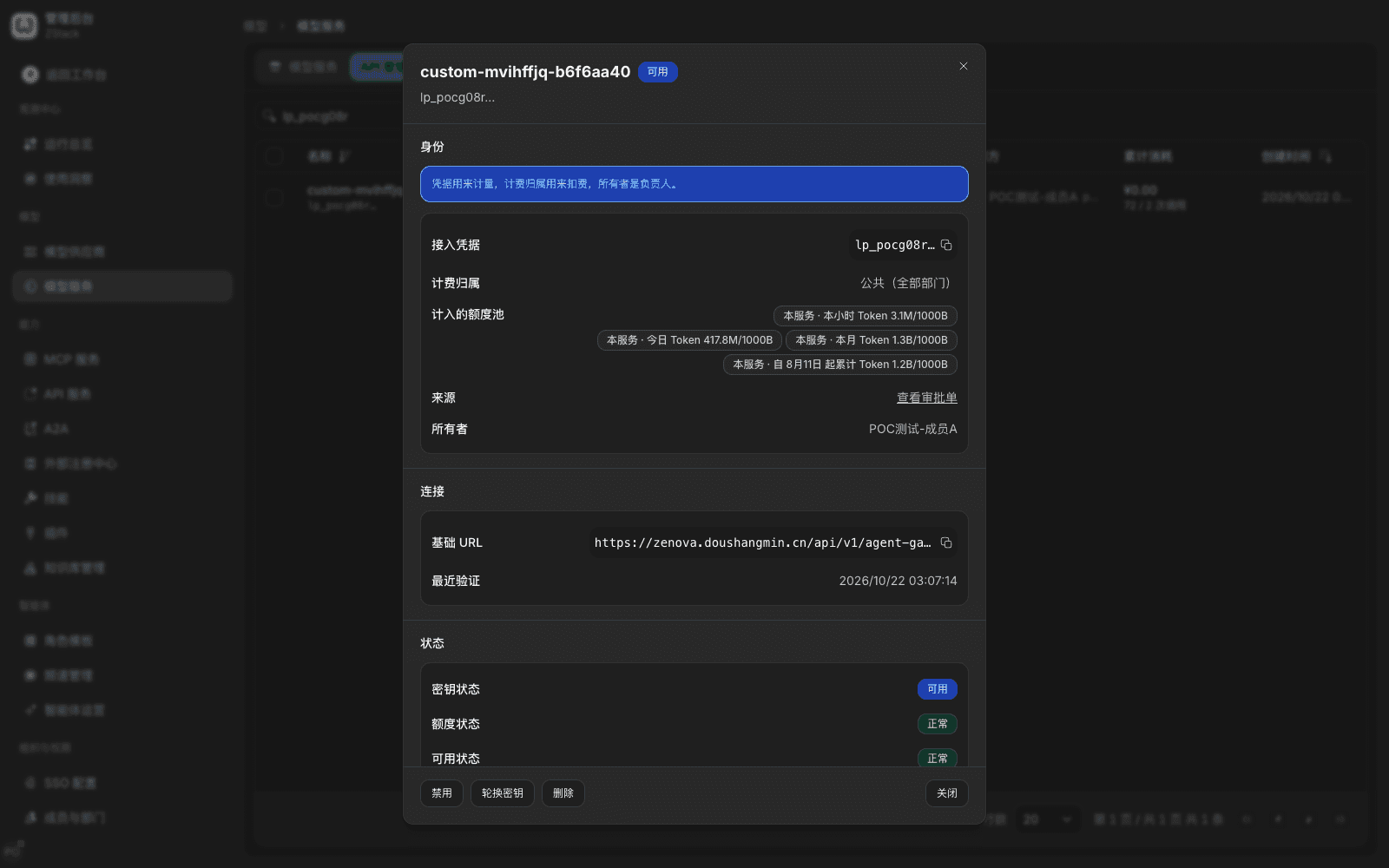
- Click a key to open the detail drawer.
What you will see
The list shows Name (including key prefix), Status, Model group, Billing subject (including whether a quota pool is configured), Caller, Cumulative usage (cost, tokens, and call count), and Created.
Detail sections:
| Area | Fields | Meaning |
|---|---|---|
| Identity | Access credential / Billing affiliation / Quota pools counted | Key prefix (copyable; filter request records by this); the subject usage is counted in, with usage and cap for this hour, today, this month, cumulative |
| Identity | Source / Owner | The approval ticket that issued this key (click to jump); the person responsible for the key |
| Connection | Base URL / Last validated | Call URL, copyable; time of the latest successful authentication |
| Status | Key status / Quota status / Availability | Whether the key itself is usable, whether quota is exhausted, and the combined judgment of whether it can call through now |
| Quota | This key's quota pool | Edit quota to set a cap on this key alone |
| Other | Use records / Tags / Call notes | Calls this key produced, tags used to classify, and usage of the x-zenova-end-user and x-zenova-tags headers |
Key status meanings
| Status | Meaning |
|---|---|
| Available | Can call |
| Disabled | Disabled by an administrator; calls are denied; cannot be turned back on |
| Expired | Past validity; calls are denied |
| Deleted | Deleted; cannot be restored |
Note
- When a business system errors, first look at Availability: quota status Exhausted means the quota pool has no remaining. If key status is normal but availability shows unavailable, usually the holder is no longer in the model group's availability scope, or the grant has expired.
- The UI does not provide an IP or CIDR allowlist. To limit source networks, an administrator implements it in a traffic rule with the Client IP CIDR condition.
9.5 Rotate a key and the grace period
When to use: you rotate keys on a schedule, or a business-system migration or handover needs a new key without interruption.
Prerequisites: signed in as tenant administrator. The grace period is set in System Settings › Global settings › Account & session security › Security policy, default 24 hours, adjustable.
Procedure
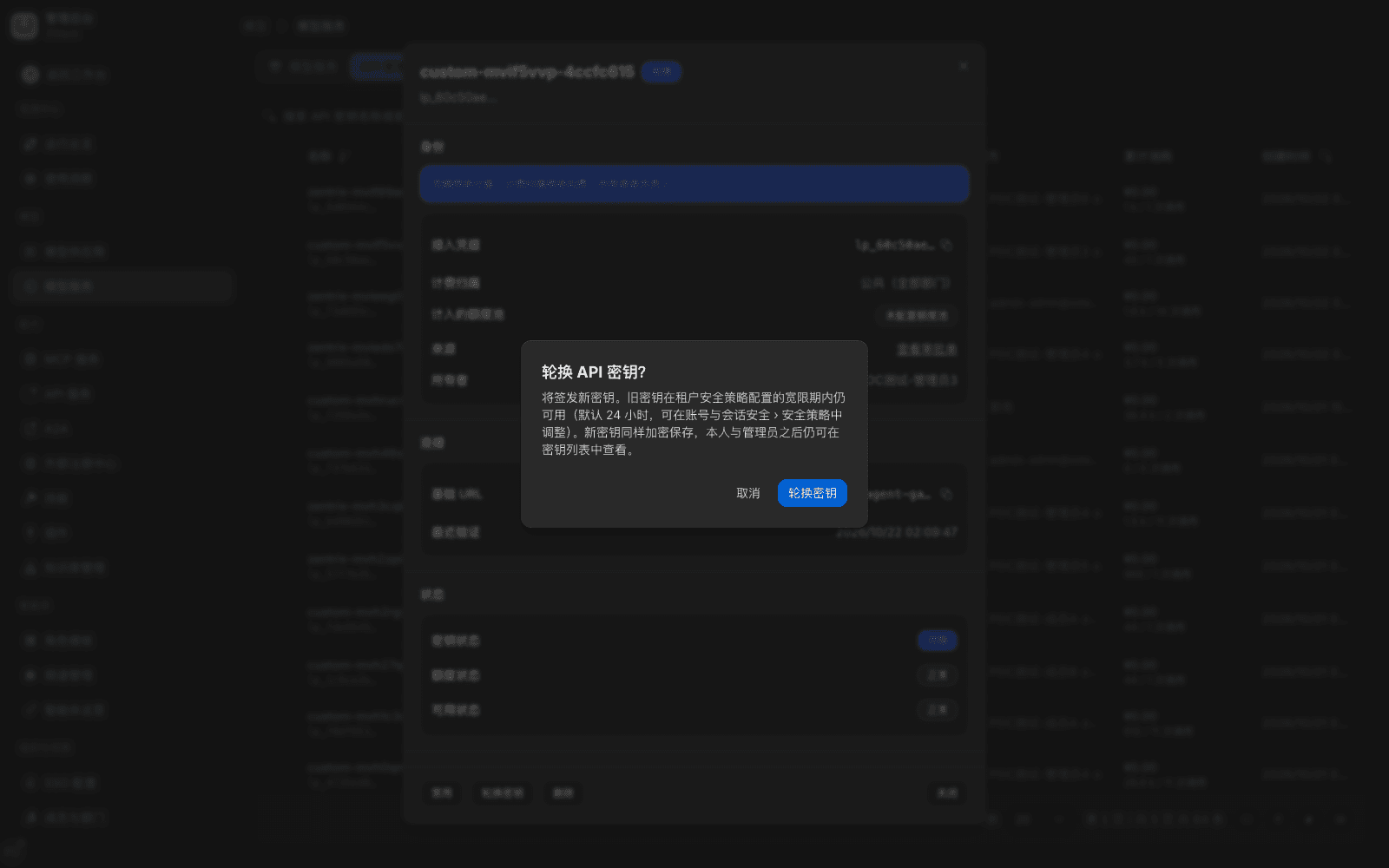
- In API key management open the target key detail and click Rotate key at the bottom.
- The confirm box states A new secret will be issued. The old secret remains valid for the tenant grace period (default 24 hours). The new secret is stored encrypted as well; its owner and administrators can view it later from the key list. Click Rotate key.
- The page pops New API key and states when the old key expires (for example The old key expires at 2026/10/23 02:16:24). Copy the new key.
- Within the grace period, switch the business system to the new key and verify that calls work.
What you will see
- In the list, the same record's prefix becomes the new prefix. Billing affiliation, quota pool, owner, and historical usage stay the same.
- During the grace period both old and new keys can call successfully. After the grace period the old key is invalid and calls return 401.
- In Operations overview › Requests, filter by the new prefix to see that business traffic has switched to the new key.
Note
- Do not use rotate when you suspect a leak: the old key is still valid in the grace period. Disable or delete instead (see 9.6).
- The switch window must be shorter than the grace period. When several places in a business system reference the same key, replace them one by one and check traffic by the new prefix; only after all have switched let the grace period end naturally.
- Members cannot rotate keys in the workspace. When a member replaces a key themselves, they first create a new key, finish the switch and verification, then Revoke the old key in Home › Models and credentials › API keys (see section 8.4).
9.6 Disable, delete, and bulk actions
When to use: a key leaked, a business is taken down, or after a handover you need to reclaim access.
Procedure (single key)
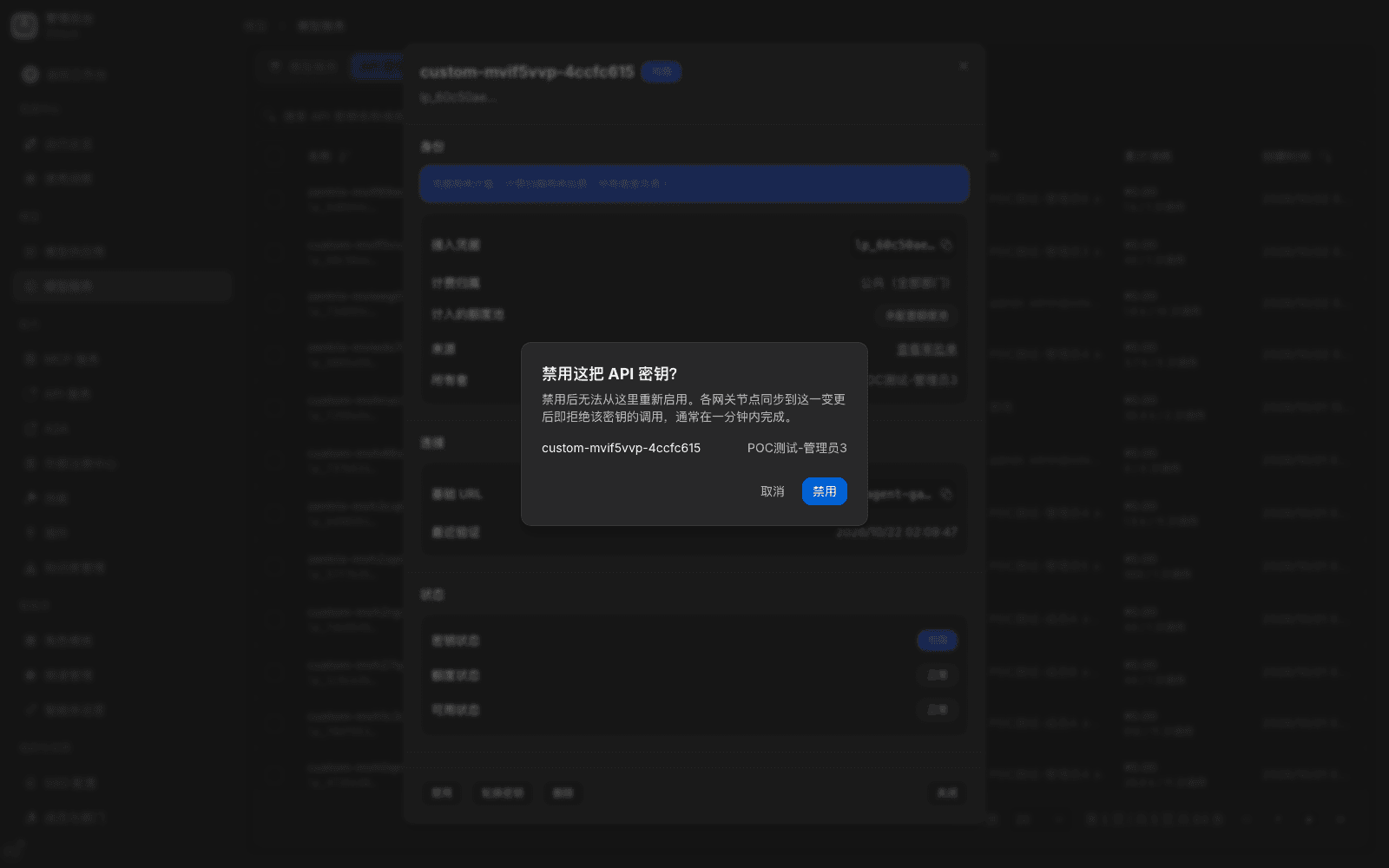
- In API key management open the key detail and click Disable or Delete.
- The confirm box states the impact:
- Disable: This cannot be turned back on from here. Each gateway node rejects calls with this key once it receives the change, usually within a minute. It also lists the key name and owner.
- Delete: This cannot be undone. Calls that use this key will fail immediately. It also lists affected keys.
- Confirm after checking. Status in the list changes at once.
Procedure (bulk)
- Tick several keys in the list. The toolbar shows Disable selected and Delete selected.
- After click, check affected keys and owning members in the confirm box.
- After confirm, ticked keys become Disabled or are removed from the list. Unticked keys are not affected.
What you will see
- Disable takes effect in about a minute. During that window, new calls with the same key are denied. Calls with other keys are not affected.
- After delete the key is immediately unusable. Calls that use it return 401 and say the credential is invalid or expired.
- Call records, usage, and audit records already produced are all kept. Deleting a key does not delete historical data.
Note
- Disable and delete both mean later calls are denied. The difference is whether you can restore: delete is irreversible, and disable also cannot be turned back on in the detail. To restore calling, you can only issue a new key.
- After a key is disabled, calls return 403 no permission, the same as not in availability scope. When a business system sees 403, first check this key's status in API key management, then decide whether it is an authorization problem.
- Suggested emergency order: disable the leaked key → in Operations overview › Requests look up calls in the leak window by that prefix → issue a new key for the business system → confirm the new key calls successfully. Do not delete first then look up; after delete, filtering by prefix loses the comparison.
- If requests still succeed after disable, first confirm whether the business is using another key, or whether that request hit the old key still in the grace period.
9.7 What a client means
When to use: the same tool is used on several machines or several projects; you need to distinguish usage and conversations by tool.
Prerequisites: you already chose to create a client when you Get API key in the workspace, or you created one in Insights › My clients (see Chapter 8).
What a client means: a client represents a concrete tool instance — for example Claude Code on a laptop, or Codex in a project. After you attach an API key to a client, the platform can count usage and conversations by client, filter requests by client name in Operations overview, and handle that client alone when it is disabled, without affecting other tools.
Keys and clients are many-to-one: a key hangs on one client; a client can have several keys. When you create a key, Attach to which client can be Claude Code, Codex, Grok, OpenCode, Waner, generic observability protocol, and similar types. Only when a type was specified in advance does the call record show the matching client name. Unspecified, or inconsistent with the tool actually used, shows as Unknown client.
Note
- Client type is only for identification and statistics; it does not affect whether the key can call. Picking the wrong type does not fail the call, but it distorts statistics by client.
- The observability reporting configuration given when you create a client is a different secret from the model API key: the former reports traces and logs, the latter calls models. Rotating one does not affect the other.
- When the same key is shared by several clients, records can only show key-level affiliation. To distinguish a concrete tool, create one key per tool.
9.8 Authentication methods and denial semantics
When to use: before you connect a self-built client, confirm which request header to use; when a call is denied, tell whether it is a credential problem or an authorization problem.
Auth request headers per protocol
| Protocol | Base URL | Auth request header |
|---|---|---|
| OpenAI compatible | https://<网关地址>/api/v1/agent-gateway/openai/v1 | Authorization: Bearer <YOUR_API_KEY> |
| Anthropic | https://<网关地址>/api/v1/agent-gateway/anthropic | x-api-key: <YOUR_API_KEY>, also accepts Authorization: Bearer |
| Gemini | https://<网关地址>/api/v1/agent-gateway/gemini | x-goog-api-key: <YOUR_API_KEY> or query ?key=, also accepts Authorization: Bearer |
Note: OpenAI-compatible paths only accept Authorization: Bearer. Using x-api-key on the OpenAI path returns 401 even if the key itself is valid. Do not carry two credentials with different values on the same request.
What a denial looks like
Each of the three protocols returns in its native error envelope. The reason code in the reason field is the same, and can be used to tell the problem class:
| Situation | HTTP | reason | What to do |
|---|---|---|---|
| No credential, wrong key, key deleted | 401 | LLM_AUTH_FAILED | Check the auth header and Base URL; confirm key status in API key management |
| Key disabled | 403 | PERMISSION_DENIED | Check key status, issue a new one |
| Not in availability scope, grant expired | 403 | PERMISSION_DENIED | Check availability scope, validity, and org affiliation |
| Carrying an identity-source token instead of an API key | 401 | IDP_TOKEN_INVALID | This version, use an API key instead (see Capability notes) |
| The model does not belong to the service this key is bound to | 404 | LLM_MODEL_NOT_AVAILABLE | Use GET /models to see models this key can use |
| Quota pool exhausted | 429 | POOL_EXHAUSTED | The error detail gives the quota subject, cap, and when the period ends |
| Hit a traffic-rule rate limit | 429 | TRAFFIC_RATE_LIMITED | Wait Retry-After then retry |
Error messages do not contain upstream URLs, upstream keys, or internal stacks.
9.9 Check the caller in a call record
When to use: you need to confirm who initiated a call and with which key, or how many times a key was used in a window.
Procedure
- Open Admin Console › Observability › Operations overview › Requests.
- In the search box filter by initiator or access credential, or use Filter to narrow by time range, status, model group, and similar.
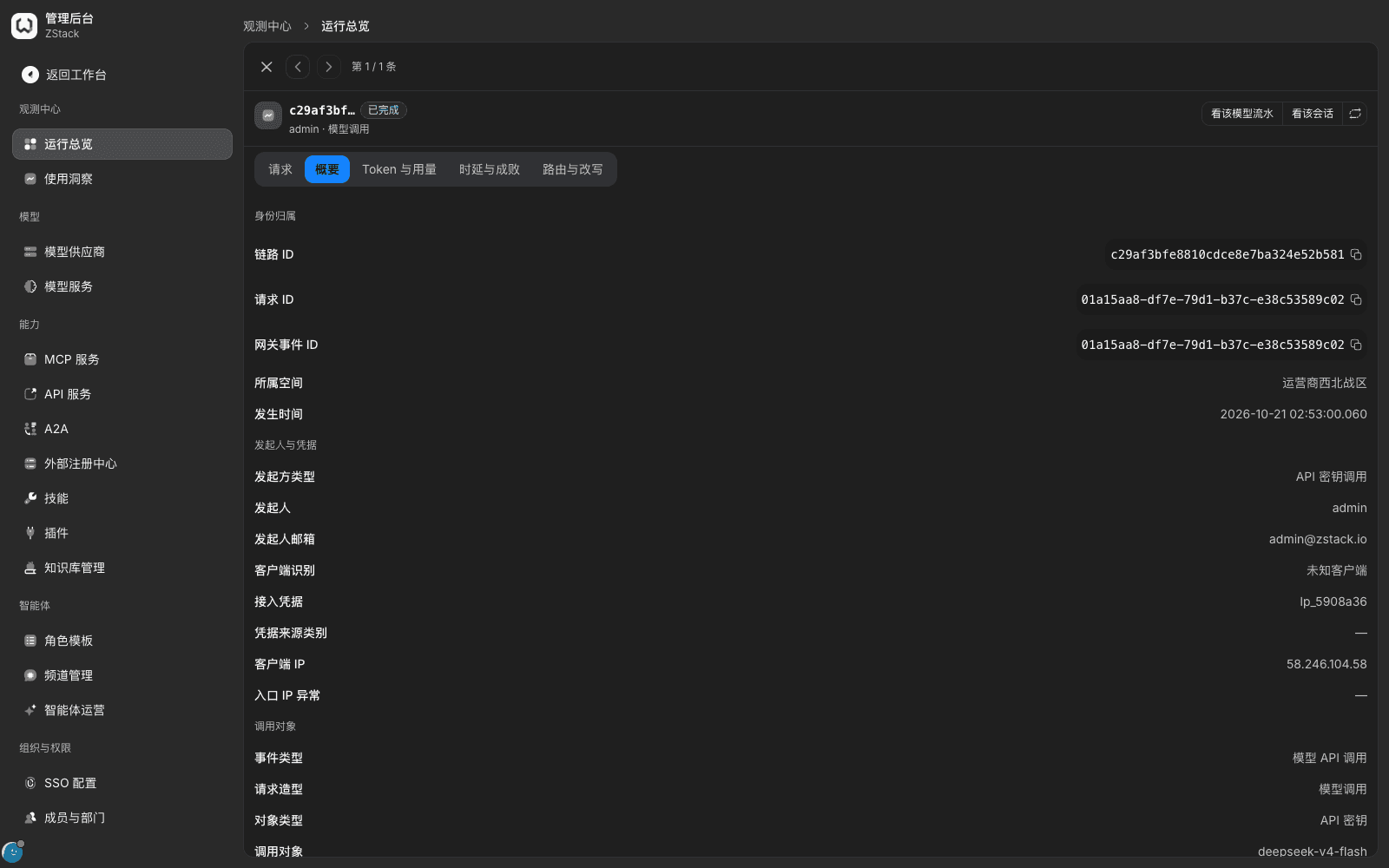
- Click a row to open request detail and view the Summary tab.
What you will see
The Summary tab presents identity and request in two groups: Identity affiliation lists Caller type (API-key call), Initiator, Initiator email, Client identification, Access credential (key prefix), Client IP; Call target lists Event type, Request shape, Object type, Call target (for example model name).
Note
- Initiator comes from the key's owner and is independent of any user identifier the request carries. Calls initiated with the same key have only one initiator.
- Client identification as Unknown client means no client type was specified when the key was created, or the tool actually used is inconsistent with the type chosen at create. That does not affect the call; it only affects statistics by client.
- When many requests need checking, first export the list-page result, then group by access credential. That is faster than opening them one by one.
9.10 Locating authentication problems
| Symptom | Check order |
|---|---|
| Returns 401 | Whether the auth-header name and format match the protocol (OpenAI paths only accept Bearer); whether the Base URL has an extra or missing path segment; whether the key is deleted or expired |
| Returns 403 | First in API key management see whether this key is disabled, then check whether the holder is still in availability scope and whether the grant is in validity |
Returns 404 model_not_found | Whether the model name belongs to the service this key is bound to, and whether the model is enabled; compare with GET /models |
| Call fails immediately after the key is created | Whether the affiliation has been distributed, whether the model group is published, whether this key is still in approval |
| Calls still succeed after disable or delete | Whether another key is still running; whether you just rotated and the old key is still in the grace period; check the real prefix by Access credential |
| Initiator in the record is not who you expected | Whose key that request used; whether the business system shared a service account |
| Fails only in one tool | Whether that tool's configured URL and key match the gateway; whether a sign-in session or access key was mistaken for a model API key |
Capability notes
| Not provided | Use instead |
|---|---|
| Create an API key in the Admin Console | Members create in workspace Get API key (see Chapter 8) |
| Set key validity or a daily effective time window in the UI | When you need periodic replacement, follow the rotate flow (see section 9.5). Only usable in a given window is implemented with a traffic rule Caller = this key + time window + deny request (see Chapter 15) |
| Key-level IP / CIDR allowlist | Use the Client IP CIDR condition in a traffic rule (see Chapter 15) |
| Transfer a personal-affiliation key to another member | The successor creates a key in their own identity |
| Authenticate with HTTP Basic (carrying a key or a username and password) | Use Authorization: Bearer, x-api-key, or x-goog-api-key according to the protocol |
| Call models and MCP with an enterprise identity token | This version does not provide an OpenID Connect identity source, and has no switch Allow business systems to call models and MCP services with an identity-source token. Use model API keys uniformly |
| Turn off authentication per route | All model and MCP routes require a credential |
| Pass the caller's real user identity to upstream as a trusted request header | The business system passes it in a request header itself, and itself avoids colliding with internal fields |
Previous: 8. Members using models · Next: 10. Calling the APIs
8. Members using models
Full-length chapter. Content is checked against the 2026.10 mainline code and the live console; menus and features depend on the current license, account permissions, and delivered environment.
10. Calling the APIs
Full-length chapter. Content is checked against the 2026.10 mainline code and the live console; menus and features depend on the current license, account permissions, and delivered environment.