7. Configure model-group availability scope and quotas
Full-length chapter. Content is checked against the 2026.10 mainline code and the live console; menus and features depend on the current license, account permissions, and delivered environment.
Back to overview · Full table of contents · Download full PDF
This chapter is for platform administrators and people who own cost control. It explains how to decide who can use a model group, for how long, and how much. After this chapter you can grant a model group by member, department, functional group, or everyone; set when a grant starts and ends; set token and money budgets for authorized subjects and for the whole group; understand the relationship among group, subject, and API-key quotas; set a target-specific price for an authorized subject; diagnose denied calls; and remove authorization safely.
A newly created model group is not open to anyone. The group detail Visibility & quotas tab states the mechanism: only enterprise members in the availability scope can use this model group; each subject is one rule; each period under a rule is one quota pool; when it is full, calls are denied.
Entry: Admin Console › Organization & Access › Model Groups, click the group name, open the Visibility & quotas tab.
Prerequisites: sign in as tenant administrator or a role that can manage model groups; the model group is already created (Chapter 6); before granting by department or functional group, the org tree is maintained (Chapter 3); money budgets and target-specific prices require that models in the group have selling prices (Chapter 5).
7.1 Grant by member, department, or functional group
When to use: decide who can see and call a model group.
Availability-scope subject types are four, plus All users for everyone:
| Subject | When to use |
|---|---|
| All users | A base group everyone should use |
| Department | A department with clear duties and stable people; the grant covers members under that department |
| Functional group | A cross-department project team or a special-purpose capability |
| Workspace | Open by workspace |
| Member | A pilot or an exception grant for individual members |
Open scope from small to large. When you go live with a high-cost or high-sensitivity group, first grant to pilot members or one department; widen after effect and cost match expectations.
Procedure
- On the Visibility & quotas tab choose Edit availability scope to open the Available scope dialog.
- Switch subject type in the upper-left dropdown (departments, functional groups, workspaces, members, all users), then search and tick in the org tree. The right side counts selected items live. The org tree only shows departments you can see; to add a department that is not in the list, type the department's full name for an exact search.
- Choose Next to open Configure target validity (Section 7.2).
- Choose Save.
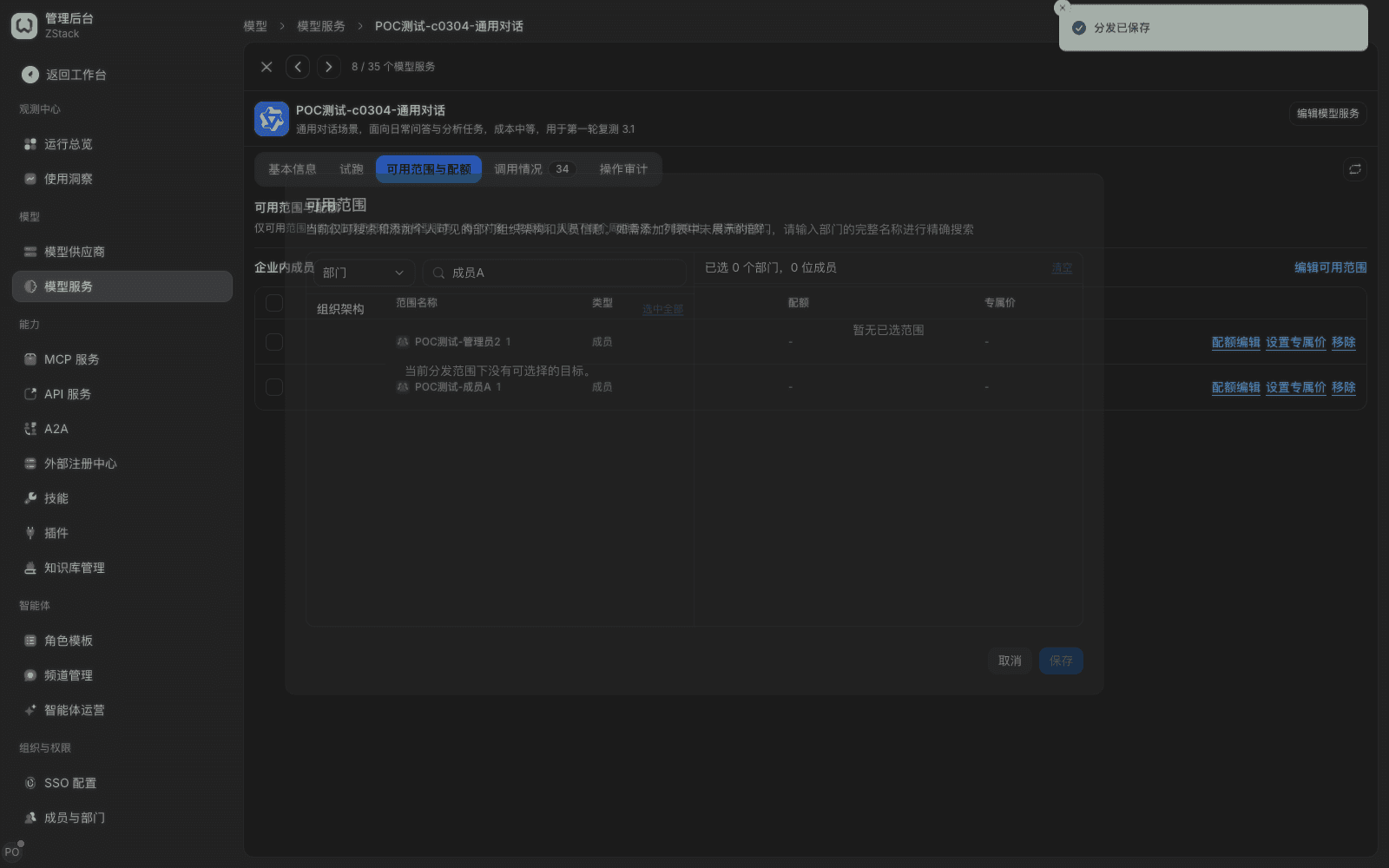
What you will see
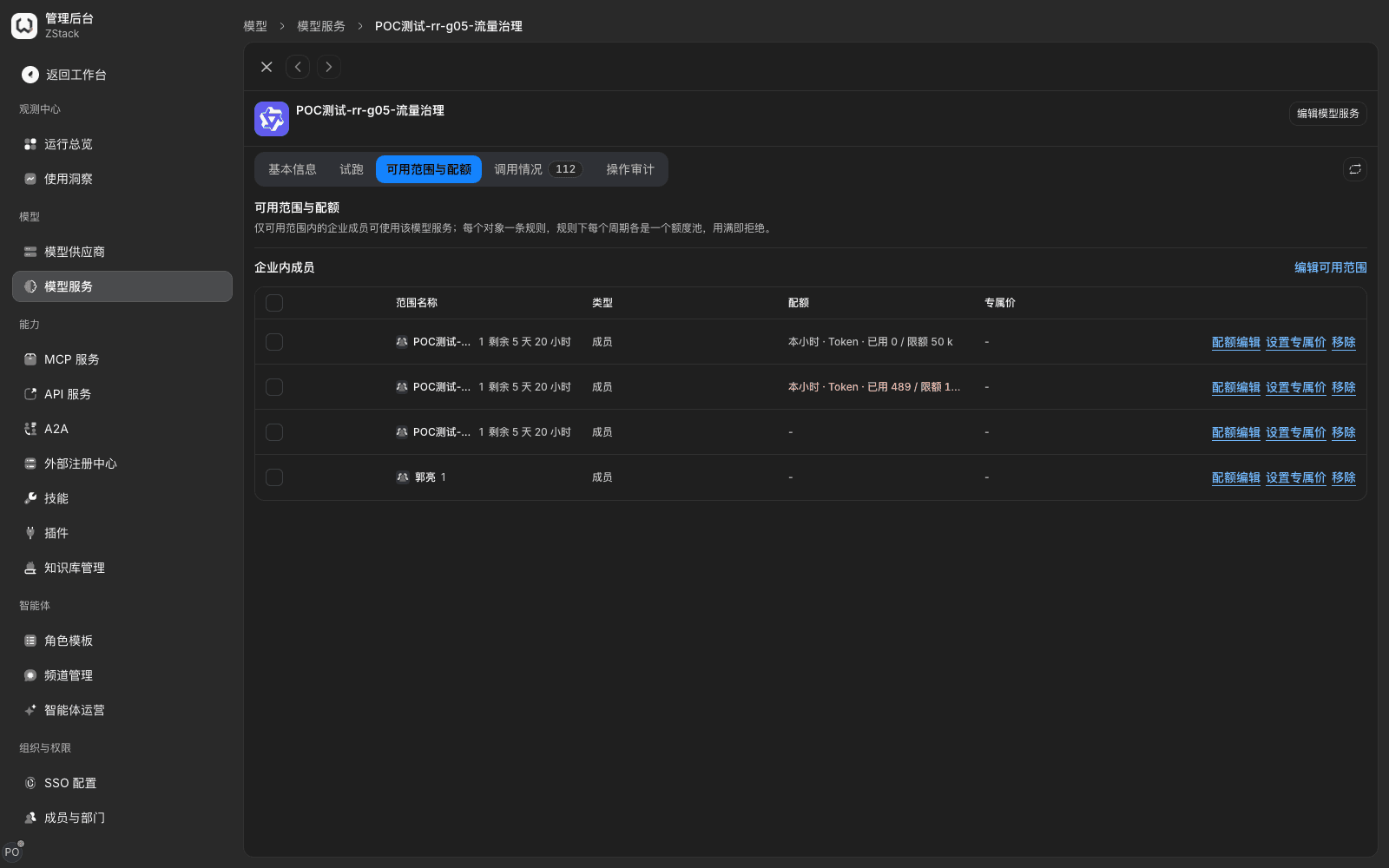
After save the page says Distribution saved. The Enterprise members table lists authorized subjects, with columns Scope name, Type, Quota, Target-specific price, and row-end Edit quota, Set target-specific price, Remove.
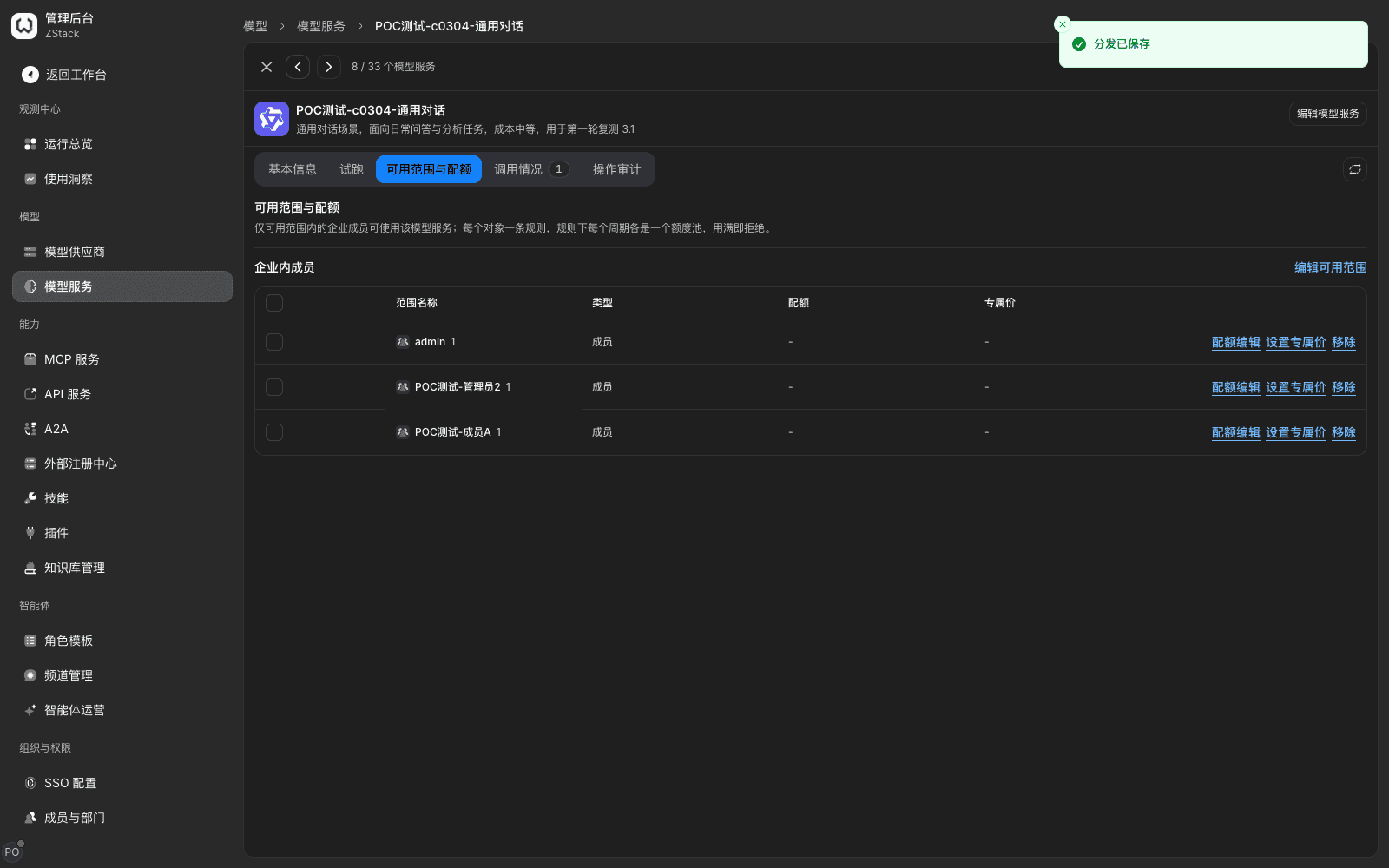
The same group can grant different subject types at once, for example one department and one functional group. Each is one rule, each with its own quota and target-specific price; they do not override each other.
What members in scope see
- The group appears in the workspace Model Groups list, with available models and Usage & quotas;
- On the model-plaza model detail, Get API key can choose this group in API key affiliation, for example Personal · General chat, and a key created with it can call immediately.
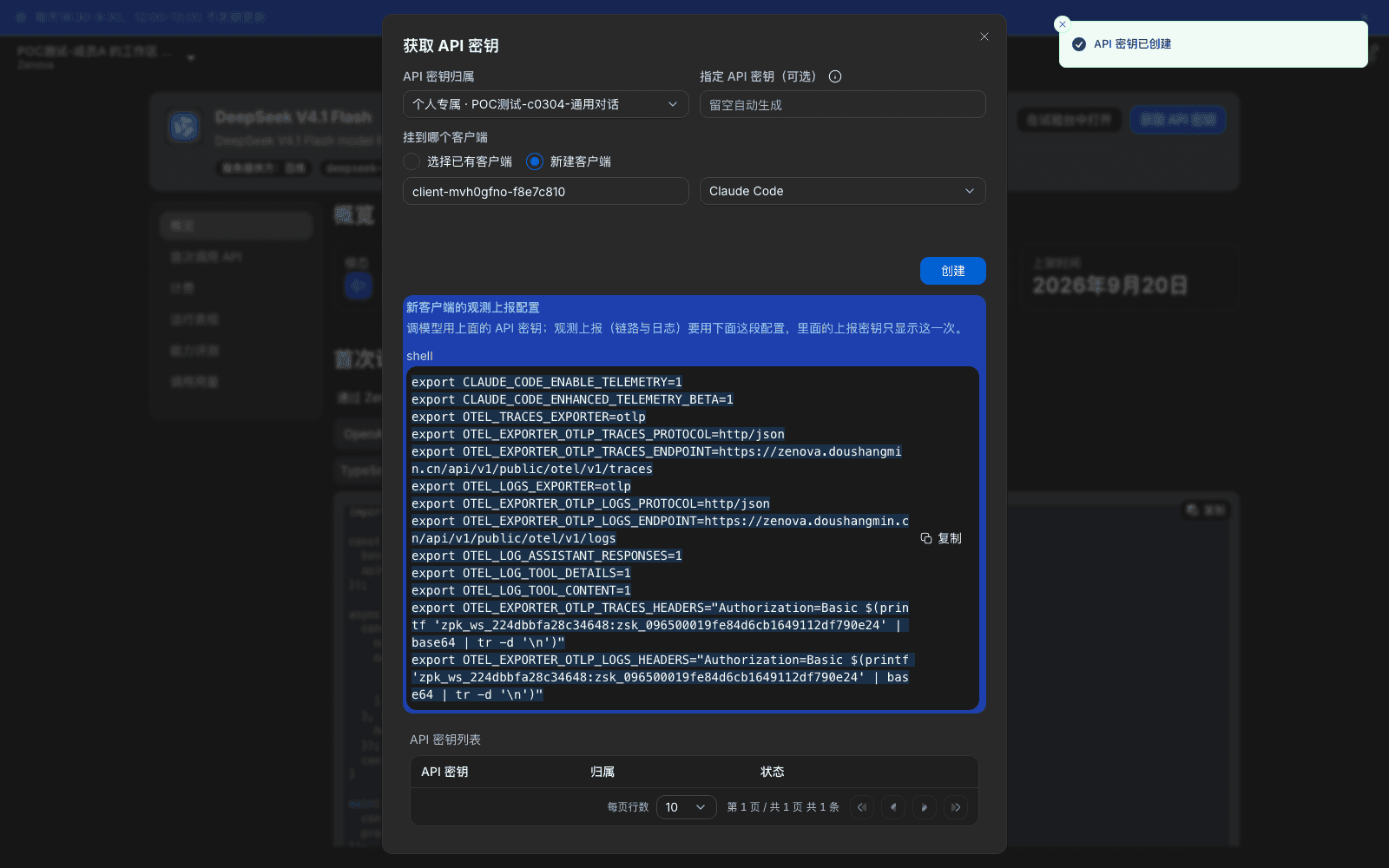
What members outside scope see
- The workspace Model Groups list does not have this group;
- It is not in the affiliation candidates of Get API key;
- Opening this group's detail URL redirects the whole page back to the workspace; they cannot see group content.
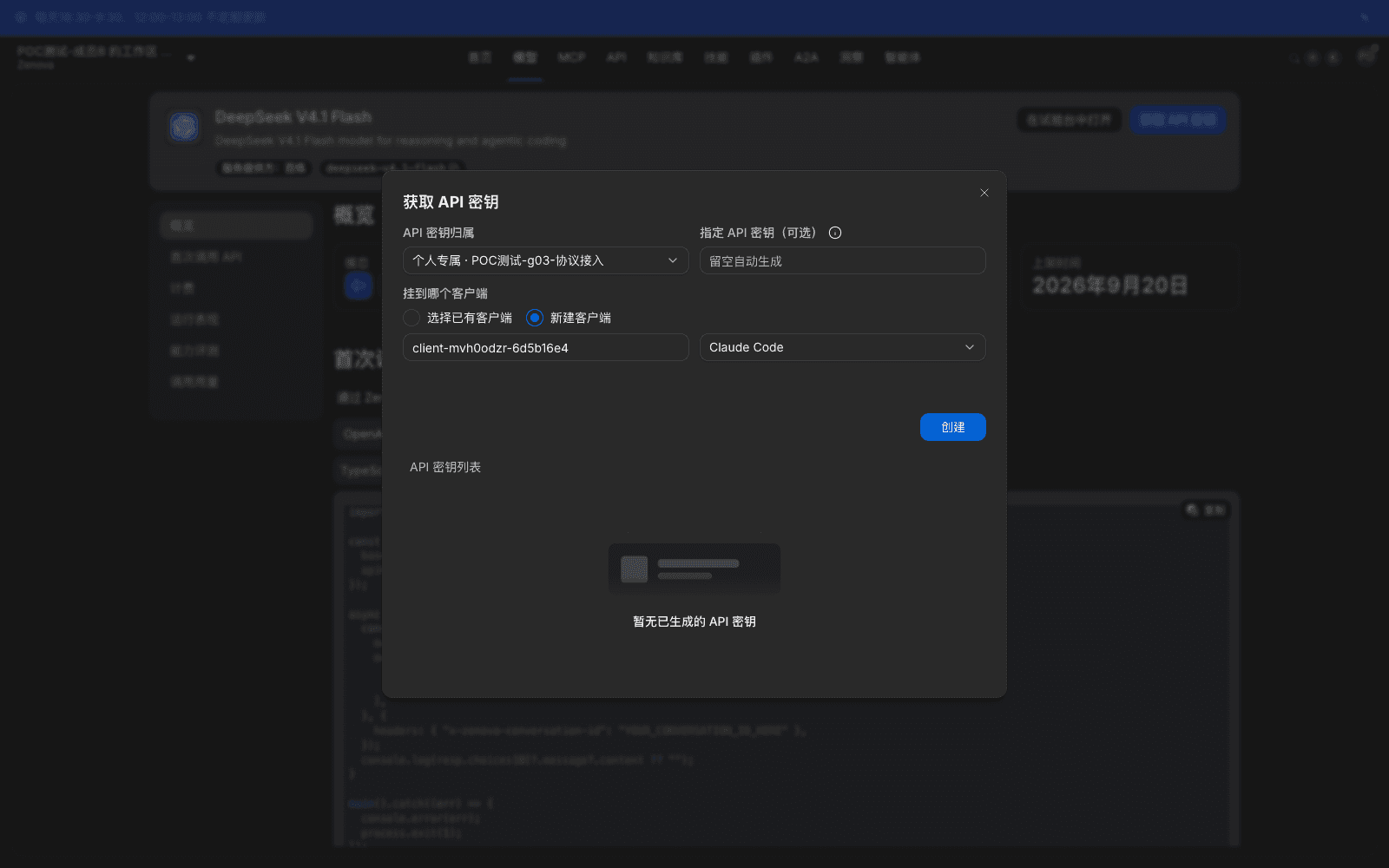
Note:
- What you grant is the group, not a single model. After a model is added to the group, subjects in scope can use it automatically; you do not need to re-grant.
- API key affiliation decides which grant this key represents and which quota pools usage is counted in. The same member may have several affiliations from several grants. Picking the wrong one at create puts usage on another department or project.
- After a member is removed from a department or functional group, grants obtained through that department or functional group lapse, and the next request is denied.
- Denied calls are all written to Operations overview › Requests and can be traced by caller (Chapter 20).
7.2 Set start and end times
When to use: a temporary grant (during a project or a trial), or a grant configured in advance that should take effect at a given time.
Procedure
-
After you pick subjects in the Available scope dialog, choose Next to open Configure target validity.
-
In Default validity choose:
Option Meaning Long-term Default; does not expire 7 days / 30 days Counted from save Custom Pick start and end date-time separately; a start later than now is a future grant -
To set different periods for different subjects, tick Assign separate validity to selected roles and set them one by one in the list.
-
Choose Save.
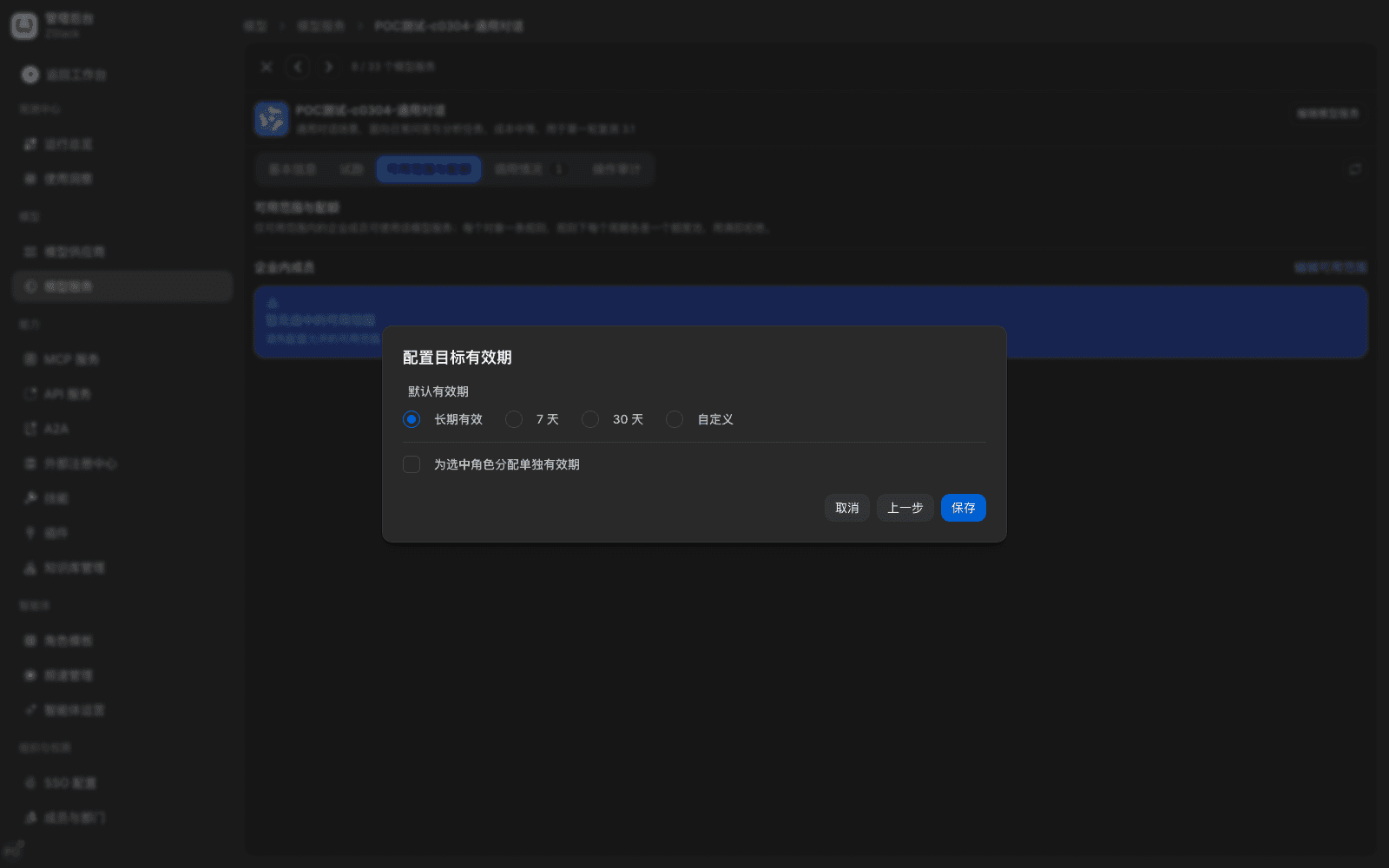
What you will see: in the enterprise-members table, under Scope name, grant status is labeled, for example 8 days 20 hours left or Lapsed. While not yet in effect or already lapsed, that subject's calls are denied. Historical grant records are kept for audit.
Renew: for a lapsed or soon-to-expire subject, reopen Edit availability scope, set a new validity, and save.
Note:
- Validity acts on the grant itself. An API key also has its own validity; the two do not replace each other (Chapter 9).
- If the current version's Custom time picker closes after you pick a value and earlier date picks are lost, use a preset duration (7 days, 30 days) or Long-term, then reopen the page after save to confirm the result.
- The platform does not provide Daily effective time windows. If a key should only be usable in a given window (for example only in a night batch window), an administrator creates a traffic rule: conditions Caller belongs to this key and Time window falls in the disallowed window, action Deny request, with a recognizable reason code. Calls outside the window return
403; other keys are not affected (Chapter 15).
7.3 Set token and money budgets for an authorized subject
When to use: control how much a member, department, or functional group can use or spend on a group; stop when it is full.
Procedure
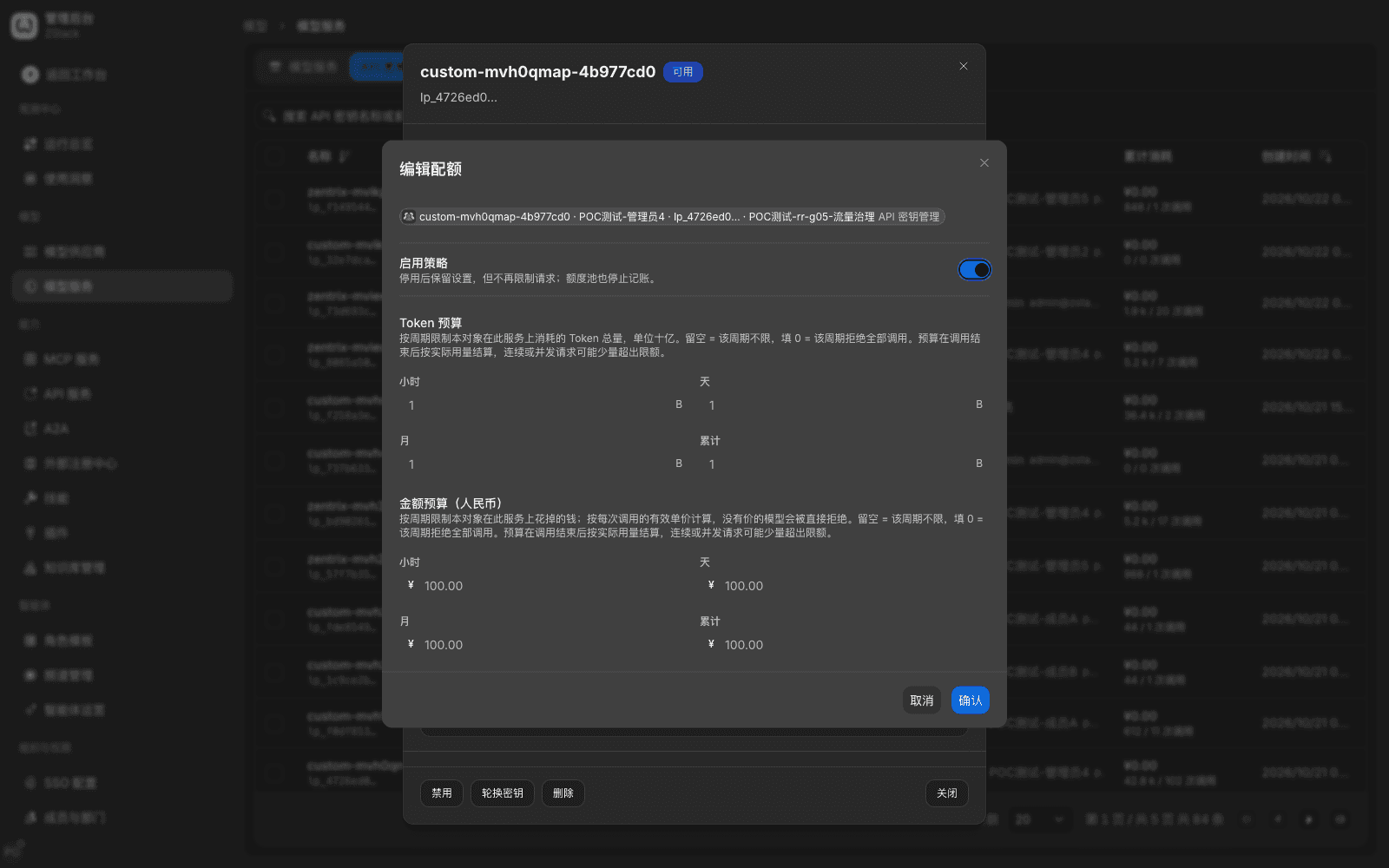
- On the Visibility & quotas tab, on the subject row choose Edit quota to open the Edit quota dialog. The top of the dialog shows the current subject, for example Someone · Member.
- Turn on Enable policy. Turning it off keeps the settings but no longer limits requests, and the quota pool stops metering.
- Fill in budgets per period as needed, then choose Confirm.
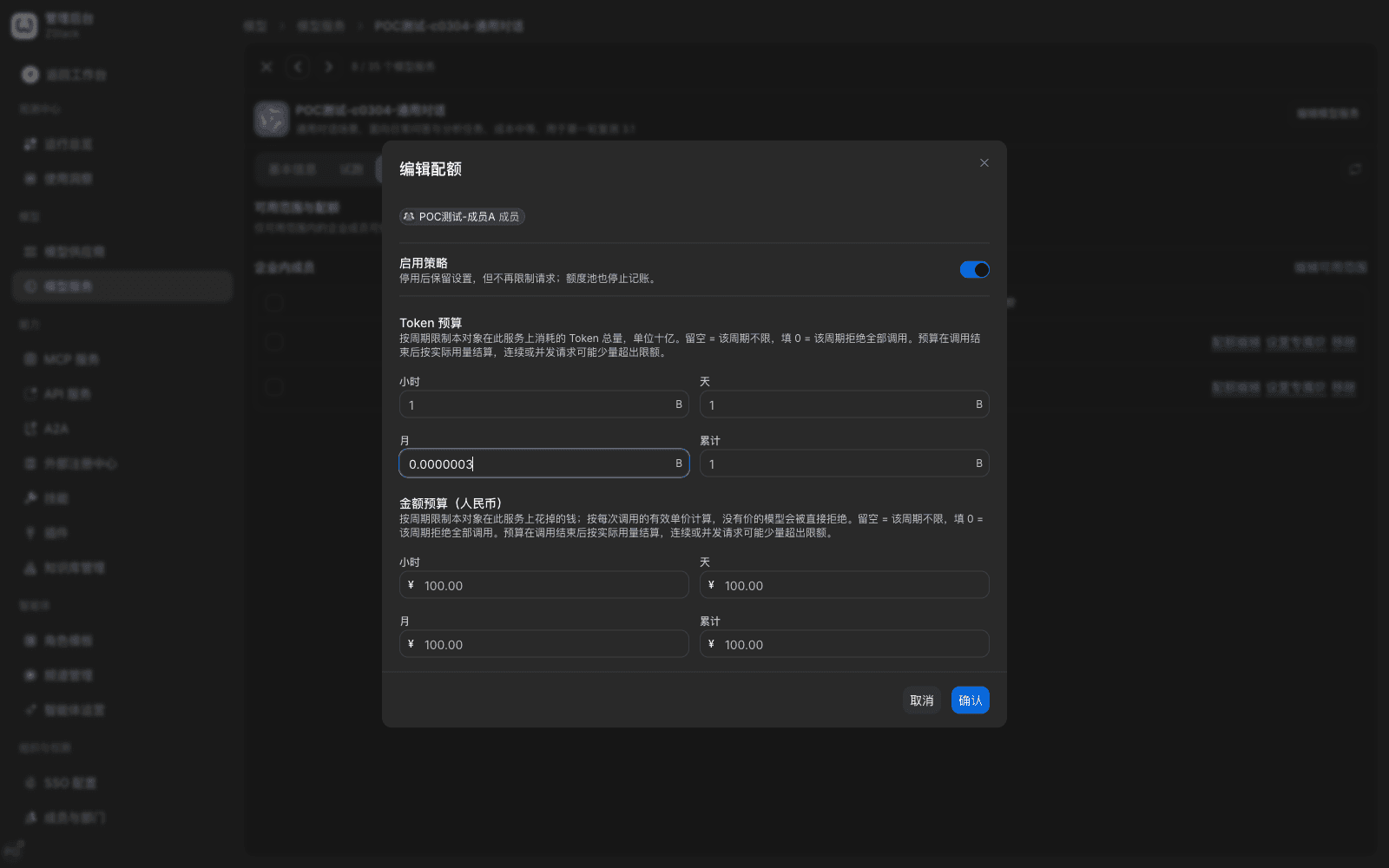
Fields
| Field | Meaning |
|---|---|
| Enable policy | After disable, settings are kept but requests are not limited, and the quota pool stops metering |
| Token budget: hour, day, month, cumulative | Limit that subject's total tokens on this group per period. Unit is billion tokens (B); several decimals are allowed; for example 0.0000003 is 300 tokens |
| Money budget (in settlement currency): hour, day, month, cumulative | Limit that subject's spend on this group per period, computed from each call's effective unit price |
Four rules you must know
- Empty means that period is unlimited; 0 is a hard wall, not unlimited. Filling 0 denies all calls in that period, which fits "freeze for now but keep the configuration". To restore unlimited, clear the filled value and save.
- Used amount is metered after the call ends. When the platform admits a request it looks at already metered usage, so a single call may push used amount over the limit, and denial starts from the next call. Several requests sent at the same time are also admitted together and briefly exceed. The cost is a small overshoot; the gain is that each call does not wait for the previous settlement.
- Periods and budget types can be combined freely. Every filled cap is in effect at the same time; any one full denies.
- When you enable the policy you must fill in at least one period budget.
What you will see
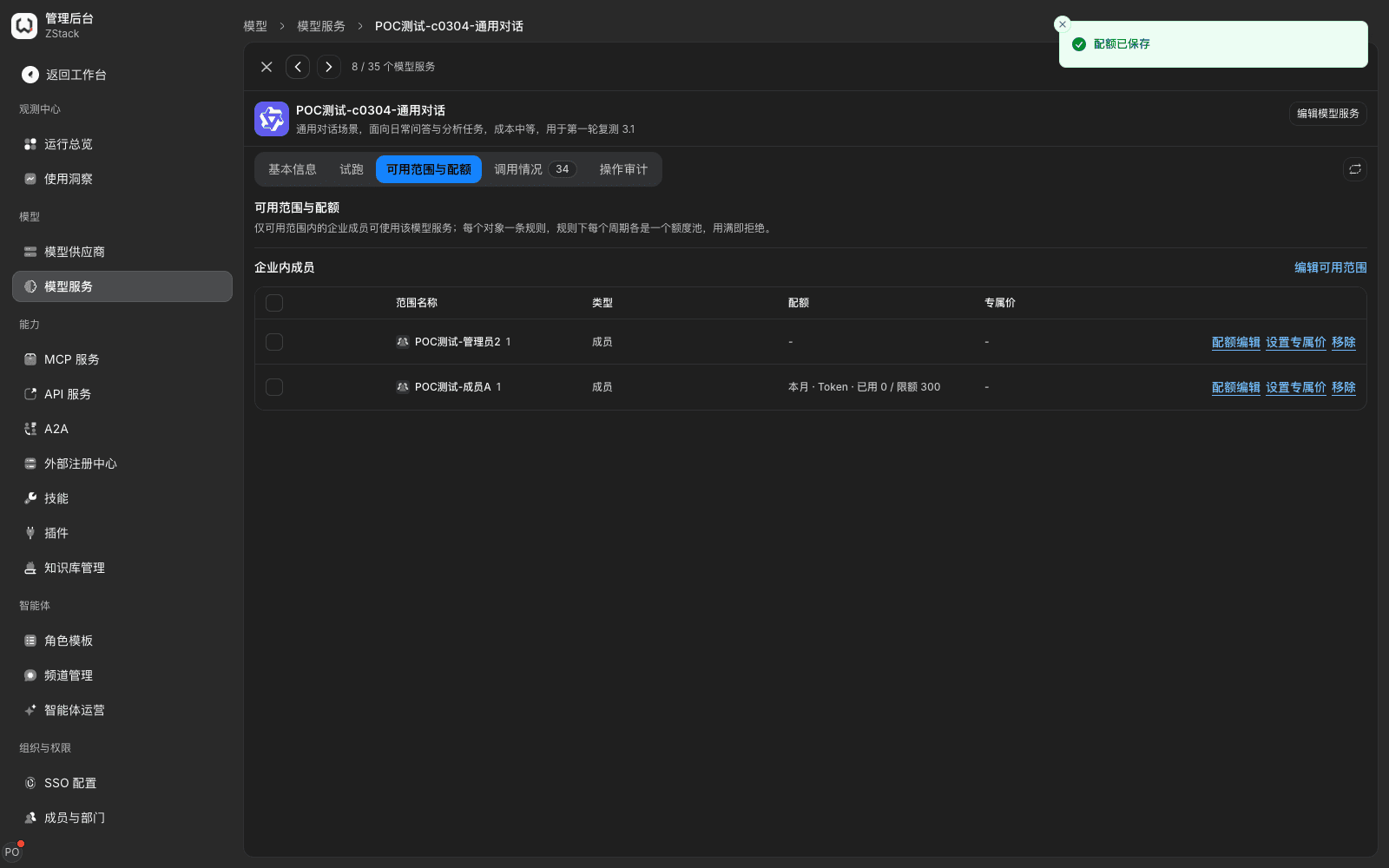
- After save the prompt is Quota saved. The subject's Quota column shows the quota pool, for example This month · Tokens · used 0 / limit 300.
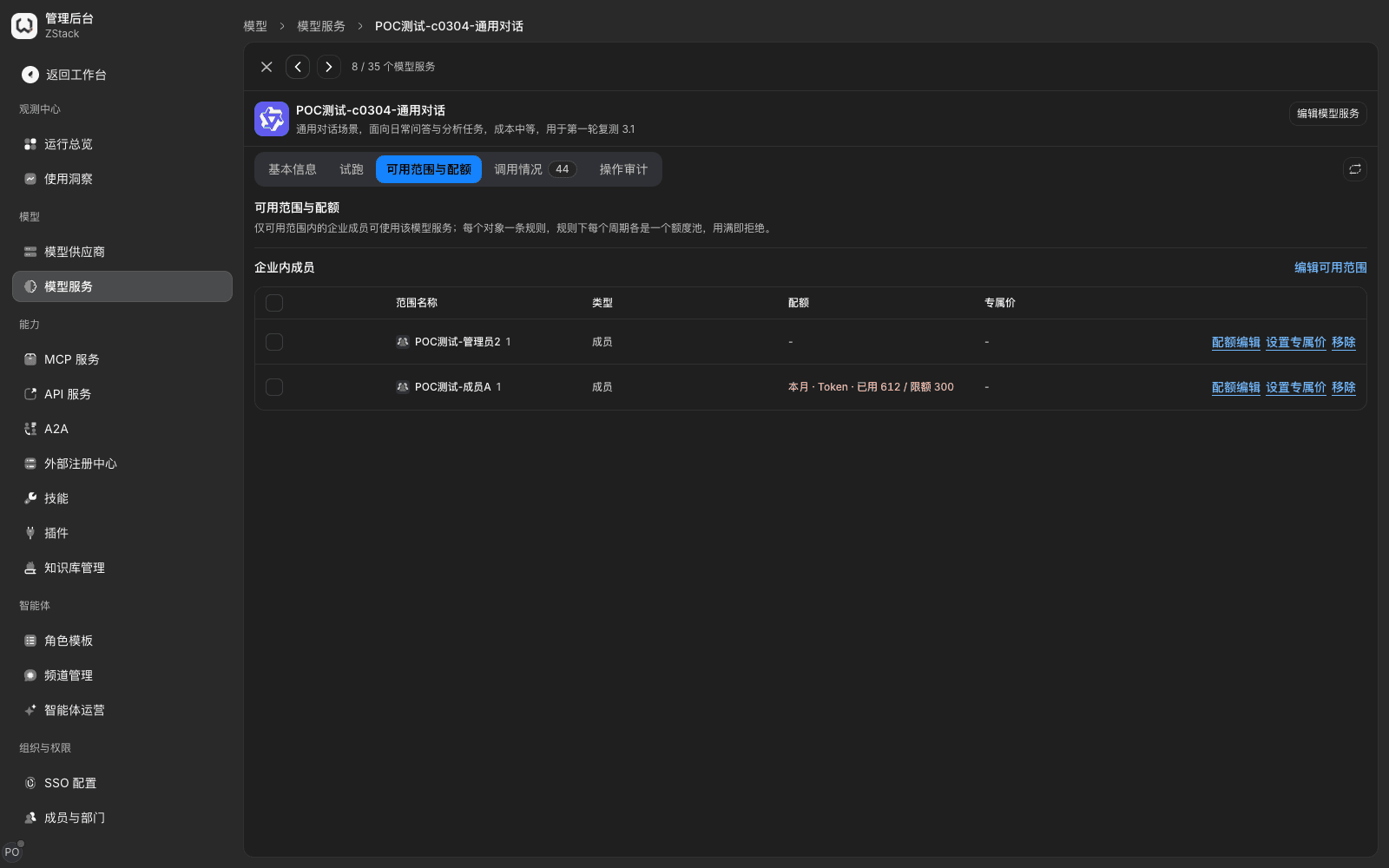
- After it is full, that subject's calls return HTTP
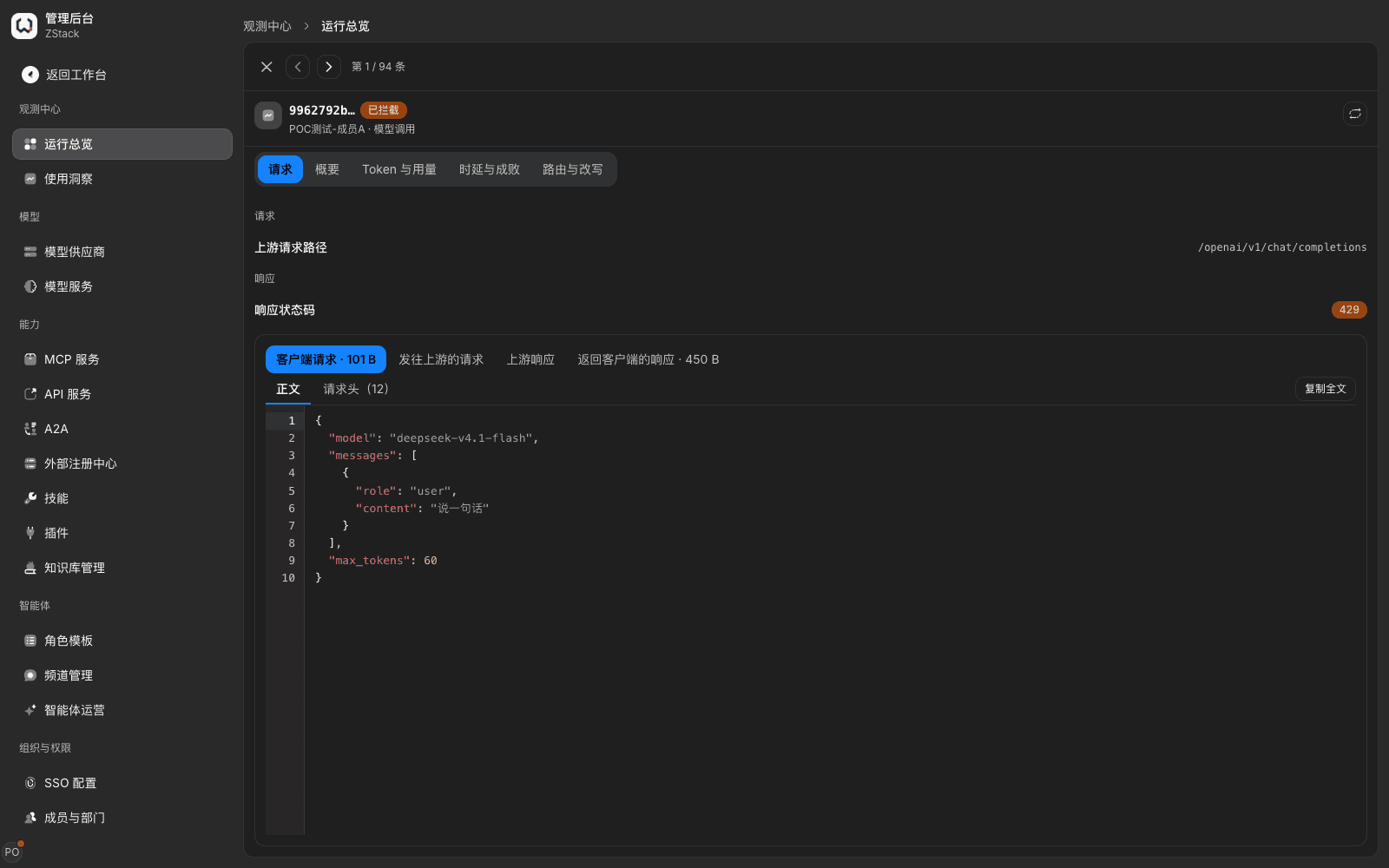
429, error typeinsufficient_quota, reasonPOOL_EXHAUSTED. The subject's quota pool shows used amount and limit in red; when over the limit, used amount is greater than the limit.
Denied calls in Operations overview › Requests have result Intercepted. Opening the detail shows the request body, response status, and initiator:
Note:
- Money budgets accumulate at each call's effective unit price. When the caller carries a money budget, unpriced models are skipped. When every available model is unpriced, the call returns HTTP
429, reasonPOOL_MONEY_UNPRICED. So before you set a money budget, price every model used in the group (Chapter 5). When no model in the group has a published price yet, the dialog says the money budget cannot be filled for now; you can only fill a token budget. - A quota only limits the current model group. It is not a member's or department's total budget on the platform. The same person's usage on other groups is not affected here.
- Hour, day, and month roll by period and restart from 0 when the period ends. Cumulative covers all time and does not reset. As of … on the quota pool is the time usage has been counted to.
- To see a budget approaching its cap early, use the Budgets panel on Operations overview to view each quota pool's current-period usage and status (Under limit, Nearing the limit, Quota exhausted, and similar).
7.4 Group-level quota
When to use: give the whole group a shared pot, for example "low-cost batch total tokens this month must not exceed a number".
Procedure
- Open the group detail Basic information tab. Next to Group-level quota on the left choose Edit quota to open the Group-level quota dialog.
- Fields are identical to subject quotas (enable policy, token budget, money budget, each with hour, day, month, cumulative). Fill them in and choose Confirm.
- Use the Group quota switch on the left to enable or disable.
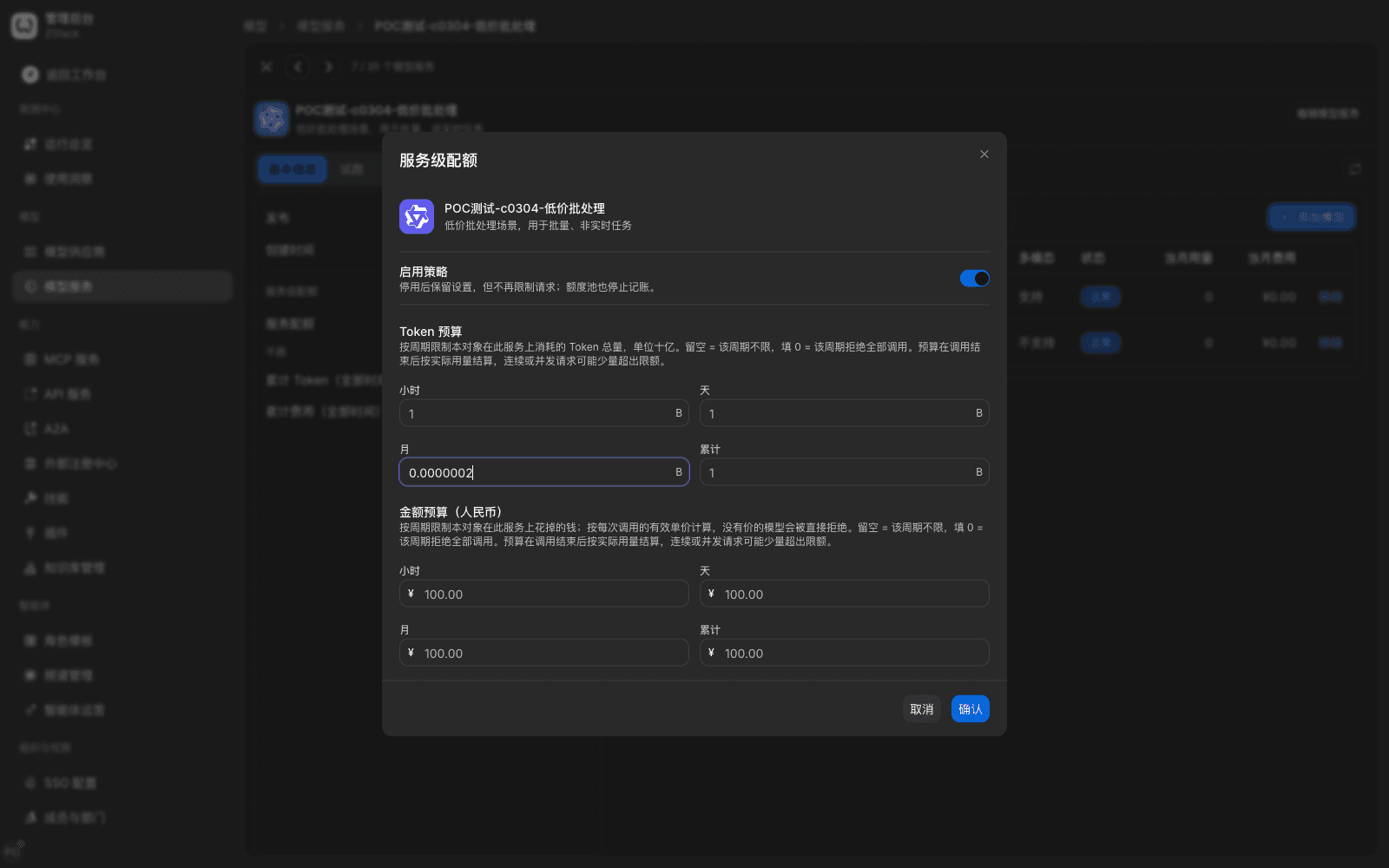
What you will see: under Group quota, each quota pool's usage and limit are shown, for example This month · Tokens · used 0 / limit 200. After it is full it shows Exhausted, and all calls of this group return 429, regardless of which member or which key.
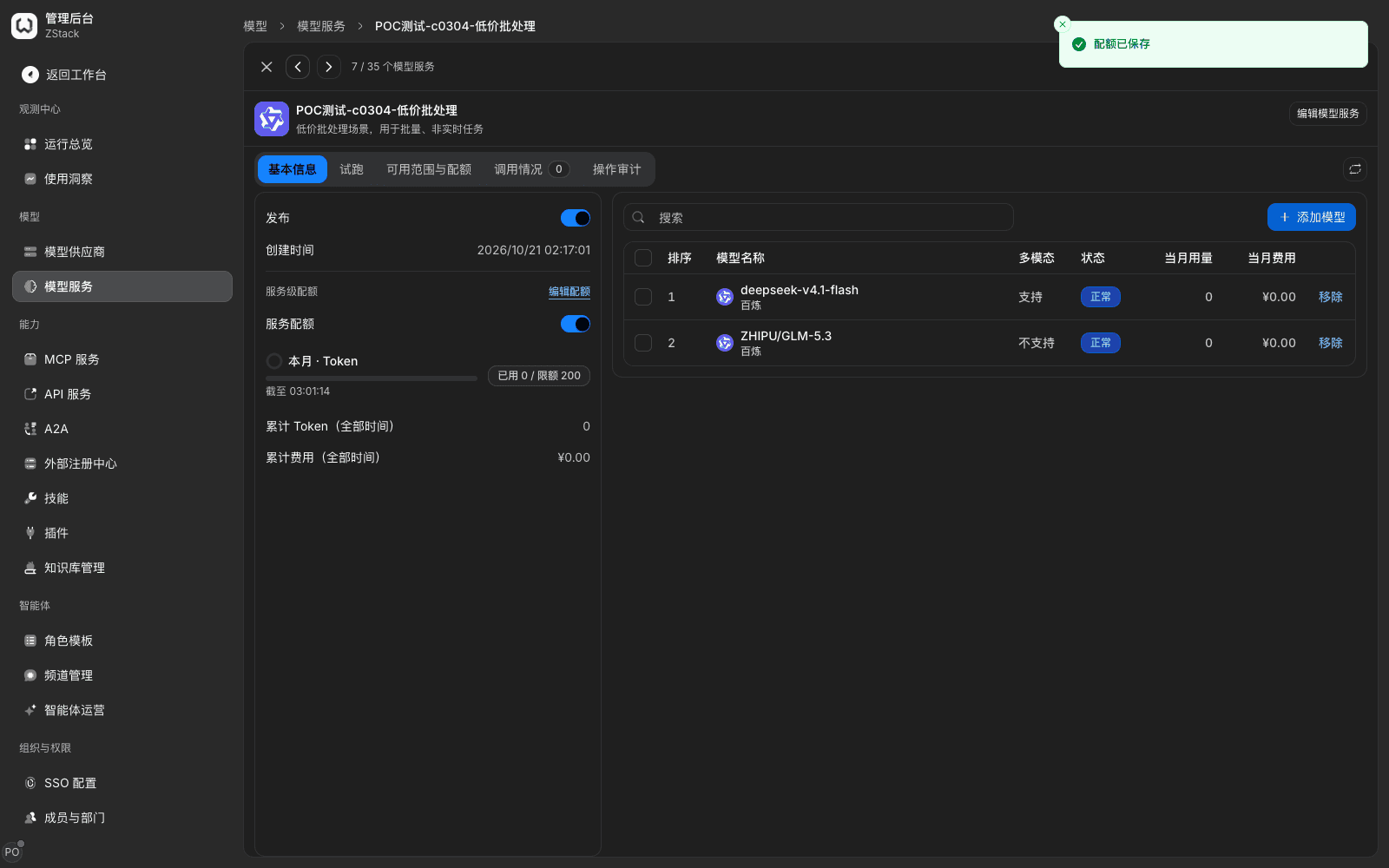
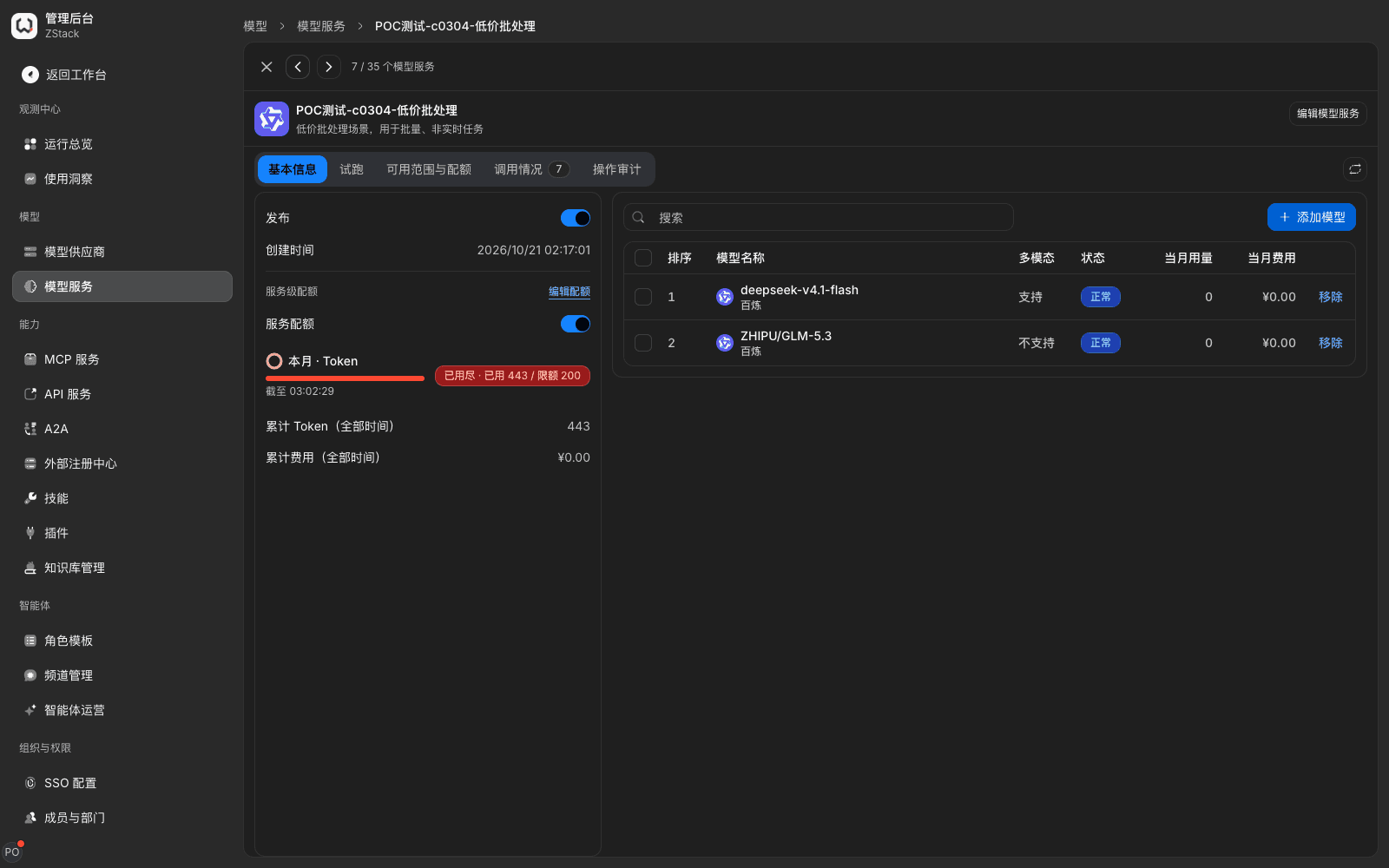
Note: group-level quota and subject quota are two independent judgments. A full group-level quota denies everyone, including members who have not used up their own quota. When diagnosing, first see which layer is exhausted, then decide whether to raise the cap or notify users.
7.5 How layered quotas relate
One call may be counted in several quota pools. The platform judges layer by layer; any layer full denies:
| Layer | Where it is set | Coverage |
|---|---|---|
| Group level | Group detail Basic information › Group-level quota | Shared by all callers of the whole group |
| Authorized-subject level | Visibility & quotas subject row Edit quota | Member, department, functional group, workspace, all users; each has its own set of quota pools |
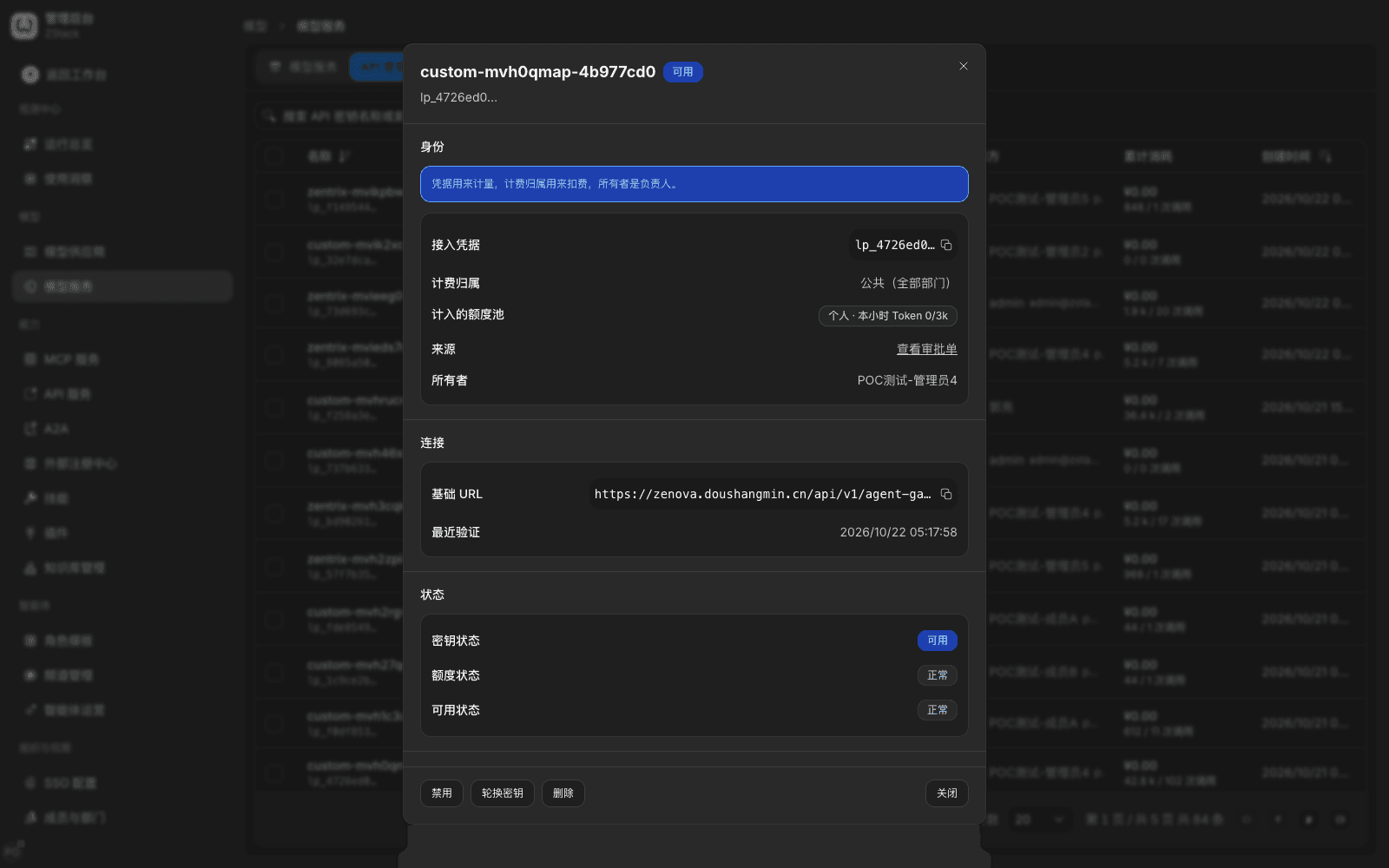
| API-key level | Model Groups › API key management, open the key detail, choose Edit quota in the Quota area | This key's own quota pool |
Procedure (set quota for a single key)
- Open Admin Console › Organization & Access › Model Groups › API key management, search for and open the target key.
- In the detail confirm Quota pools counted, then choose Edit quota.
- Fill in the quota and choose Confirm.
Rules
- A key's usage is counted at the same time in its own quota pool, its authorized subject's quota pool, and the group-level quota pool. Every layer is decremented; it is not only one layer.
- A lower-layer quota can be set larger than an upper layer. The platform does not validate and will not refuse save. Actual calls take the strictest layer. The upper quota pool always covers the lower layer — so when the upper layer is already full, relax this key alone has no effect.
- A newly created quota pool starts counting from 0 and does not backfill this period's already-used amount. When you newly set a this-month quota for a subject that has already used a large amount, its starting point is 0, not this month's actual used amount.
- Usage at each layer can be seen separately on the page: the group's Visibility & quotas lists each subject's pool; the key detail shows both parent pools and its own pool.
- When a call is denied, the error detail names which layer stopped it (member, department, or the whole group), which period, and which budget, so you can go straight to the layer to adjust.
Note: the platform has no model of "parent quota allocated to children by share" or "sum of children must not exceed parent". To control by project, split the project into its own model groups or functional groups, grant separately, and set quotas separately.
7.6 Set a target-specific price for an authorized subject
When to use: internal settlement uses different prices for different departments or members, or a subject needs its own tiered price.
Prerequisites: the model used as the pricing basis must already have a selling price (Chapter 5).
Procedure
- On the Visibility & quotas tab, on the subject row choose Set target-specific price to open the Target-specific price dialog.
- Choose Gateway model.
- Set Accumulation period, Accumulation method, Pricing method (unit price or token multiplier), and Cross-tier pricing (segmented or whole request).
- In Price ranges choose Add tier, fill in usage range and unit price. If there is only one price, keep the 0–∞ tier.
- Choose Confirm.
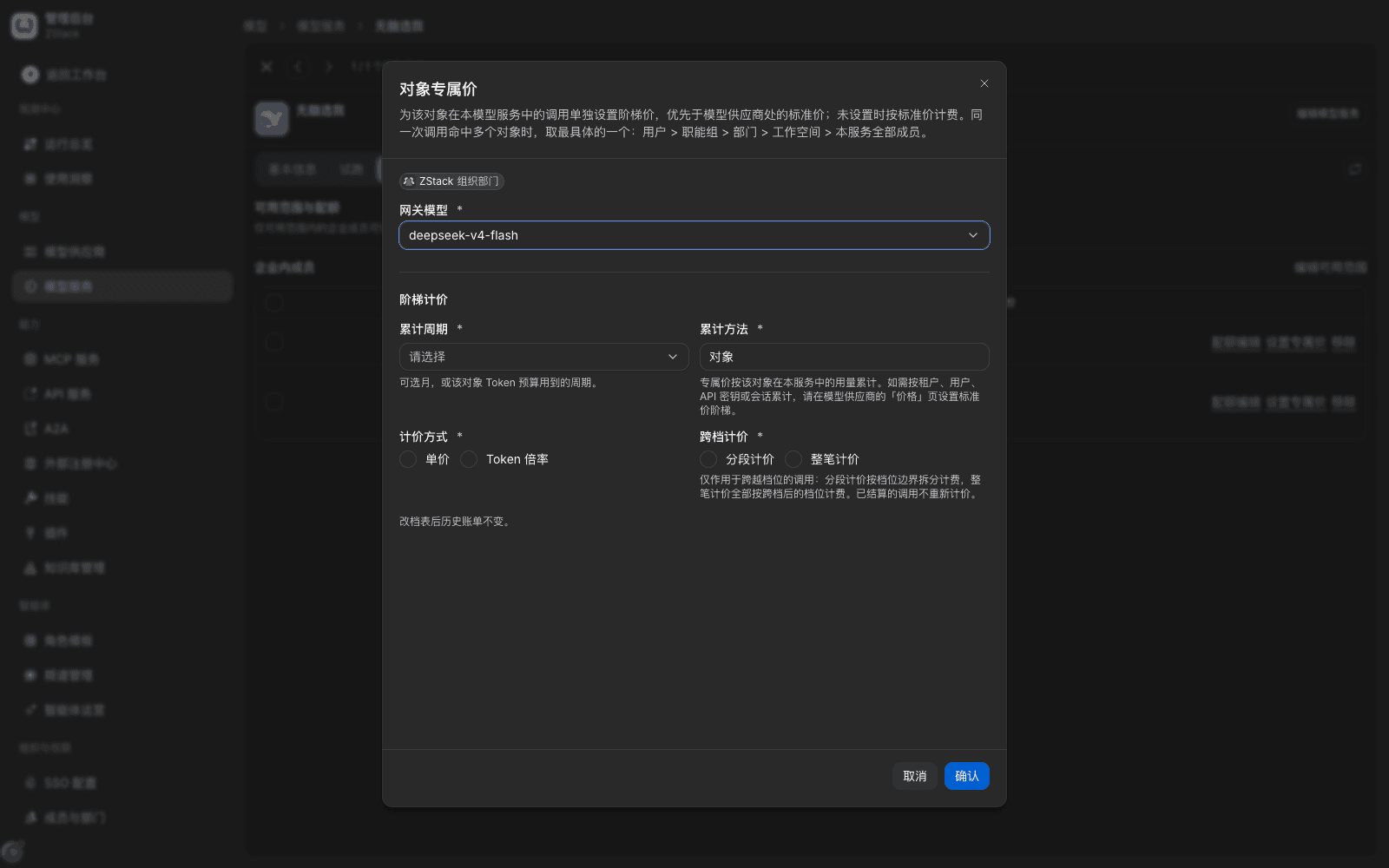
What you will see: the top of the dialog states three rules — Set a separate tiered price for this subject's calls in this model group; it takes precedence over the model provider's standard price; When the same call hits several subjects, the most specific one is used: user > functional group > department > workspace > all members of this group; Changing the tier table does not change historical bills and Settled calls are not re-priced. After save, that subject's Target-specific price column is no longer empty.
Note:
- When the model is unpriced, the dialog says This model has no standard price at the model provider yet, so a target-specific price cannot be set, with a Go price entry. Price first, then come back to set the target-specific price.
- Prices of a Token multiplier tier are the model's standard price times the multiplier. They only affect money, not quota consumption.
- Changing tiers only applies to later calls. Settled bills are not recomputed. Before you change prices across a settlement period, confirm the convention with finance.
7.7 Diagnose denied calls
When a caller is denied, first look at the error code to see which layer stopped it:
| Error code / reason | Source | What to do |
|---|---|---|
429 POOL_EXHAUSTED | A quota pool is exhausted | Locate from the quota-pool subject, period, and budget type in the error detail; check usage in Visibility & quotas or the key detail; raise the cap or clear that item if needed |
429 POOL_MONEY_UNPRICED | The caller carries a money budget, but every available model is unpriced | Price models in the group (Chapter 5), or remove that subject's money budget |
429 TRAFFIC_RATE_LIMITED / TRAFFIC_CONCURRENCY_LIMITED | A traffic rule's rate or concurrency limit | Find the rule by the rule number in the error detail; check the threshold and counting dimension (Chapter 15) |
403 PERMISSION_DENIED | The key is disabled, or a deny-class traffic rule hit | Check key status in API key management; then see whether there is a time-window or caller-dimension deny rule |
| Grant lapsed / not in availability scope | The grant was removed, expired, or is not yet in effect | Check the subject and validity in Visibility & quotas (sections 7.1, 7.2) |
Denied requests can all be found in Admin Console › Observability › Operations overview › Requests by caller, access credential, or trace ID. The detail gives the denial source and time (Chapter 20).
Note: quota denials carry the x-should-retry: false response header, meaning automatic retry is pointless; wait for the period to reset or adjust the limit. Rate-limit denials carry retry-after; wait that long.
7.8 Remove authorization
When to use: take back call permission from a member, department, or functional group.
Procedure
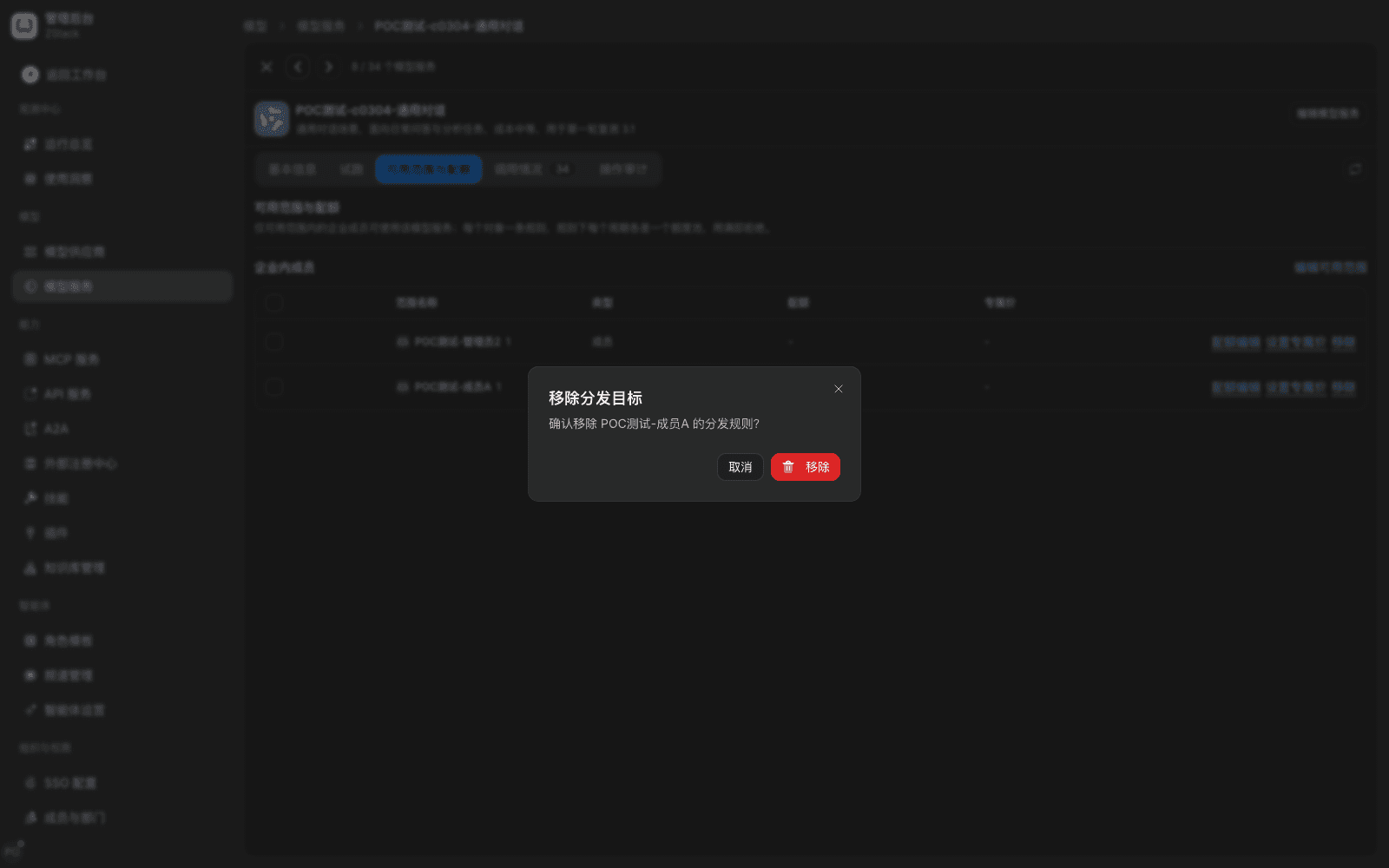
- Find the target subject in the Enterprise members table and choose Remove at the row end.
- The confirm box asks Remove …'s distribution rule? Choose Remove.
What you will see
- The page says Distribution target removed. After the list refreshes, that row is gone.
- API keys this subject created from this grant become invalid; calls return
401 invalid_api_key. The member-side group list and key affiliation disappear at the same time. Invalidation usually finishes in tens of seconds; it is not instant.
Note:
- If the list does not refresh immediately after save or remove, reopen the page to confirm the result; do not repeat the action.
- Removing a grant does not delete that subject's historical usage and bills, and does not affect grants they obtained through other groups.
- That subject's quota and target-specific-price configuration on this group disappear with the rule. For a temporary pause, use the Publish switch or set the quota to 0; that is easier to restore than deleting the grant.
- When a member is removed from a department or functional group, grants obtained through that org likewise lapse; you do not need to remove them one by one.
Capability notes
| Not provided | Use instead |
|---|---|
| Set first-response deadline, max concurrency, or requests per minute in the availability-scope or quota dialog | Use a traffic rule's Apply limits by group, department, or caller (Chapter 15) |
| Limit by token rate (tokens per minute) | Use the quota hour token budget to limit total volume, or use a traffic rule to limit request count |
| Dedicated budget accounts (independent budget pools, roll-up by channel, stop deducting the org default budget after a hit) | Split by project into independent model groups or functional groups, grant separately, and set subject quotas (sections 7.1, 7.3). Usage is counted in every layer at once; there is no exclusive roll-up |
| Parent quota allocated to children by share, validating that the sum of children does not exceed the parent | Layered quota pools judged layer by layer, upper layer as a floor; setting a lower layer larger than the upper does not error but has no effect (Section 7.5) |
| Push when a single subject's quota nears a threshold | View Nearing the limit status on the Budgets panel of Operations overview (Section 18.1) |
| Daily effective time windows on an API key | Traffic rule caller + time window + deny request (Section 7.2) |
| Pre-reserve and pre-deduct on a quota pool (to avoid concurrent overshoot) | Budgets are metered after the call ends. A single or concurrent request may slightly exceed the limit, then later calls are denied. When you need a hard control, leave headroom in the limit |
Previous: 6. Models and model groups · Next: 8. Members using models
6. Models and model groups
Full-length chapter. Content is checked against the 2026.10 mainline code and the live console; menus and features depend on the current license, account permissions, and delivered environment.
8. Members using models
Full-length chapter. Content is checked against the 2026.10 mainline code and the live console; menus and features depend on the current license, account permissions, and delivered environment.