8. Members using models
Full-length chapter. Content is checked against the 2026.10 mainline code and the live console; menus and features depend on the current license, account permissions, and delivered environment.
Back to overview · Full table of contents · Download full PDF
This chapter is for members who use models and for business developers. It explains how to find models you can use on the workspace model plaza, learn their prices and runtime performance, try them online before you integrate, get an API key and copy access configuration, and check personal usage and per-call records.
Which models a member can call depends on which model groups an administrator distributed to them (directly, or through their department or functional group). Authorization, quotas, and limits are in Chapter 7. Paths, request headers, and error codes of each call protocol are in Chapter 10. Members can create and revoke their own keys (see section 8.4). Rotate, disable, and delete of keys are done by administrators in the Admin Console; see Chapter 9.
8.1 Workspace and model-related entries
After sign-in, members enter the workspace. Top-level navigation is Home, Models, MCP, API, Knowledge Bases, Skills, Plugins, A2A, Insights, Agents (the tabs actually shown depend on the tenant license and account permissions). The upper left shows the current workspace, switchable from the dropdown. The upper right is global search and the account menu.
Entries related to using models:
| What you want to do | Entry |
|---|---|
| Find a model, read description and price, copy access samples | Top bar Models (model plaza) › model card |
| Try online | Model-detail header Open in Playground |
| Get an API key | Model-detail header Get API key; or Home › Models and credentials › API keys |
| View model groups you can use | Home › Models and credentials › Model Groups |
| View personal usage and per-call records | Home › Usage › Usage / Model usage / Call logs |
Note: usage and call records are counted for the current workspace. Before you check numbers, confirm whether the workspace in the upper left needs switching. Usage across workspaces is not merged.
8.2 Find a model on the model plaza
When to use: before you integrate, confirm whether a model is available, what the unit price is, whether it has been running fast lately, and which modalities it supports.
Prerequisites: signed in to the workspace.
Procedure
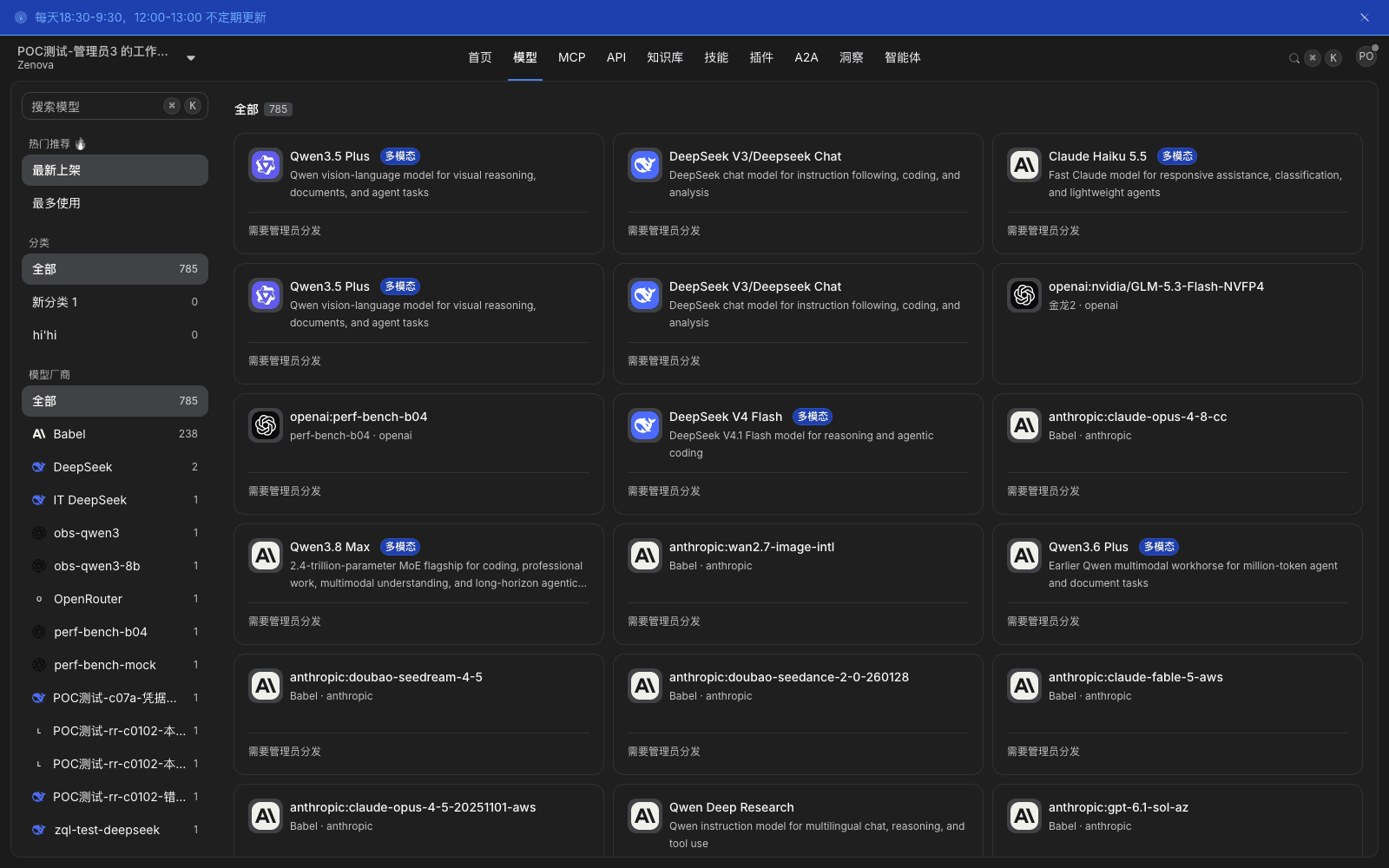
- Click Models in the top bar to open the model plaza. The top of the page shows All and the number of models currently listed.
- Filter on the left as needed:
- Hot Picks: Latest, Most Used;
- Categories: maintained by administrators in category management; each category shows how many models it has;
- Model vendors: filter by provider; each vendor shows a count.
- Type keywords in the upper-left Search models box. Keywords can be split on spaces; typing
deepseek v4.1 flashhits DeepSeek V4.1 Flash without writing the full string. Search can stack with category and vendor filters. - Click a model card to open model detail. The card shows model name, modality tags (for example Multimodal), a short description, and whether this model has been distributed to you.
What you will see
- The plaza lists the platform's model catalog. Models already distributed to you can be viewed and called directly. Cards not yet distributed are labeled Needs administrator distribution at the bottom, and after you open the detail, API key affiliation of Get API key will not show a group that contains this model.
- Counts in the left filter change with the filter. The number after All is the model count in the current view, not the platform's full model count.
- The same model may appear on more than one card (different service providers or different access methods each get a card). Vendor and provider labels on the cards differ, and unit prices may differ.
Model detail
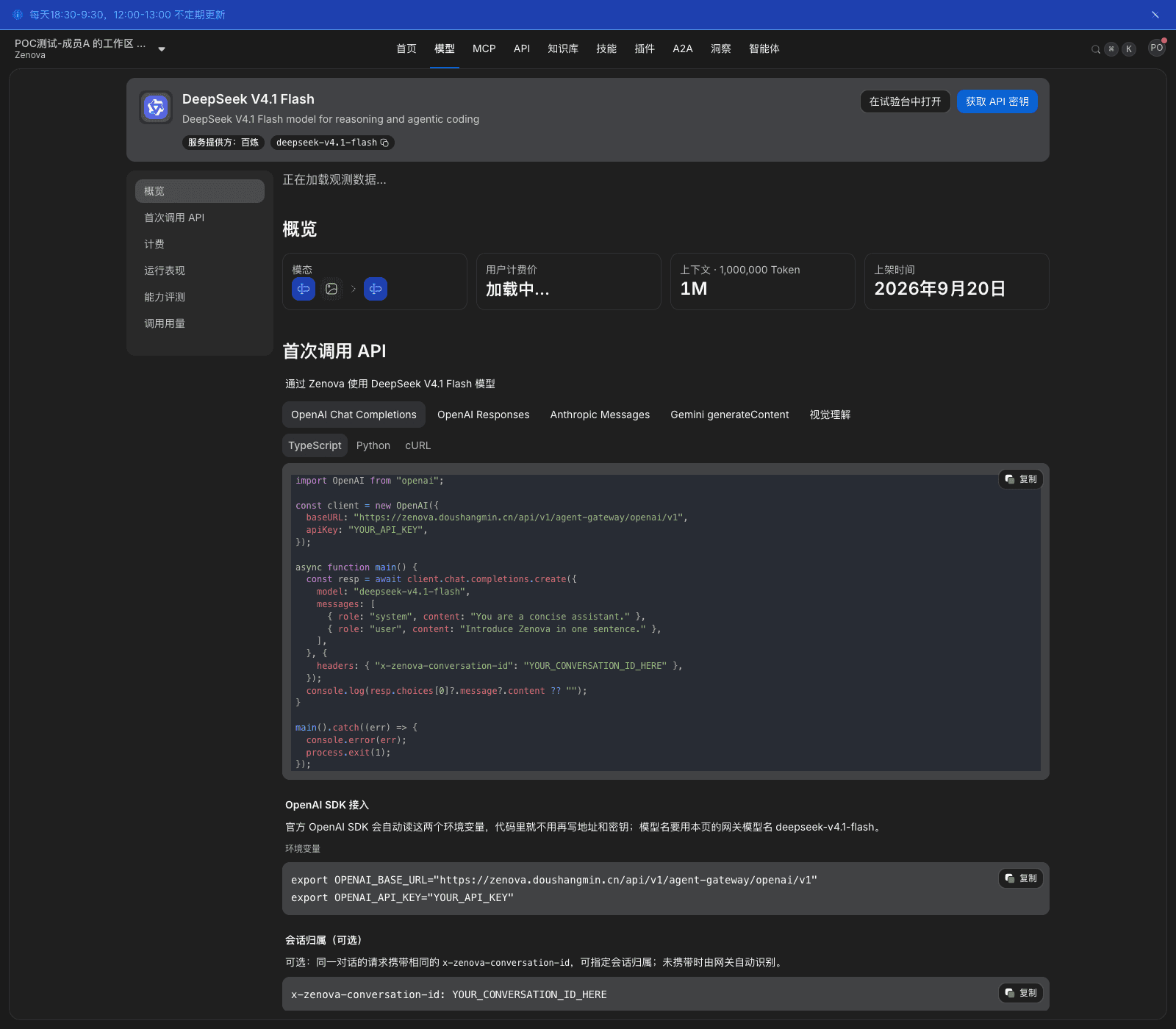
The detail header shows model name, description, Service provider, and a one-click-copyable model name (the model field when you call the API). Upper right is Open in Playground and Get API key. The left-hand table of contents has these areas:
| Area | Content |
|---|---|
| Overview | Modality (input › output), User billing price · per million tokens (input / output), context length, listed time |
| Make your first API call | Code samples per protocol and programming-client access configuration (see 8.4.1) |
| Billing | Current four-tier unit prices for input, output, cache read, cache write, a price-history curve, and official reference prices |
| Runtime performance | Recent throughput, latency, time to first token, success rate, plus daily trend and cache hit rate |
| Capability evaluation | Third-party evaluation scores |
| Call usage | Recent token usage of this model and call sources |
Note
- When you open the detail page, User billing price first shows Loading…; the actual unit price appears after data is fetched. Refreshing the page loads it again.
- Official reference price is a reference to the vendor's published price. Actual deduction uses this platform's User billing price.
- Capability evaluation has content only after the platform connects evaluation data. Until then it shows No data in this section, which does not affect calling the model.
8.3 Try a model online
When to use: before you integrate, talk to a chat model for a few turns in the playground to confirm answer quality, context behavior, and response speed match the business, so you do not find the model unsuitable only after you have written the code.
Prerequisites: signed in; you have an available billing affiliation, and the matching model group is published and contains this model.
Procedure
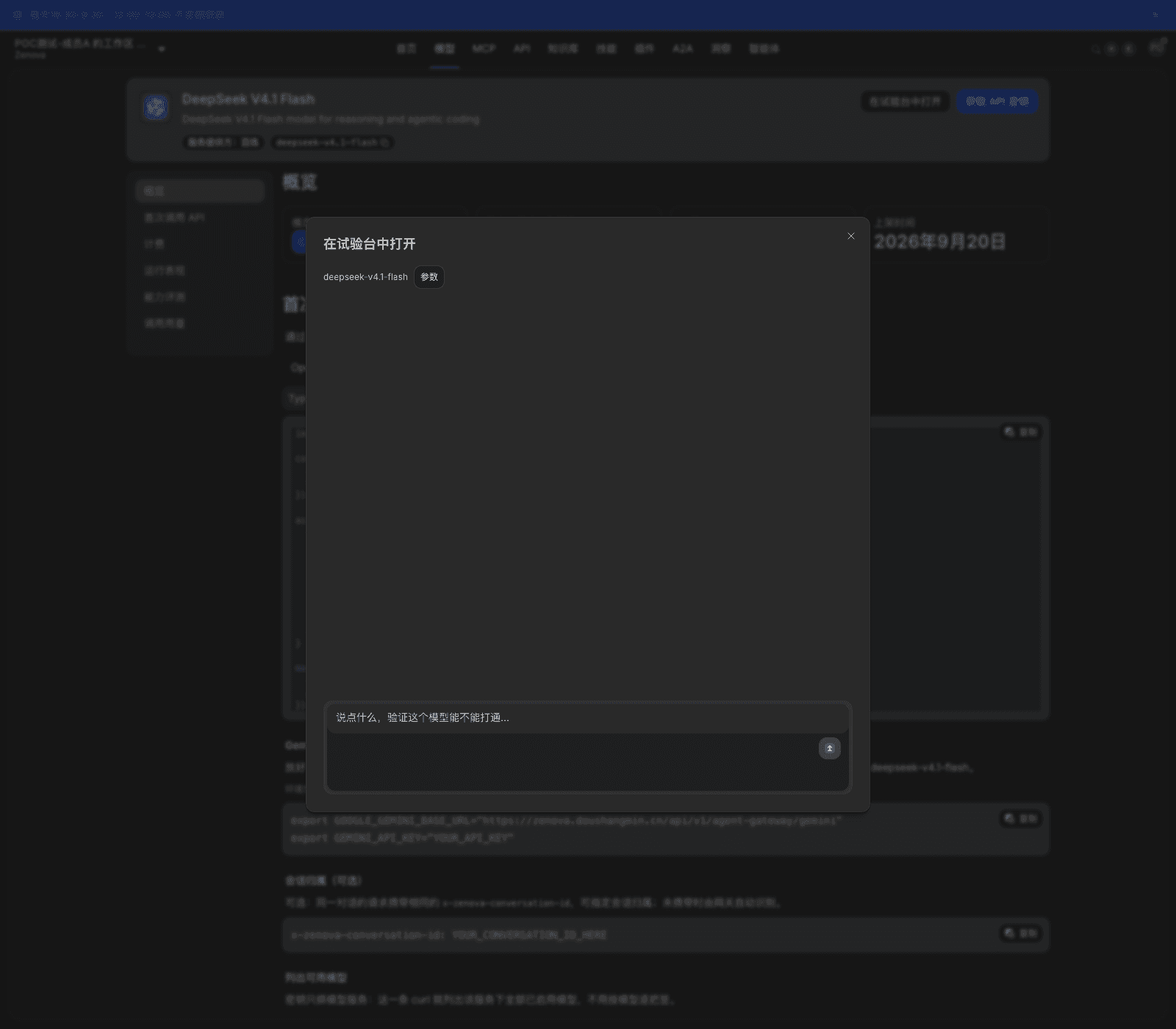
- In the model-detail header click Open in Playground to open the playground dialog. The top of the dialog shows the current model name and Parameters.
- To adjust generation parameters, click Parameters next to the model name, adjust, then close the settings area.
- Type a question in the input box (for example "Explain in one sentence what an AI gateway is."), then click send.
- After the answer finishes you can follow up; the playground keeps this round's context.
What you will see
- The answer appears in streaming segments; it does not wait for the whole generation to finish.
- The model name at the top of the dialog is the current model. This model's playground always opens from the model detail; it does not switch to another model by itself.
- Try produces real calls and cost, counted in your usage, and can be found per call in Call logs (see 8.6.2).
Note
- The playground uses a platform-side billing affiliation; it does not consume your own API key.
- If send says a quota pool is exhausted, the affiliation the playground uses is short of quota. You can then call the same model directly with an API key (see 8.4), or ask an administrator to add quota to that affiliation. That does not mean the model itself is unavailable.
- When a model is sensitive to parameters, first use Parameters to fix temperature and max output length, then compare models; otherwise the conclusion is not comparable.
8.4 Get an API key
When to use: a business system, script, or developer tool needs to call models programmatically, using an API key to prove caller identity.
Prerequisites: an administrator has distributed at least one model group to you, so API key affiliation has at least one option.
Procedure
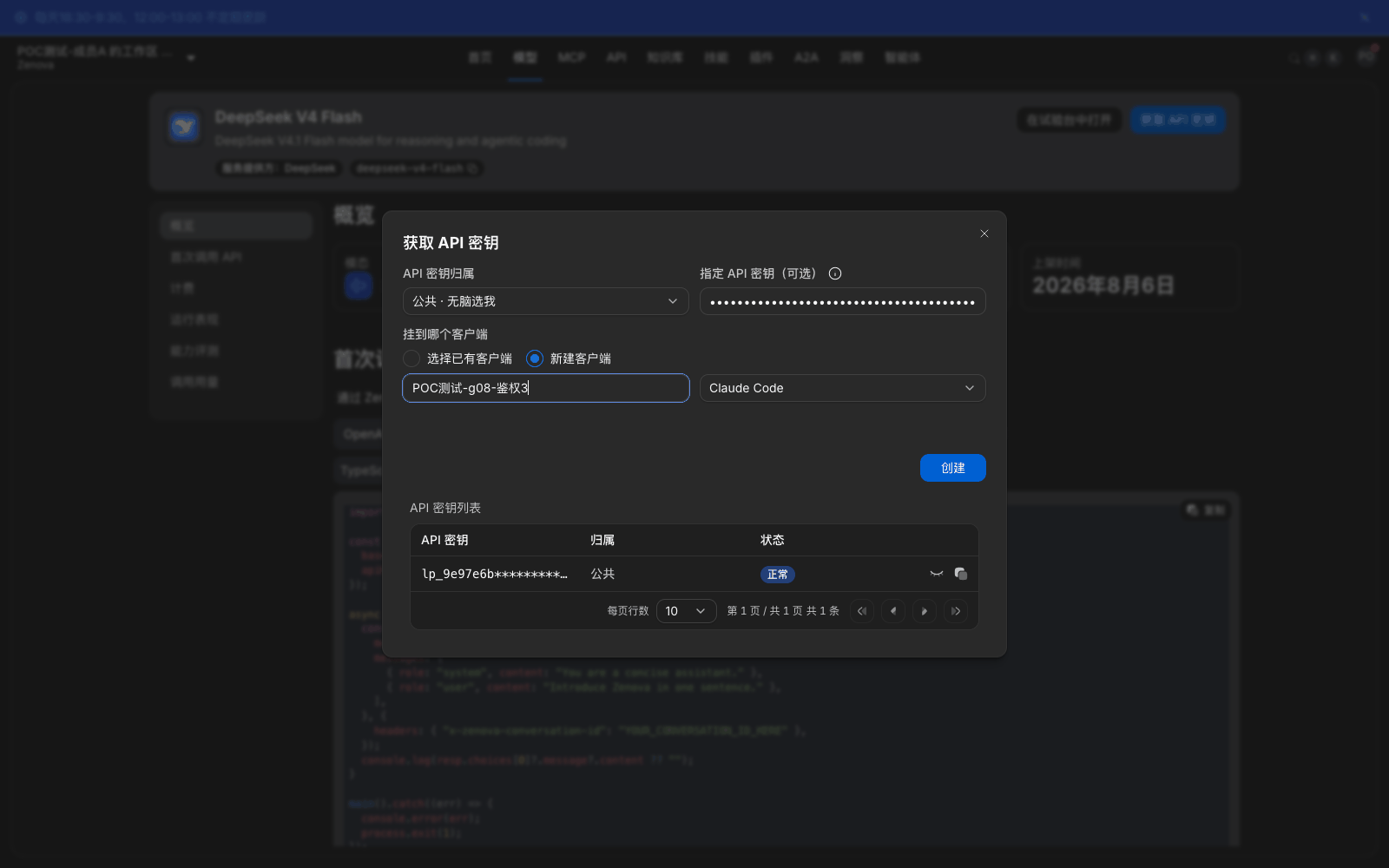
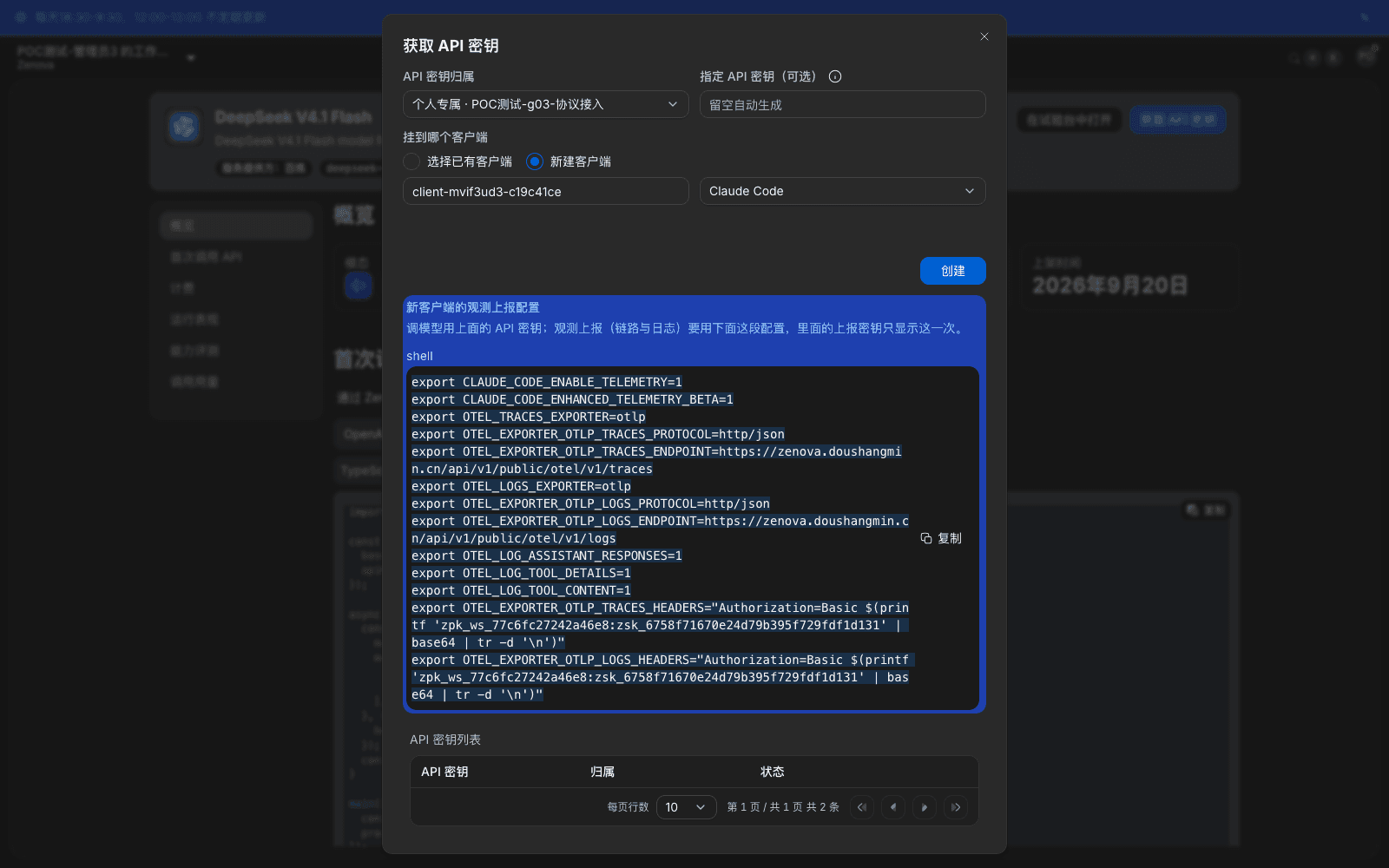
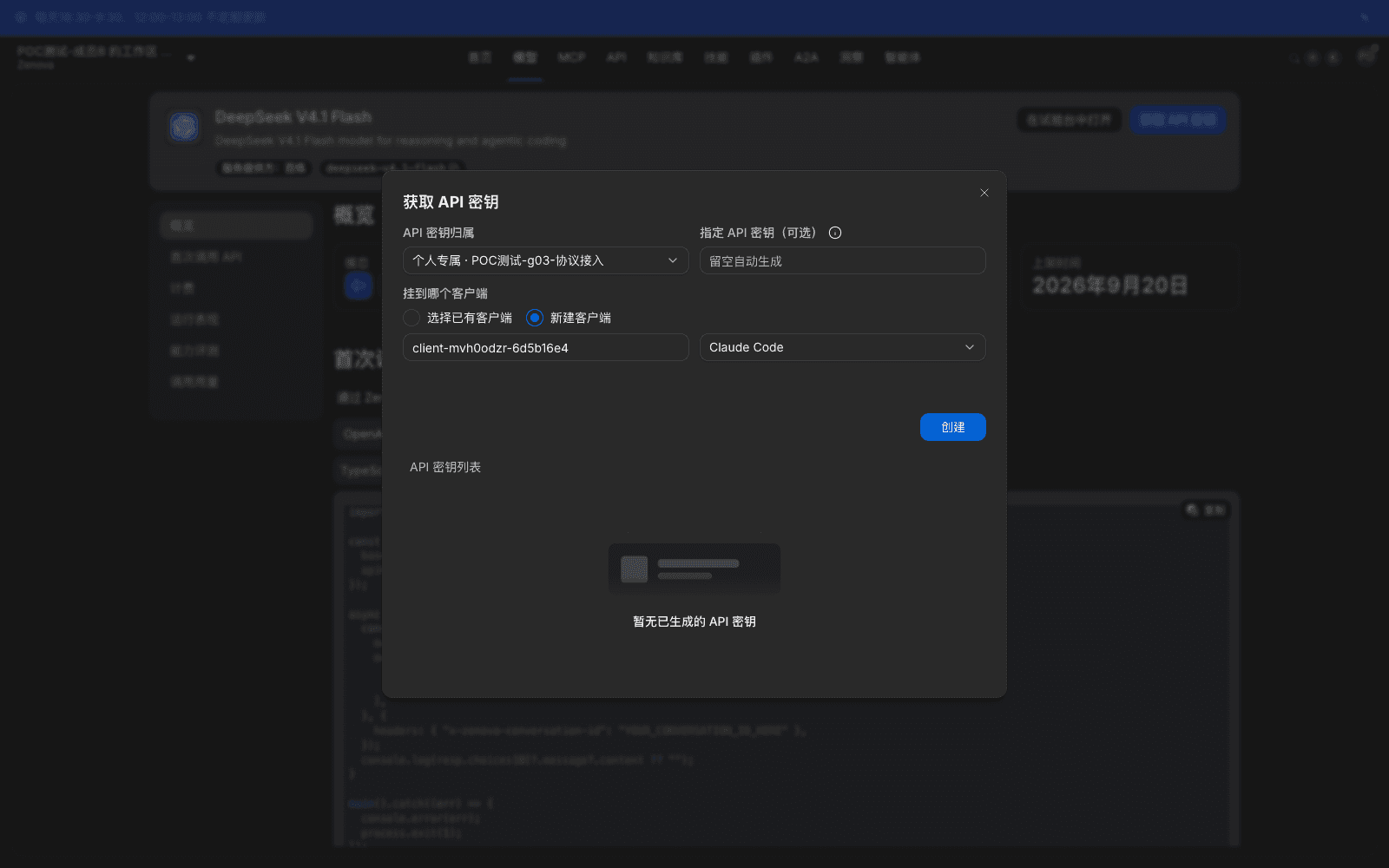
- In the model-detail header click Get API key to open the dialog.
- In API key affiliation, choose which affiliation this key's usage is counted in. When there is only one option it is selected automatically.
- To reuse a key string already in use in a business system, fill it in Specify API key (optional). Leave empty to let the platform generate one.
- In Attach to which client choose:
- Choose an existing client: pick one of the clients you already created;
- New client: fill in a client name and pick a type from the right-hand dropdown.
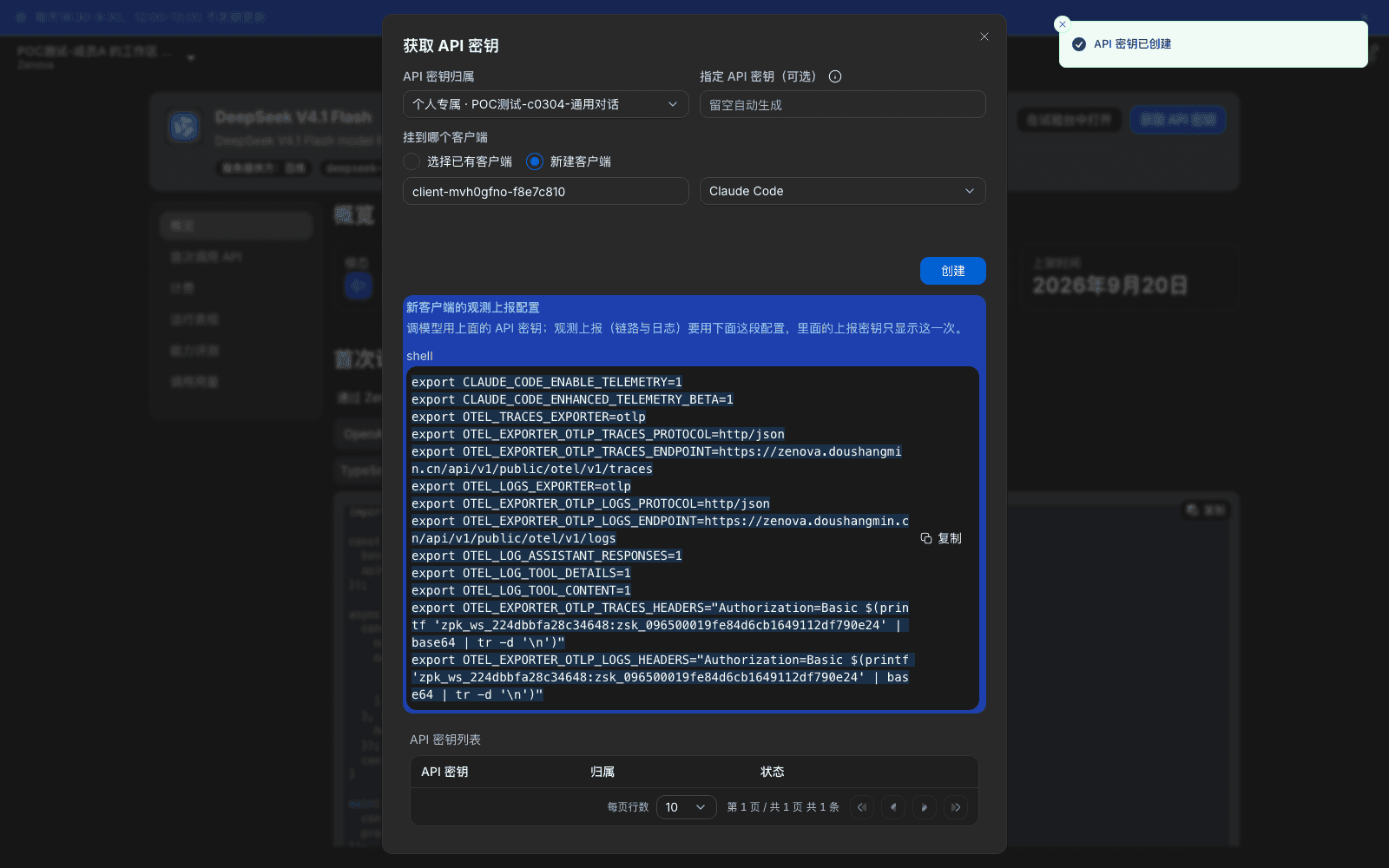
- Click Create. The page says API key created. The new key appears in API key list under the dialog.
| Field | Meaning | Values or default |
|---|---|---|
| API key affiliation | Which billing affiliation this key's usage is counted in, and which group's models it can call | Affiliations an administrator distributed to you, such as Personal · a model group, Public · a model group, Department, Functional group |
| Specify API key (optional) | Import an existing key string so you can switch already-running business onto the gateway | Empty generates automatically; on import, 32–512 characters, letters, digits, and -._~+/= only |
| Attach to which client | Associate the key with a concrete tool instance so usage and conversations can be counted by client | Choose an existing client or New client; types include Claude Code, Codex, Grok, OpenCode, Waner, generic observability protocol |
What you will see
- After create, API key list gets a new row showing a masked prefix (for example
lp_60c50ae…) and status Normal, with view and copy at the row end. - When you chose New client, after create the dialog gives a New client's observability reporting configuration: a set of environment variables (turn on telemetry, reporting endpoint, reporting credential). The reporting key is labeled shown only this time. Paste this configuration into that client's startup environment so Insights can see its conversation traces.
- You can create more than one key under the same affiliation, to distinguish different business systems.
Note
- Affiliation decides which models this key can call and which quota pool it occupies. It cannot be changed after create. To change affiliation, create a new key and switch the business.
- Affiliation candidates only include subjects an administrator distributed to you. If a model group is missing from the dropdown, it was not distributed to you; contact an administrator.
- Copy the key plaintext immediately into the business system's secret store or environment variables. Do not put it in a code repository, chat log, or ticket. If plaintext leaks, revoke that key in API keys immediately, or ask an administrator to disable it.
- Attach to which client only affects statistics and conversation affiliation, not whether the key can call. If you are unsure, you can skip attaching and recreate later.
- If the tenant configured approval for key requests, submit says Submitted for approval; it can be used only after approval.
Manage your own keys in API keys: open Home › Models and credentials › API keys to see all keys you created in one place, or create a key without going through model detail.
- The list shows Name, Key (masked, click to copy), Last used, Status, Created.
- Create: click Create key, fill in Name, choose Model group and API key billing affiliation, optionally fill Specify API key (optional), click Confirm. The dialog shows API key (visible this time only) and This key can call all enabled models in this group.
- For a key you no longer use, choose Revoke in the row actions. The confirm box says After revoke, calls that use this key fail immediately.
Members cannot rotate keys in the workspace. To replace a key, first create a new key, finish the switch and verification, then revoke the old key. Rotation that does not interrupt business is done by an administrator (see section 9.5).
8.4.1 Copy access configuration
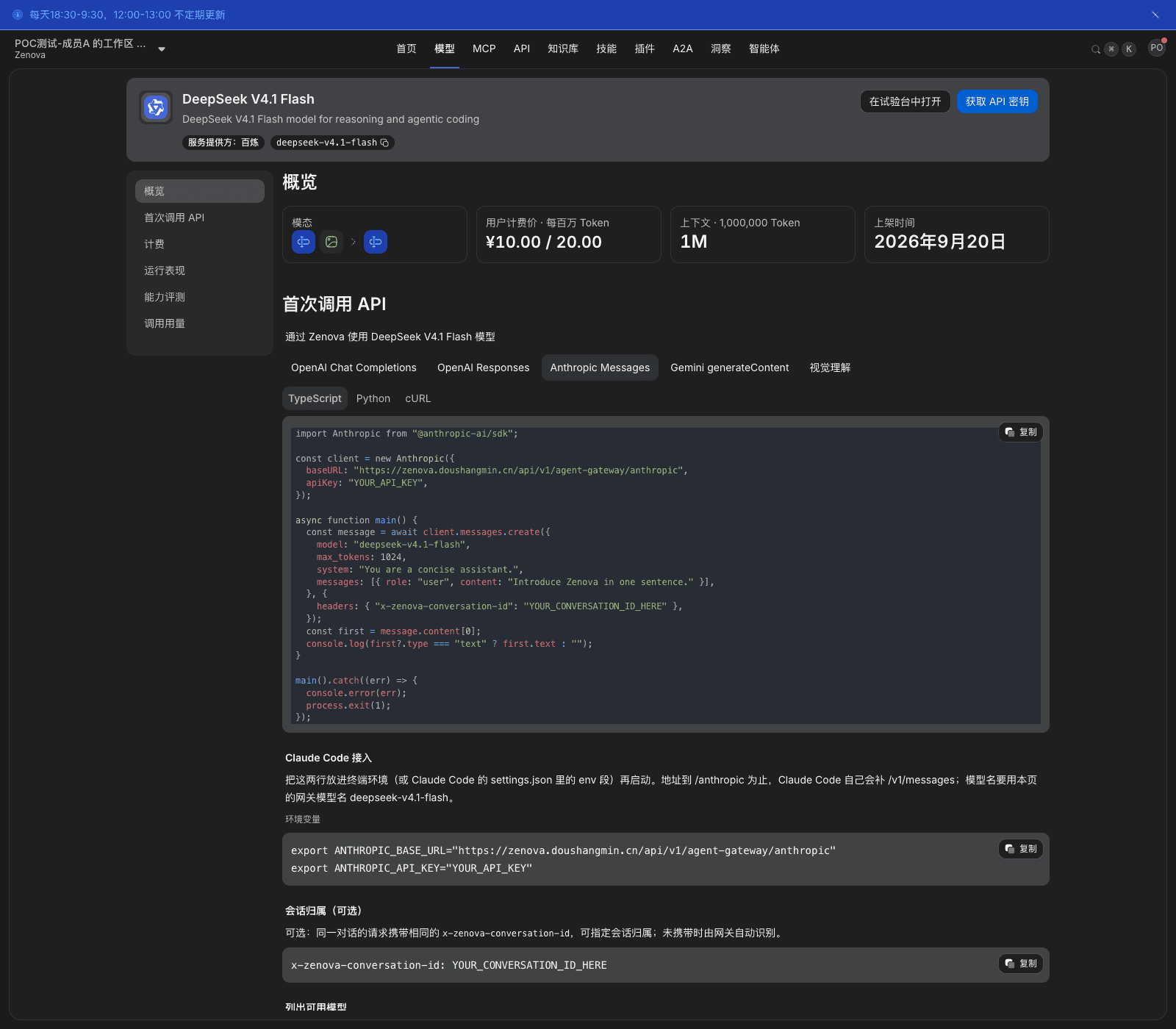
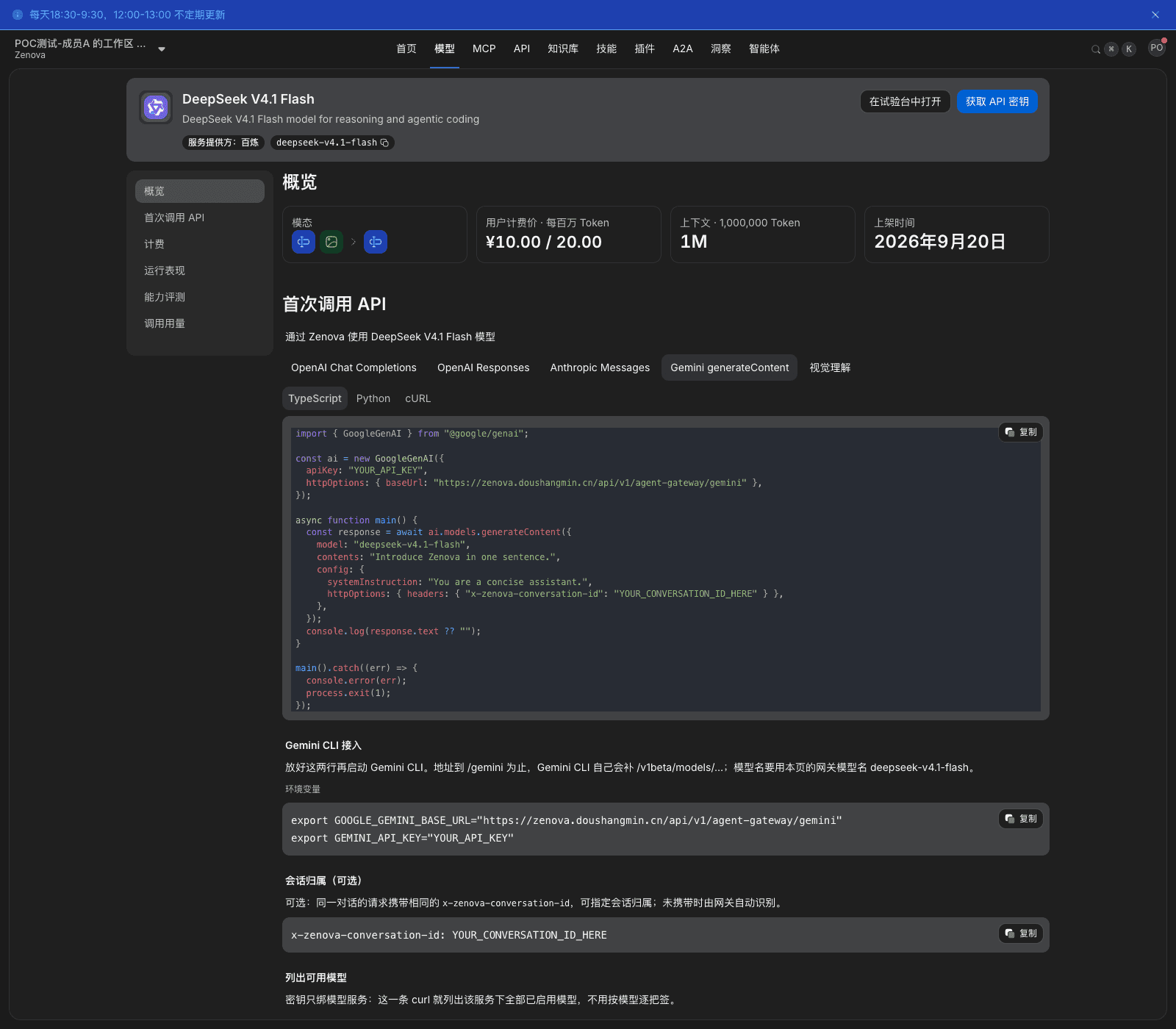
Make your first API call on the model detail is split into five protocol tabs: OpenAI Chat Completions, OpenAI Responses, Anthropic Messages, Gemini generateContent, Vision. Each tab provides TypeScript, Python, and cURL. Copy in the upper right copies the whole snippet. The Base URL in the sample is generated for the current environment, and the model name is already filled in; you only replace YOUR_API_KEY in the sample with your own key.
Under the area there are two helper configurations:
- Conversation assignment (optional): requests of the same conversation carry the same
x-zenova-conversation-idheader so you can specify which conversation they belong to. Without it, the gateway identifies the conversation automatically. - List available models: a
GET /modelsrequest that lists all callable models under this key's model group.
Confirm the result: send one call with the sample code. HTTP 200 and a model answer mean access succeeded. A key can be used immediately after create; you do not wait. This call also appears in Call logs.
Note: sample code depends on each vendor's official SDK; you do not need to change the request format. Other languages use that vendor's official SDK and only change Base URL and key. Full samples are in Chapter 10.
8.5 How availability scope affects members
When to use: a model is missing from the plaza, or your key suddenly starts erroring, and you need to confirm whether authorization changed.
Prerequisites: availability scope is configured by an administrator in Admin Console › Organization & Access › Model Groups › group detail › Visibility & quotas. It can be granted to All users, a department, a functional group, or a single member, and can have a validity period (see Chapter 7).
What you will see
| Situation | What happens |
|---|---|
| In the availability scope | The model appears on the plaza and in the Model Groups list. Get API key affiliation dropdown shows Personal · that model group, and you can call after create |
| Not in the availability scope | The workspace Model Groups list does not have that group. It is not in the Get API key affiliation dropdown. Opening that group's detail URL in the Admin Console redirects you back to the workspace settings page |
| Removed from the availability scope | Issued keys become invalid in about a minute. Later calls return 401 and say the credential is invalid. That group disappears from the workspace Model Groups list at the same time |
| Grant expired | Same as Removed from the availability scope. To keep using it, an administrator renews |
Note
- After an authorization change it takes a little time to take effect on each gateway node, usually within a minute. Right after you are removed, a few requests may still succeed; that is the effective delay.
- If you believe you should have permission but cannot see the model, give an administrator the model name and the model-group name so they can check the authorized subject and validity.
8.6 View personal usage and call logs
When to use: check how much you spent this month, why a call was slow or failed, or attach it when you report a problem to an administrator.
Prerequisites: signed in. Usage is counted for the current workspace; first confirm the workspace in the upper left.
8.6.1 Model usage
Open Home › Usage › Model usage. The page counts your spend by the API key, model group, and billing affiliation used at call time:
- Top cards: Available model groups (currently authorized and callable groups), Available API keys (keys in normal status);
- Filters: Time range, Model group, Billing affiliation, Model, API key;
- Metrics: Model call count and success rate, Total tokens (input / output), spend amount, average cost per call;
- Charts: Spend trend, Billing affiliation share, Model share;
- Upper-right Export detail can export records in the current filter.
What you will see: switch the time range to Last 7 days and every metric is recomputed for that window. Billing affiliation share lists percentages for personal, public, trial run, department, and similar affiliations, so you can see which affiliation spend mainly lands on. The spend-detail table can be filtered further by API key, model group, model, and billing affiliation.
8.6.2 Call logs
Open Home › Usage › Call logs to check model calls and MCP calls one by one:
- View switch: By call lists each call; By answer aggregates one complete answer so you can see the whole execution chain;
- Filters: Time range, Call type, Status, Billing affiliation, plus search by model or request ID;
- List columns: Time, Event type (model / MCP), Target (model name and metering group), Status, Tokens (input / output), Latency, Error code; click a row for detail;
- Upper-right Export records can export the current filter result.
Confirm the result: a Try or API call you just finished appears in the log; status, tokens, and latency match what the caller actually received. Calls intercepted by quota, rate limit, or a rule are also recorded and counted in the success-rate statistic.
Note
- The request ID in call logs matches the gateway response header
x-request-id. Attach that value when you report a problem to an administrator so they can locate this call directly. - The Usage page summarizes recent use and activity, good for a quick look. To check amounts by dimension, use Model usage.
- The same multi-turn conversation is several records in the By call view and one record in the By answer view.
Capability notes
| Not provided | Use instead |
|---|---|
| Set API-key validity or a daily effective time window in the workspace | When you need only usable in a given window, an administrator implements it with a traffic rule Caller = this key + time window + deny request (see Chapter 15) |
| Set an IP allowlist on an API key in the workspace | An administrator uses the Client IP CIDR condition in a traffic rule (see Chapter 15) |
| Rotate a key in the workspace | You can first create a new key, finish the switch, then Revoke the old key in API keys (see section 8.4). Rotation that does not interrupt business, and bulk disable, are done by an administrator in Admin Console › Organization & Access › Model Groups › API key management (see Chapter 9) |
| Auto-generate SDKs in many languages | Use each vendor's official SDK and only change Base URL and key. Model detail provides copyable TypeScript, Python, and cURL samples (see Chapter 10) |
| One-click write of configuration from the web into a local client | Copy the configuration snippet from model detail and write it by hand. Members who use the desktop companion ZenSwitch can have it pushed and rolled back automatically |
| Transfer a personal key to another member | Keys with personal affiliation cannot be transferred. The person who needs it creates one in their own identity |
Previous: 7. Configure model-group availability scope and quotas · Next: 9. Callers and API keys
7. Configure model-group availability scope and quotas
Full-length chapter. Content is checked against the 2026.10 mainline code and the live console; menus and features depend on the current license, account permissions, and delivered environment.
9. Callers and API keys
Full-length chapter. Content is checked against the 2026.10 mainline code and the live console; menus and features depend on the current license, account permissions, and delivered environment.