15. Traffic rules and traffic protection
Full-length chapter. Content is checked against the 2026.10 mainline code and the live console; menus and features depend on the current license, account permissions, and delivered environment.
Back to overview · Full table of contents · Download full PDF
This chapter: for tenant administrators and security administrators. How to use 「Traffic rules」 to decide where each call goes, and how to protect upstreams and cost with limits, circuit breaking, and budgets. After you finish it, you can write match conditions from business features, split among several upstreams of one model, adjust the last-row 「Default」 rule, configure failover and canary cutover, simulate the whole rule chain before you save, and set controllable caps on call volume, concurrency, and spend.
「Content check · Conversation」 and 「Content check · Tool calls」 are in Chapter 14. Model-group available scope and quota authorization are in Chapter 7.
15.1 Rule list and rule workflow
Prerequisites: the license includes the 「Dynamic routing」 or 「Model guardrails」 module (when neither is included, the sidebar does not show 「Traffic rules」), and you have the tenant-administrator or security-administrator role.
Procedure: open 「Admin Console › Traffic › Traffic rules」. Of the three tabs, 「Rule list」 is for creating, import/export, copy, reorder, enable/disable, and entering 「Validate rule」. 「Global limits」 maintains limits by call type. 「Intent sets」 is for trial judgement and building rules. The top right of the list is 「Export」, 「Import rule templates」, 「Import from file」, 「New rule」, and shows 「{count} / 500 rules」.
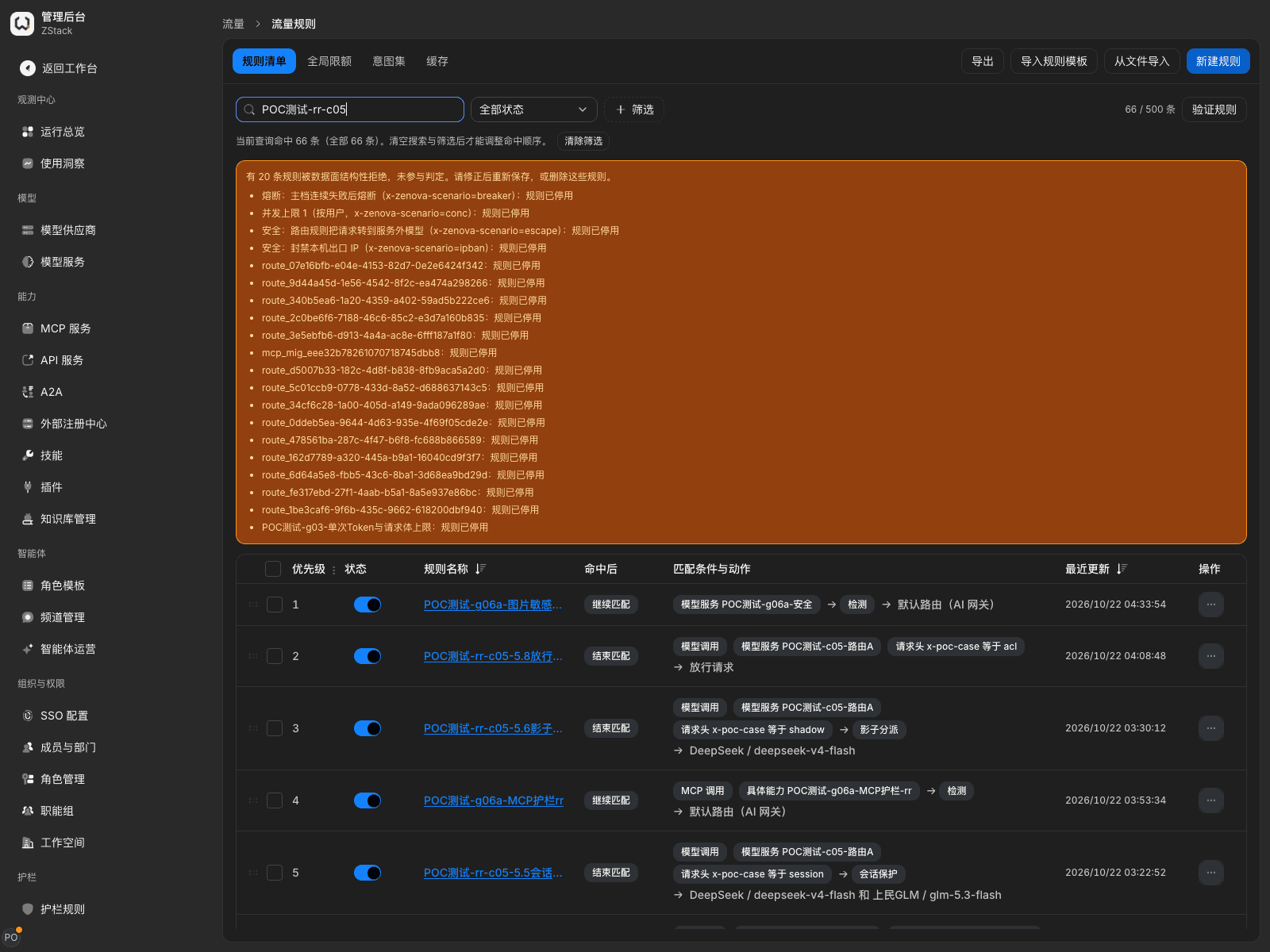
A rule can be read as 「if ⟨condition⟩ is met, run ⟨action⟩; when something goes wrong, handle it with ⟨failure handling⟩」. The 「Rule workflow」 canvas is, top to bottom, 「Request entry」 (rule name 1–120 characters), 「Match conditions」, 「Actions」, 「Outcome」, and 「Failure handling」. Outcome is only the configured expectation; it does not mean the request already succeeded. 「Save rule」 is unavailable while 「Configuration checks」 on the right still has items to complete.
What you will see: the 「On match」 column splits rules into two classes. Those with a forward target, or whose action is 「Allow」 or 「Reject this call」, are terminating rules; a match ends matching. Those that only set limits, rewrite, detect, or cache are enrichment rules; after a match, matching continues. The gateway checks enabled rules from small priority to large; every condition must be met to match. The last row of the model-call list is fixed as the 「Default」 rule: it distributes among all enabled upstreams of the requested model. When no other terminating rule matches, or a matched rule only allows and does not specify a target, distribution follows the 「Default」 rule. The destination basis in the call detail then shows 「Default」 or 「Allowed by rule 「X」 · distributed by Default」. When no rule matches an MCP, A2A, or API-service call, it is forwarded to the primary endpoint. The 「Default」 rule does not apply to them.
Adjust the 「Default」 rule: open 「Default」 on the last row of the list. It cannot be dragged, deleted, or disabled, and it stays last under any sort. When you edit it, conditions, targets, guardrails, request headers, and similar blocks show as not editable. You can only change target-selection strategy, session switch protection, and failover. After you change them, they still go through 「Review this change」 before publish. Trying to change other fields is rejected on save with 409 route_default_policy_locked.
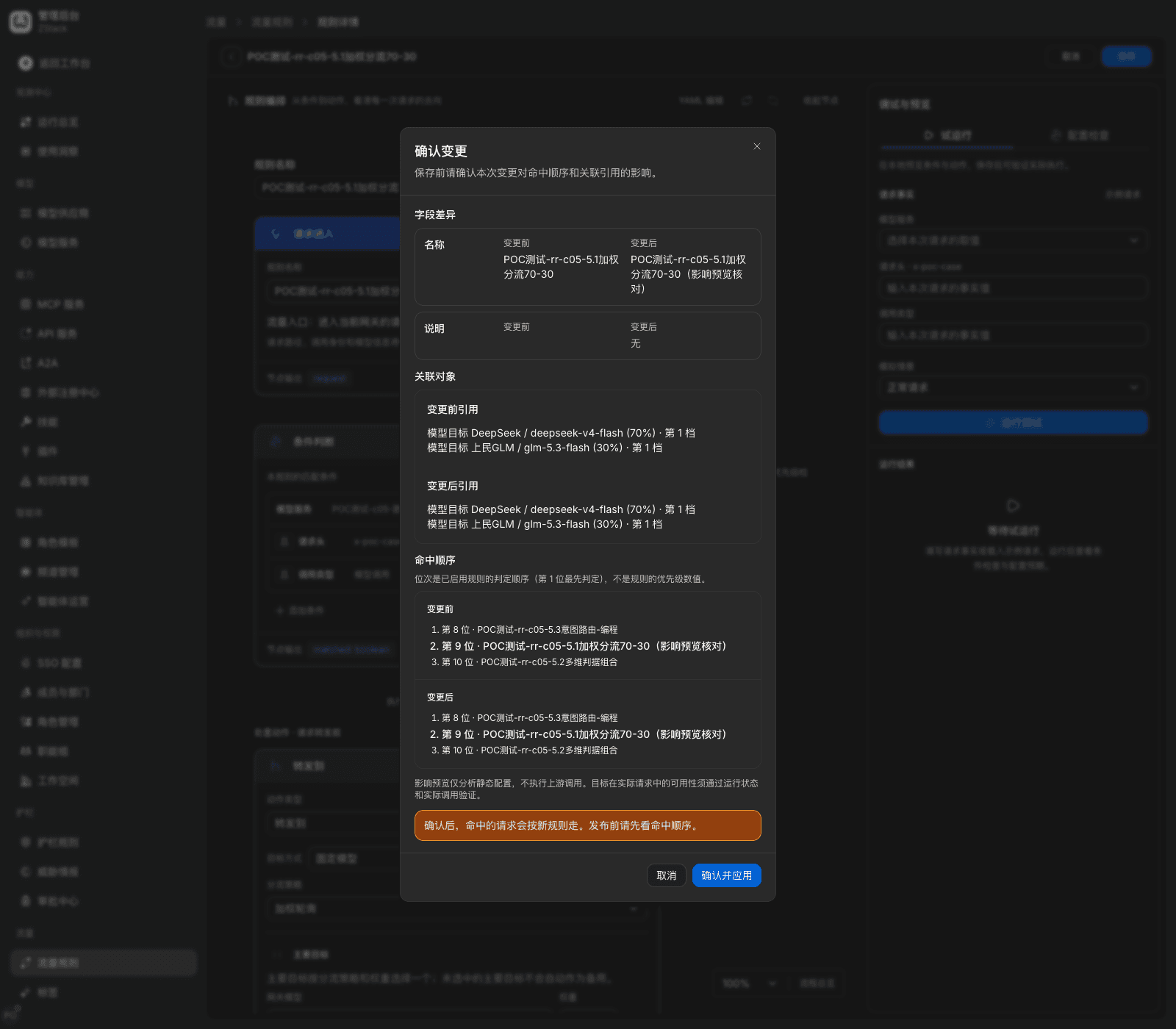
Note: once a terminating rule matches, later rules are no longer evaluated, and a new rule is placed at the end by default — if a terminating rule that matches by model or model group already sits in front, the new rule never takes effect on the same request. When 「Review this change」 can tell that the new rule is covered by a wider terminating rule above, it prompts and provides 「Move before 「X」」 as one-click reorder. Orchestration principle: put enrichment rules before the terminating rules that need their constraints; put precise rules first and catch-all rules last. Before save, check adjacent rule ranks in 「Review this change」. After save, in 「Validate rule」 confirm the new rule shows 「Matched」 rather than 「Not reached」.
15.2 Match conditions
Procedure: on the 「Match conditions」 node, choose 「Add condition」, search by name, and add. For each condition, choose a comparison and fill values. After every one is filled, the footer shows 「N/N configured」. There are 19 condition classes, in four groups:
| Group | Conditions and points |
|---|---|
| Identity and source | Caller (selector only; you cannot type an identifier), organization member (department includes children, unioned with functional groups), tag (the key must be defined first in 「Admin Console › Tags」) |
| Model and capability | Call type, specific capability, tool name (may include * wildcards), MCP method, model (matches the call name; 「equals」 can pick a model directly, other comparisons are typed), model group (judged on the set of groups the caller can use that contain this model: an API key uses its bound groups, a signed-in identity uses every visible group; any matching group hits), actual upstream (only for review after a target is selected) |
| Request content and intent | Data source (data an MCP tool returned), request contains sensitive information, intent (an intent-recognition model must be set first) |
| Request basics and time | Request path, URL parameters (only for calls that hit the gateway directly), request header (credential-class and gateway-internal headers cannot be conditions), time window, client CIDR, rollout cookie |
String conditions have six comparisons: the 「match」 group is equals, starts with, matches regex; the 「exclude」 group is not equals, does not start with, does not match regex.
Set conditions support 「is any of」 and 「is none of」, including model group, actual upstream, call type, specific capability, data source, sensitive-information type, intent, MCP method, client CIDR, and rollout cookie. A time window can also exclude configured windows. 「is none of A, B」 means neither A nor B matched. When a request fact is missing, detection is not finished, or the condition does not apply to this call, choosing exclude does not automatically match. An unset tag and an unresolvable organization member still follow each condition's own notes.
「Client CIDR」 can tick the system preset 「Mainland China」, or fill a concrete CIDR. Either matching satisfies a positive condition. Mainland China does not include Hong Kong, Macao, or Taiwan, and supports IPv4 and IPv6. Intranet IPs or IPs whose region cannot be recognized do not take part in region matching. To strictly allow only mainland sources, use a 「Mainland China」 allow rule plus a later catch-all reject rule; see source access control.
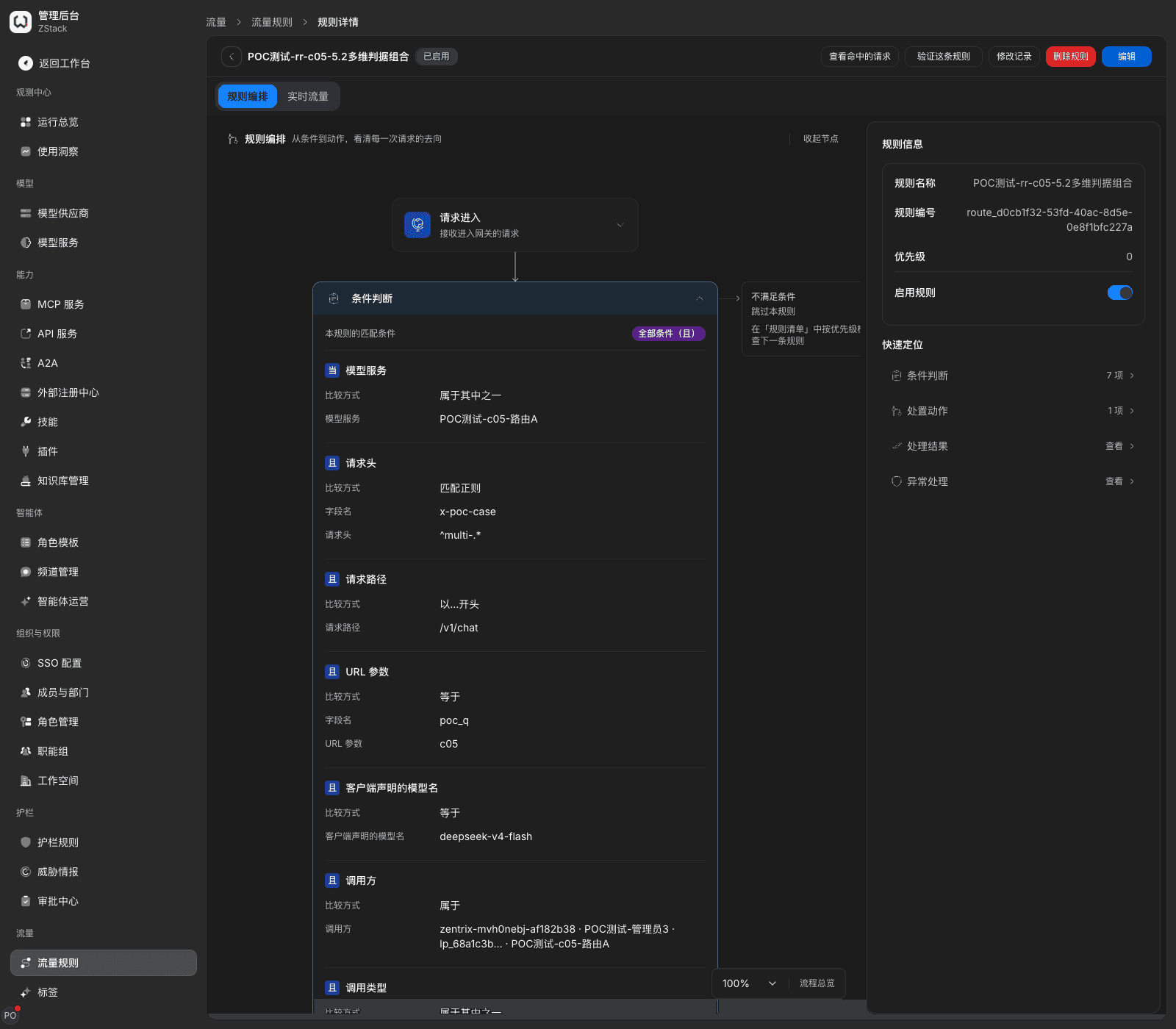
Note: conditions are always 「AND」. Only multiple values inside the same condition are 「any」 — to express 「A or B」, put both values in the same condition or split into two rules. A rule has at most 16 conditions, each condition 1–32 values, each value at most 256 bytes. A rule with no condition matches every request. Before you save, confirm it really is an intentional catch-all. Failed structure validation is rejected with a locatable prompt, such as 「A rule can have at most 16 conditions.」 「Each tier's target weights must sum to 100%.」
15.3 Split targets and weights
When to use this: share traffic for the same model among several providers, send a share to a new upstream, or pick an upstream automatically by cost or latency. Prerequisites: the target upstream is connected and can be called normally.
Procedure
- 「New rule」, fill a rule name, add conditions that narrow to the target traffic, for example 「Model」 equals a model, 「Call type」 is model call. You can also choose 「New rule with this condition」 on the 「Traffic rules」 tab of a model detail; the condition is prefilled as that model.
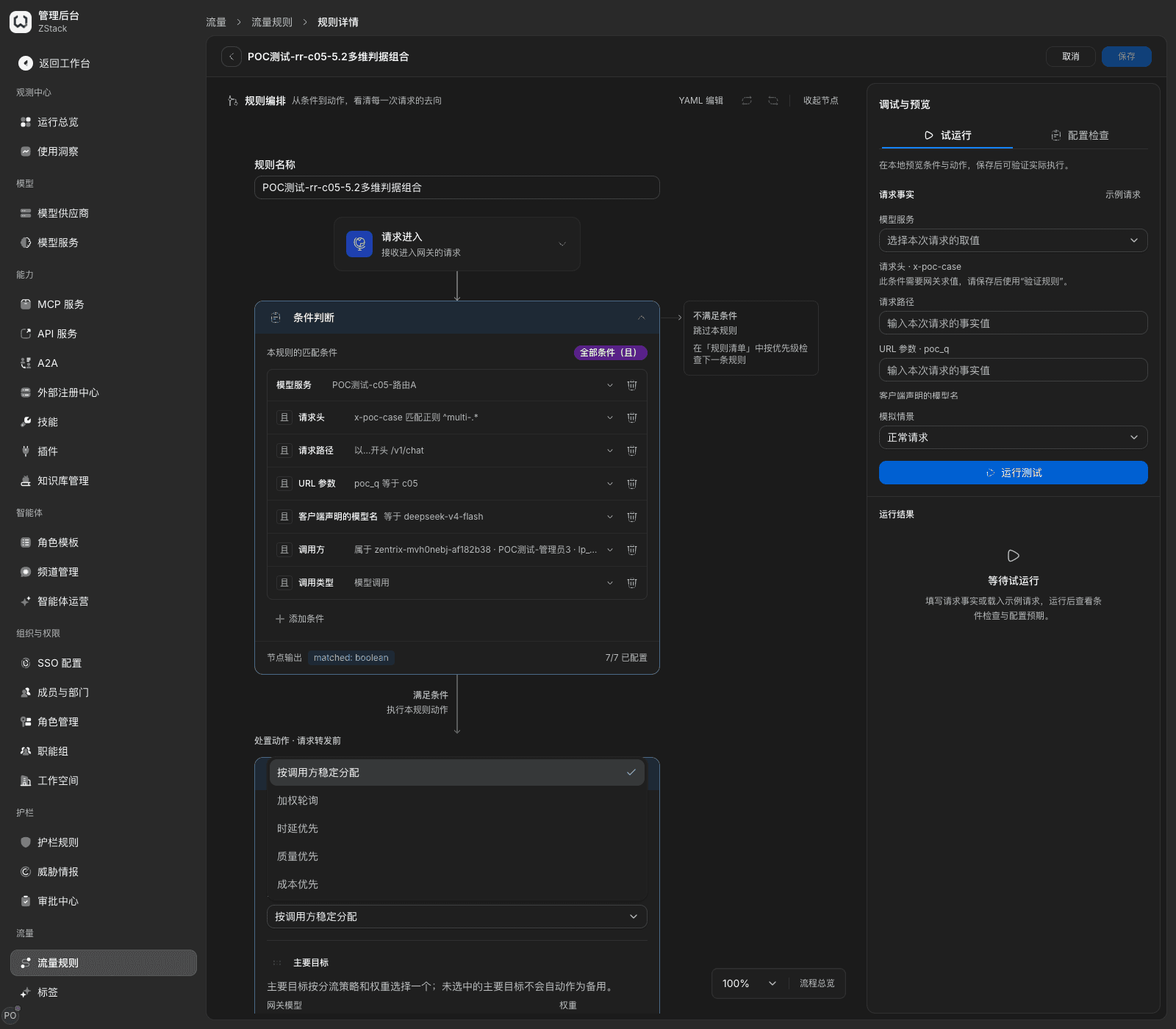
- Choose 「Add action」, in the 「Other」 group choose 「Send to a specific target」, set 「Target mode」 to 「All upstreams of the requested model」 or specify upstreams one by one, and pick a 「How traffic is split across targets」. A new rule defaults to 「Weighted round robin」 and turns on session switch protection: different sessions are assigned to upstreams by share; the same session stays on the same upstream.
「All upstreams of the requested model」 expands to every currently enabled upstream of the model the caller requested. After the model adds or disables an upstream, it takes effect automatically; you do not need to change the rule. You can limit to some providers. Expansion filters by provider first, then by capabilities such as tools, vision, and context window. When capability filtering removes every upstream, it falls back to the unfiltered set. When the whole rule expands empty, it returns 503 model_no_backend, does not skip the rule to find another upstream, and configuration checks and the call detail mark this rule. That kind of target cannot be mixed in the same rule with specified upstreams or capability endpoints.
- When you specify upstreams one by one, on 「Primary target」 pick the first upstream and fill a weight, use 「Add split target」 to add a second target and fill a weight, and you can 「Distribute weights evenly」.
- On the right 「Validate rule」 tab, confirm this rule shows 「Matched」, then 「Save rule」 and confirm in 「Review this change」.
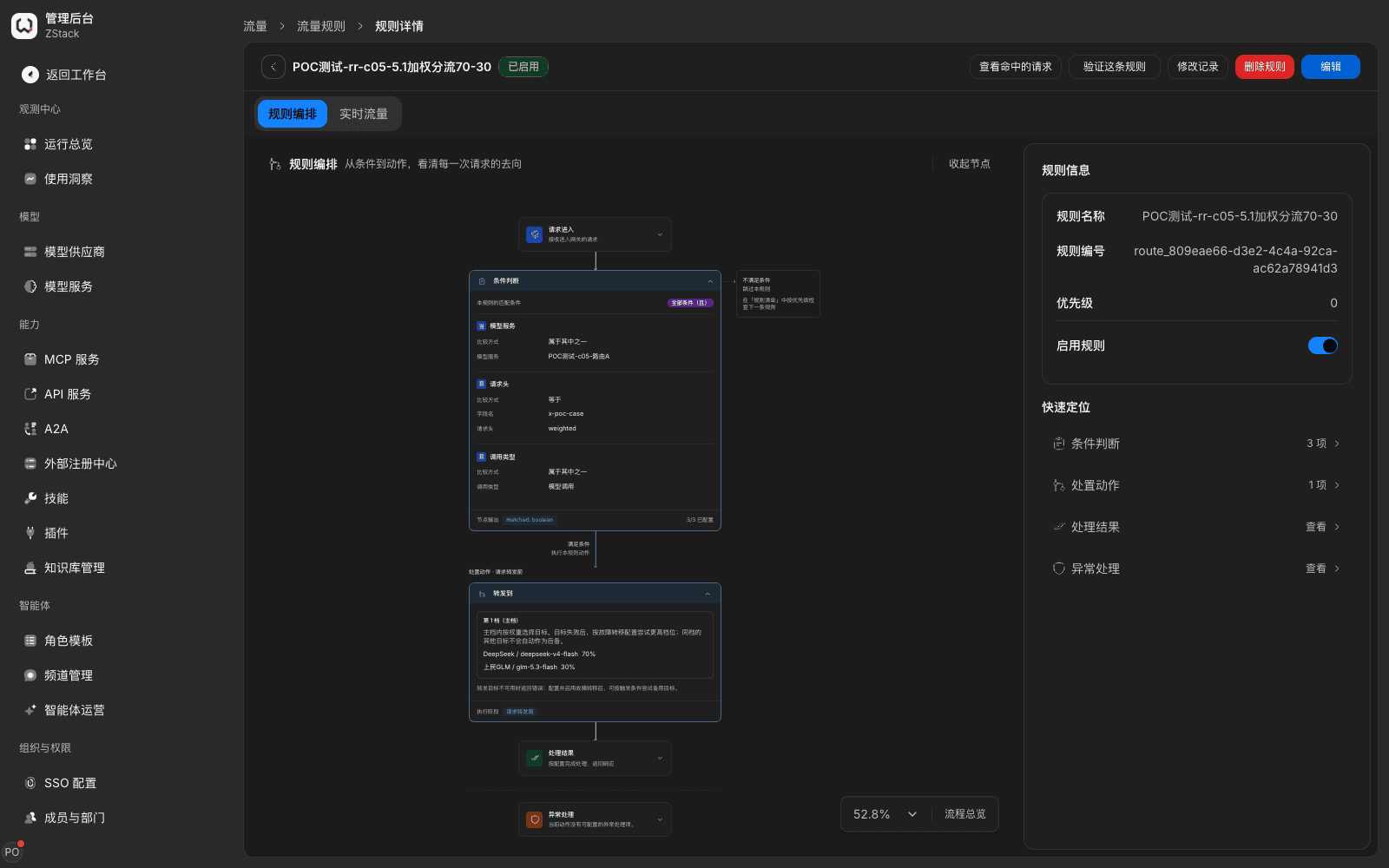
What you will see: the forward node notes 「Inside the primary tier, pick a target by weight. After a target fails, try a higher tier according to failover configuration; other targets in the same tier are not used as backups automatically」. Five strategies: Same caller stays on the same target (the same caller always lands on the same target; you need several callers to observe the share), Weighted round robin (rotate by weight inside the tier; the share is noisy on a small sample), Fastest first (draw two targets and pick the one with lower predicted time to first token; model targets only), Best quality first (compare quality score first; within tolerance they tie, then compare blended price and latency), Lowest price first (compare blended price first, that is input plus output price; on a tie then quality score and latency). The last two can set 「Tolerance」 (default 5%).
Note: when you specify upstreams one by one, weighted split itself is not disaster recovery — a request assigned to a target that then fails is not automatically sent to another target in the same tier. For disaster recovery, add a backup tier and enable failover (see 15.4). Usage and quota are counted on the 「Metering group」 (among groups the caller can use that contain this model, the one ranked first that still has quota; see section 6.7). Fees settle at the unit price of the upstream that actually handled the request. When the target is 「All upstreams of the requested model」, other upstreams in the same tier sit after the chosen upstream in the failover attempt chain.
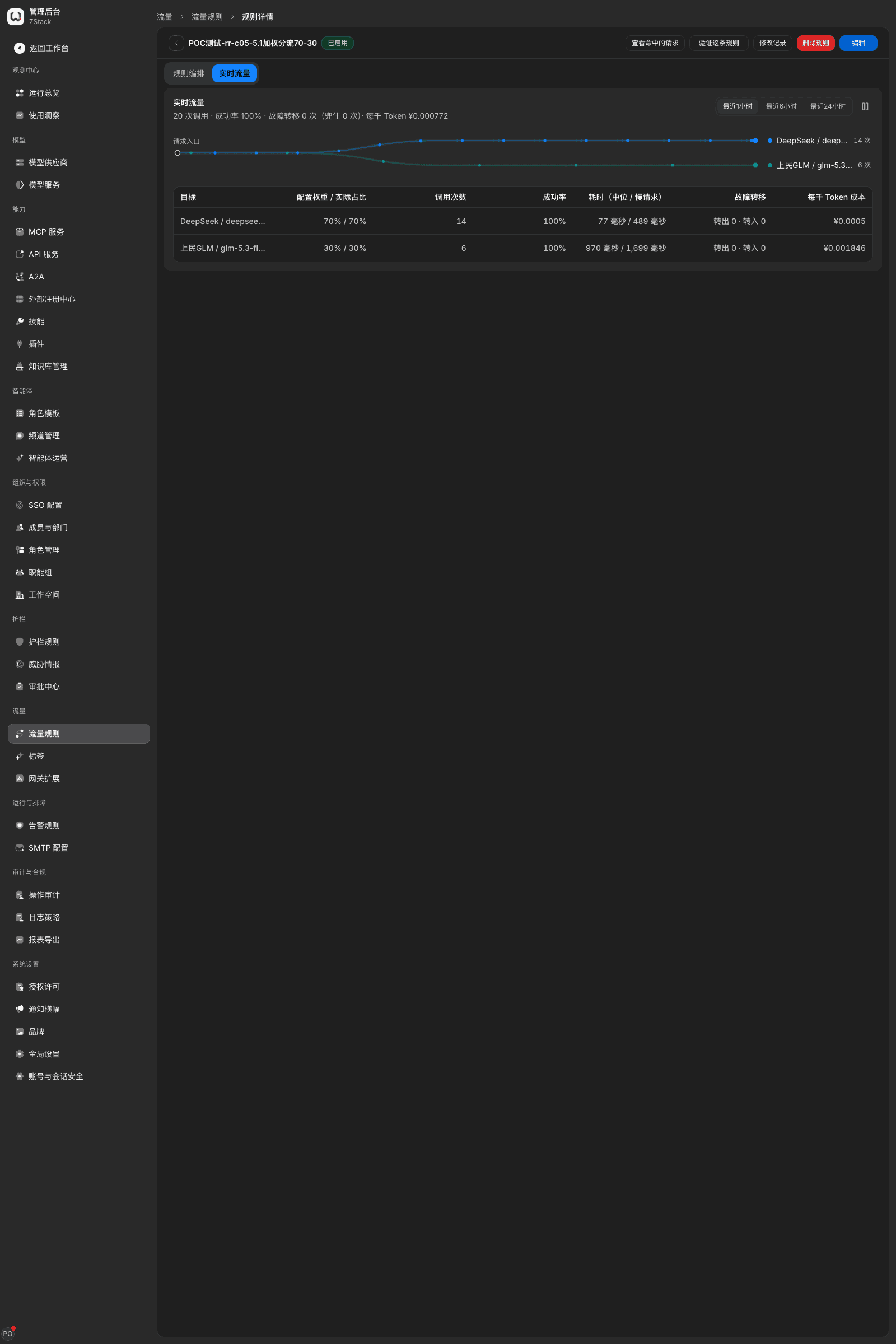
Confirm the result: on the rule detail, choose 「Live traffic」. Each target gives configured weight and actual share, call count, success rate, latency, and cost per thousand tokens. The x-zenova-route-rule response header of a matched rule gives the prefix of the rule ID that decided the destination.
15.4 Failover and upstream health checks
Prerequisites: call type is limited to model call, and at least one backup tier is configured — failover cannot be turned on with no backup target.
Procedure
- Configure a primary target in 「Forward to」, then choose 「Add backup tier」 to add a backup target.
- Turn on 「Enable failover」 and choose trigger conditions (any one matching transfers): upstream connect failed or interrupted, upstream timeout, upstream returned a specified status (100–599; 429, 500, 502, 503, 504 ticked by default), response content matches a specified condition (a field path starting with
/such as/objectequals the expected value; non-streaming only). - Set 「Total attempts」 (1–10, including the first call) and 「Pre-content failover budget (seconds)」 (1–600). Reaching either cap stops transferring.
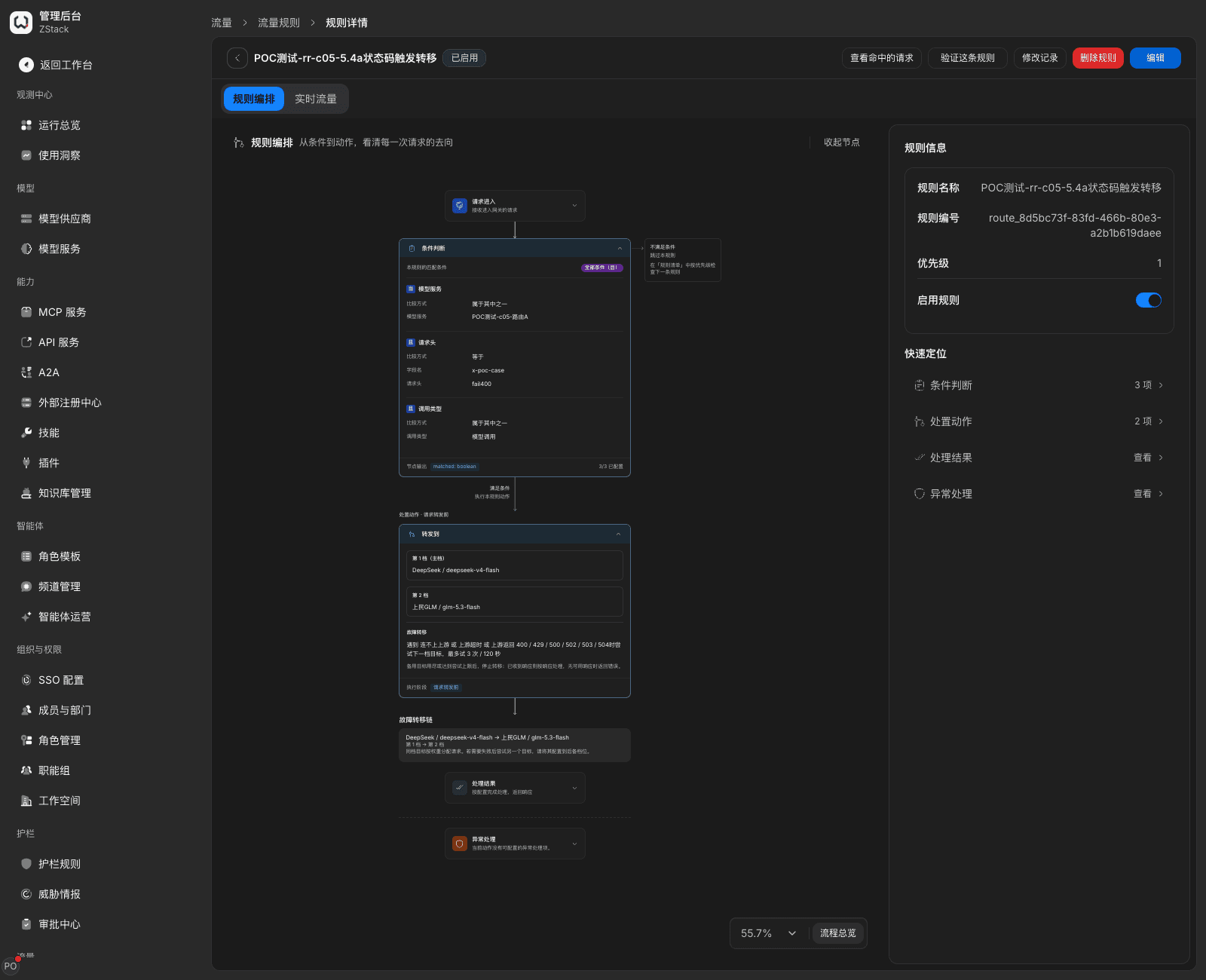
Switch semantics: if the primary-tier status is in the trigger set, move to the next tier. If the primary returns 4xx and it is not in the set (for example 400 parameter error), do not transfer, do not retry; return the upstream error as-is. Primary authentication failure (401) returns 502 upstream_credential_rejected and does not transfer; that account enters cooldown. A target already unavailable before dispatch is skipped. All unavailable returns 503 upstream_unavailable. After the first content has been output to the client, it no longer transfers. Streaming requests are not judged by response content.
Confirm the result: the top of 「Live traffic」 gives 「N calls · success rate · failed over N times (caught N)」. The primary shows 「transferred out」; a backup shows 「transferred in」 counts.
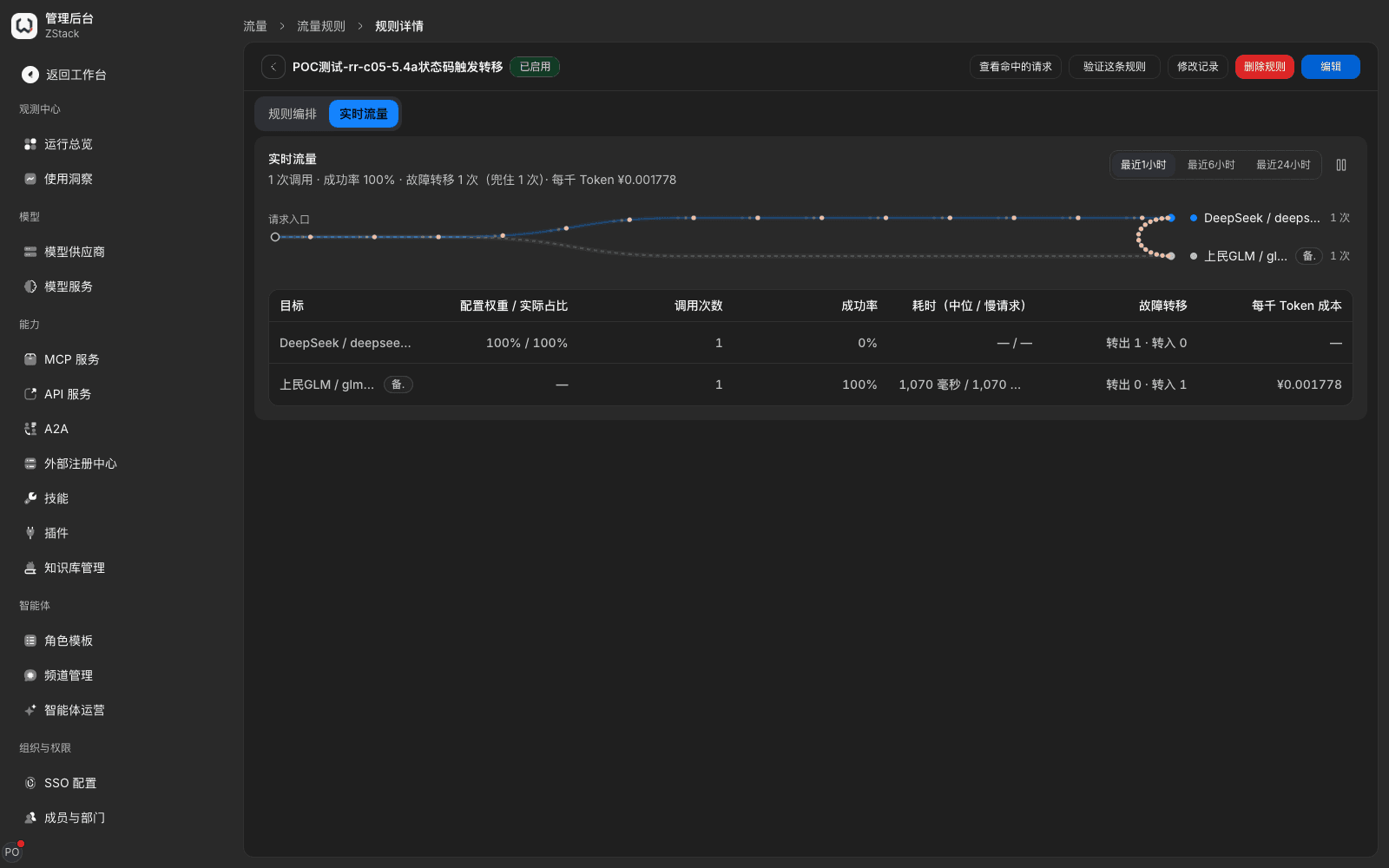
Note: failover is not a silent switch — it is visible in call records and live traffic. Total latency equals primary-failure latency plus backup latency. The client's timeout should cover the gateway's attempt budget. Upstream availability is owned by 「Model Providers › provider detail」: it probes on a fixed interval. Probe interval, how many consecutive failures judge unhealthy, and how many consecutive successes restore are all configurable. The 「Availability probes」 tab lists each check's result and failure reason. An account can be 「Disabled」 to take traffic off temporarily.
15.5 Session affinity and shadow dispatch
Session switch protection lets later requests of the same session keep using the previous turn's model. Prerequisites: forwarding uses 「Best quality first」 or 「Lowest price first」, and there are at least two primary targets.
Procedure: after 「Forward to」, choose the insert button, add 「Session switch protection」 (unavailable when there is no forward target), fill 「Switch margin」 (default 5%), 「Minimum user turns」, 「Idle timeout」 (default 300 seconds), save, and confirm apply.
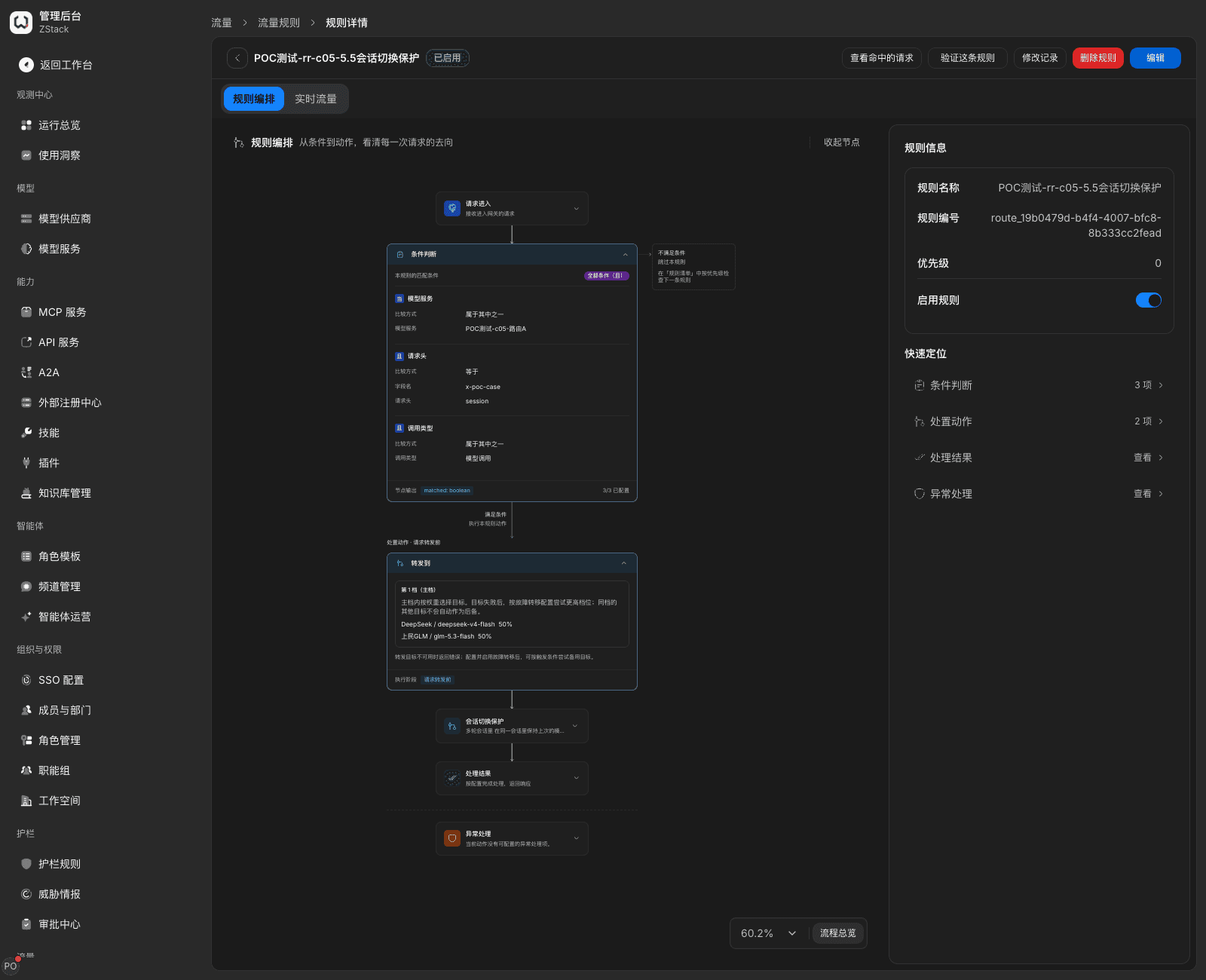
The gateway identifies a session in the following order and stops at the first hit:
| Order | Source | Notes |
|---|---|---|
| 1 | Platform run thread | A platform-hosted run issues an ID for each run thread. It takes precedence over a session ID the caller reports. The caller cannot move a platform-run thread to another session through a request header |
| 2 | Request header x-zenova-conversation-id | A session ID the caller specifies. An illegal format returns 400 invalid_request, reason invalid_conversation_id |
| 3 | The client's own session ID | Session IDs coding assistants such as Claude Code and Codex carry in headers or the body; no extra configuration |
| 4 | Responses continuation | When you use the Responses API and send conversation or previous_response_id, the continuation request is attributed to the previous turn's session |
| 5 | Conversation-history continuation | When none of the above is present, the gateway compares the full conversation history this request carries: if it exactly continues the same caller's previous reply, it is attributed to that reply's session; otherwise it is a new session |
The first user message is not used to identify a session. The first four are called explicit identity. Only a session with explicit identity enables session switch protection and takes part in per-session counting. A session identified by conversation-history continuation is only used for session merge, diagnosis, and spend statistics.
Note: when the price and quality gap between two candidates is itself stable, multi-turn calls keep landing on the same target. That does not prove protection is working. To tell whether it works as expected, change candidate ranking mid-session, then watch whether a switch waits until margin and turn conditions are met.
Shadow dispatch copies a sampled request and sends it asynchronously to a shadow model. Prerequisites: the rule already has a forward target, and the shadow model is different from the forward target.
Procedure: after 「Forward to」, insert 「Shadow dispatch」, pick a shadow model, fill 「Sampling rate」 (default 1%), 「Concurrency cap」, 「Queue limit」, 「Timeout」, and 「Response-read cap」. After save, 「Shadow compare」 appears at the top right of the detail.
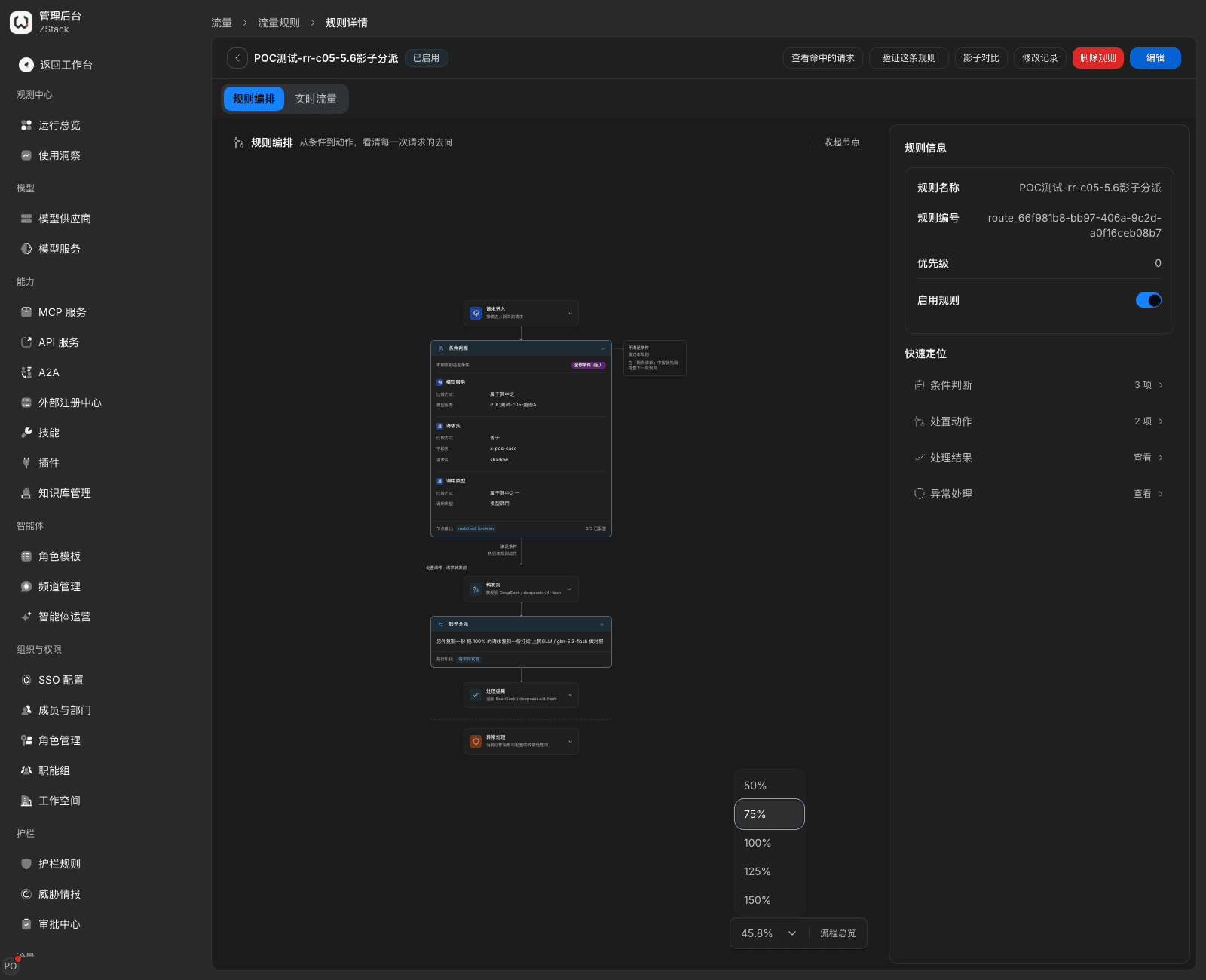
What you will see: the client only receives the primary target's response. Shadow content is not returned to the caller. 「Live traffic」 only counts primary traffic. 「Shadow compare」 can compare the two's request count, success rate, latency, tokens, and cost by time window.
Note: shadow failure, timeout, or drop does not affect the primary response. Shadow requests skip rate limiting but are billed as usual. Usage is accounted separately under purpose 「Shadow」. It only records response size, status, latency, and tokens; it does not keep the body. You can only compare usage and latency, not output line by line. Looking immediately after you turn it on may have no data yet.
15.6 Canary release and traffic coloring
Color by rollout cookie: create a rule, add 「Rollout cookie」 in conditions, pick a name from the dropdown zenova_canary, zenova_rollout, or zenova_variant, fill a value (for example beta01), set the action to 「Forward to」 the canary target, and save. The rule detail only shows name and comparison, not the value.
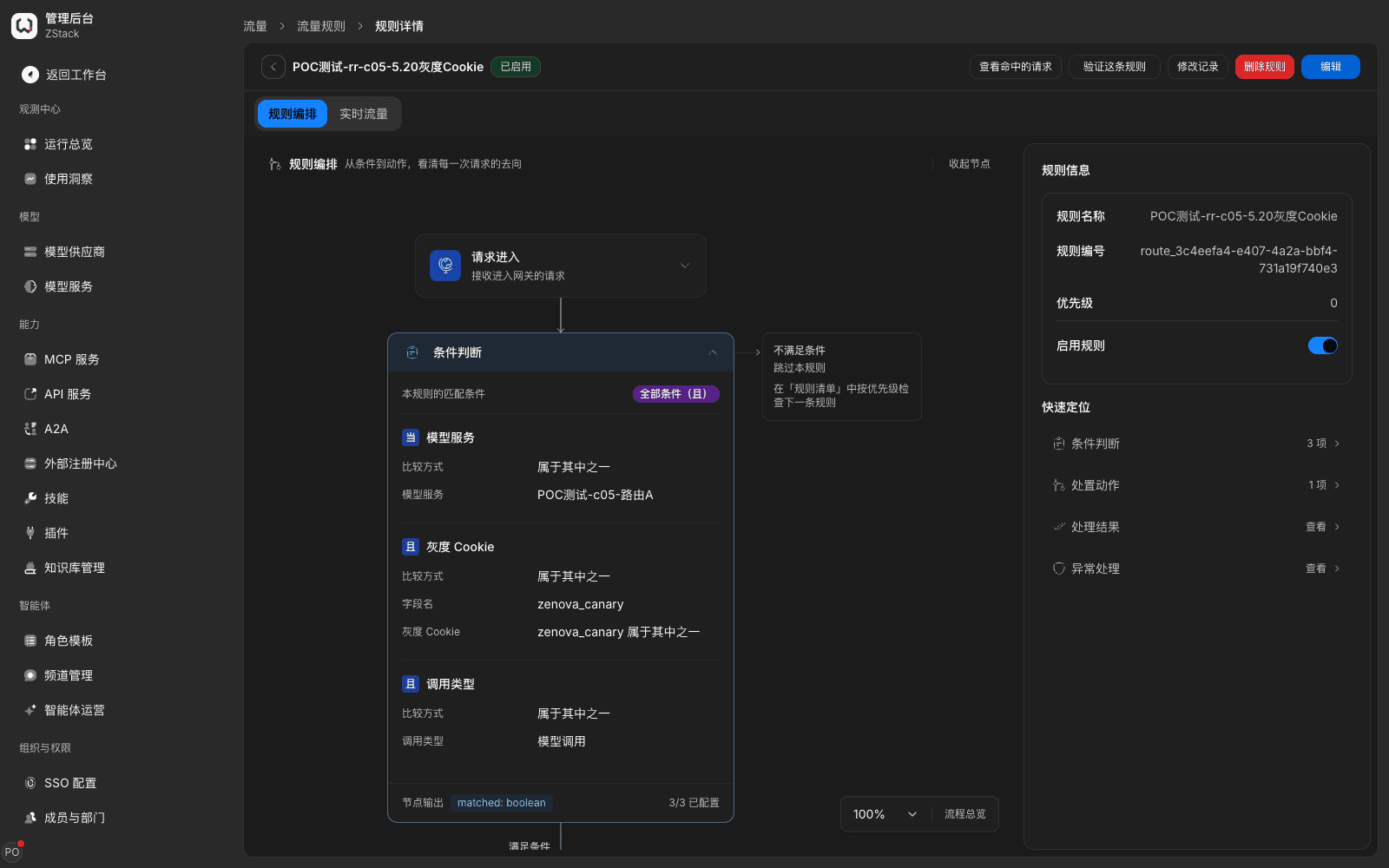
Note: only those three names are allowed. For a name of your own, use a 「Request header」 condition instead. Values may only use visible English letters, digits, and symbols; they cannot contain spaces, semicolons, or Chinese. Values are write-only and not echoed. Before you use a 「Tag」 condition, define in 「Admin Console › Tags」 the tags a caller is allowed to declare. The caller declares them in the x-zenova-tags request header (for example scene=code_review). An undefined tag key is rejected with tag_not_defined. Declaring a value that does not exist neither matches nor errors; use only listed values.
Canary cutover and rollback of an existing API: prerequisites are that the old and new upstreams are each registered as an API service, published, and given available scope. The business switches to the proxy address https://<网关地址>/api/v1/agent-gateway/proxy/<服务ID>/<上游路径> to call the old service. Create a rule: 「Call type」 is API service, 「Specific capability」 is the old service, plus a canary request header; action 「Forward to」 the old and new capability endpoints, split by weight. Marked requests split by weight; unmarked ones still go to the old service. To roll back, disable or delete that rule and everything returns to the old service.
Note: call records mark the target each request actually landed on. When you need a side-path observation rather than a percentage release, use the 「Mirror to a comparison target」 action instead (only for MCP, connectors, A2A, and API services). It sends another copy by percentage; the primary request does not wait for the mirror result.
15.7 Route by time window, domain, and request content
Take effect by time window: add 「Time window」 in conditions, pick an IANA time zone (for example Asia/Shanghai), add one or more HH:MM-HH:MM intervals, and pick forward, reject, or a limit as the action.
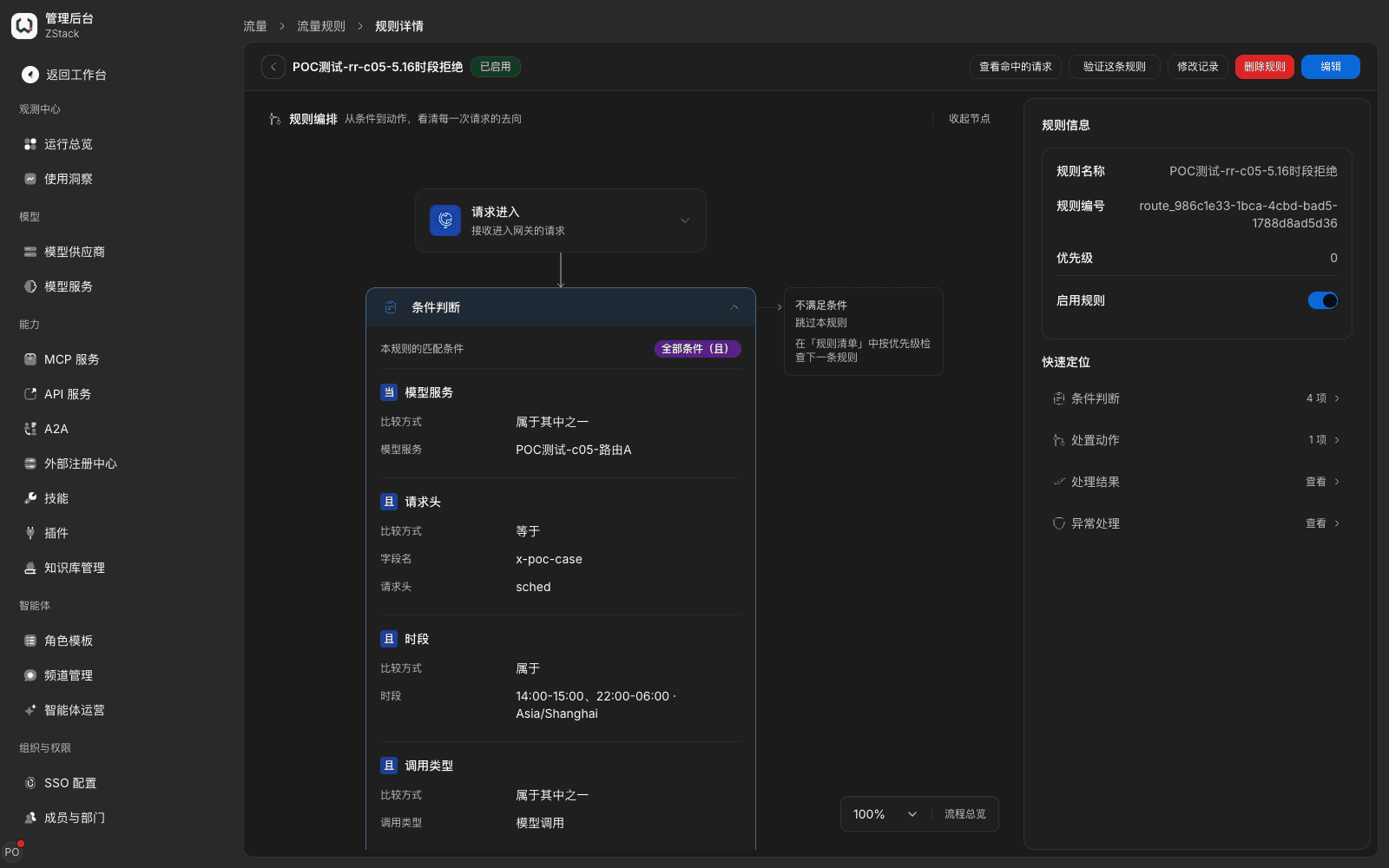
Judgement uses local time in the chosen time zone. Intervals are left-closed right-open: 12:00-14:00 includes 12:00 and excludes 14:00. Crossing midnight is allowed. Several intervals are 「any」. Only 「hour:minute」 windows are supported, not by weekday or date. Use 「Evaluated at」 on 「Validate rule」 to simulate a moment inside or outside the window. Outside the window, that condition shows 「No match」.
Split by access domain: traffic rules do not provide a Host condition. Splitting by domain is done in 「Gateway Domain Access」 — on the 「Domains」 tab, 「Claim Custom Domain」 or 「Allocate Platform Subdomain」. In the domain's 「View」, in 「Route bindings」 choose 「Match」 (path prefix or exact path), fill the path, set 「Routing target」 to a traffic rule, and 「Add」. Then confirm with 「Route simulate」.
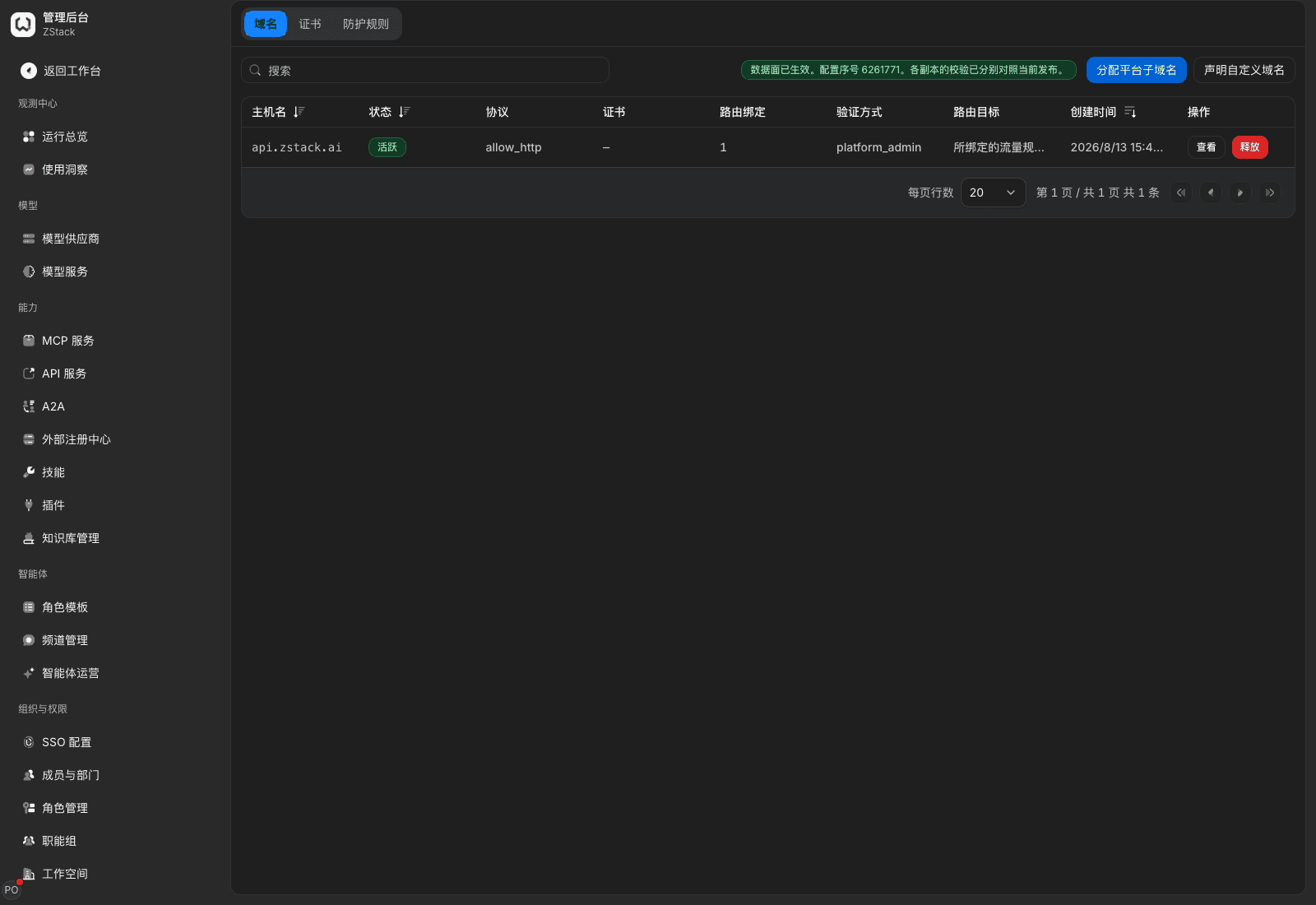
Note: a domain is usually a platform-level shared object. Adding or removing a binding affects real traffic. Confirm with a platform administrator before you change it. Route simulate reflects saved configuration, not in-flight traffic.
Route by request content: add 「Request contains sensitive information」 in conditions and pick a type (saving a reference to a type that does not exist is rejected). Action 「Forward to」 a privately deployed model. To intercept directly, choose 「Reject this call」.
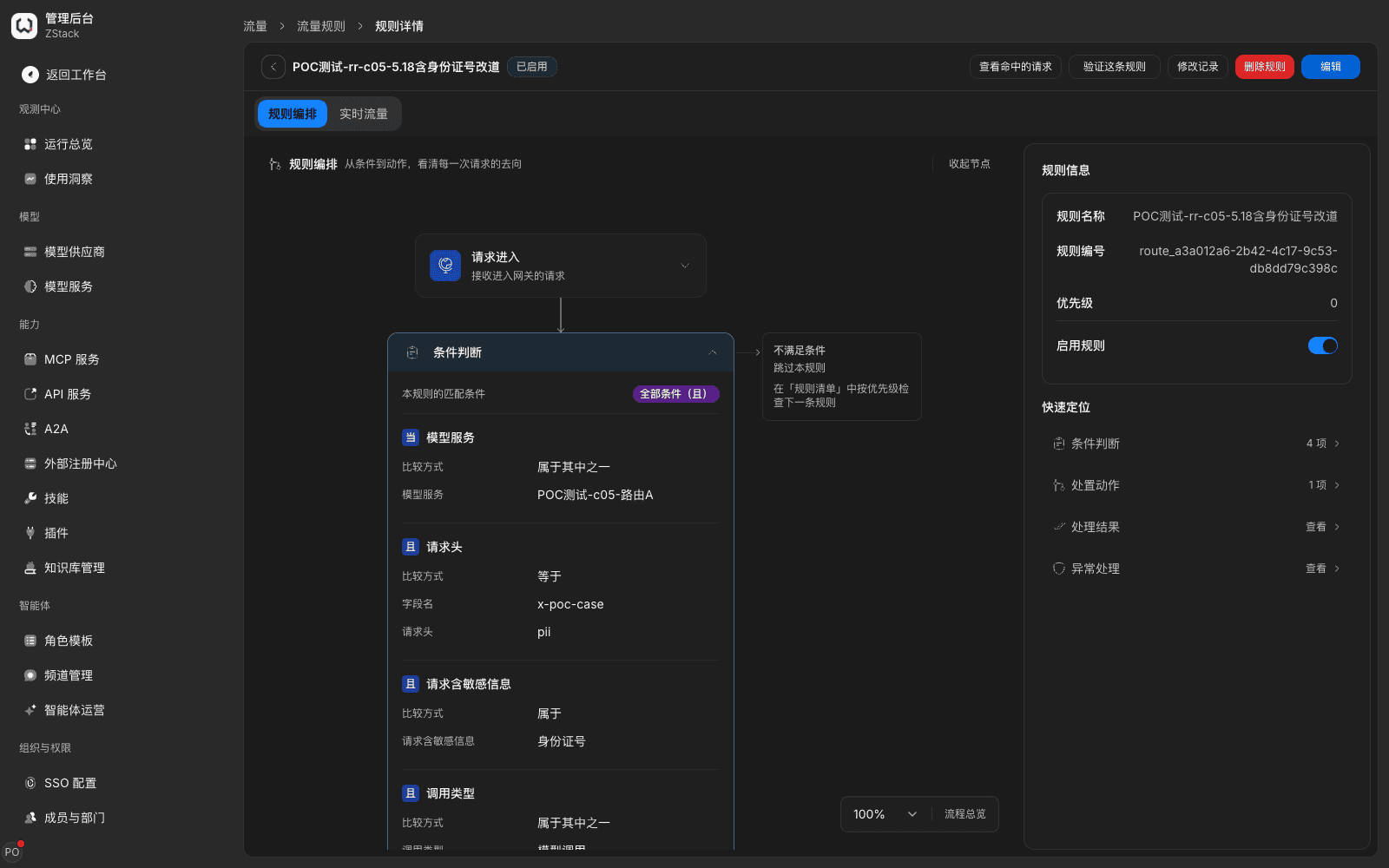
Note: built-in recognizers include checksum validation. A number whose checksum is wrong or whose writing does not meet the spec is not recognized. Reroute only changes the destination; request content is sent to the target as-is. To also redact, add 「Content check · Conversation」 and tick 「Sensitive information」. This condition is produced only on model calls.
Route by intent, with a catch-all: the prerequisite is that in 「System Settings › Global settings」 「General」 tab 「Default models」, you choose a model for 「Intent recognition」. At the top right of 「Built-in intents」, click 「Test intent recognition」, type a question in the dialog, and click 「Recognize」. The result gives difficulty, type, scenario, and content risk. On the target intent row, choose 「Build a rule」. The editor prefills conditions and a rule name; add narrowing conditions and a forward target. Finally after every intent rule, put a forward rule with no intent condition pointing at a general model as the catch-all. Business-specific intents can be created in 「Custom intent sets」.
Note: when intent recognition is unavailable (no model set, the service is disabled, the call failed, or the request has no text to judge), an intent condition is treated as not matching. The request is taken over by a later rule — usually the catch-all — or by default routing. Therefore always configure a catch-all. Every match of an intent rule produces one judge-model call, with corresponding latency and cost.
15.8 Rule simulation and publish confirmation
Procedure: the entry is 「Validate rule」 to the right of the 「Rule list」 search bar. It evaluates in the order of the whole rule set. Choose a call type and fill 「Requested model」 (the same value as 「Client-declared model name」). Choose 「Credential identity」 or 「Caller」. Fill request path, request headers, and 「Evaluated at」 as needed. Expand 「More request facts」 and fill 「Model group」, 「Intent prompt」, 「Client IP」, 「Query parameters」, 「Rollout cookie」, and similar. When a caller is filled, the model group is derived from the caller (an API key uses its bound groups; a signed-in identity uses every visible group). When no caller is filled, you can pick several groups. The result shows 「Metering group」. After required information is complete, the page computes automatically. You can also click 「Run validation」 to recompute.
What you will see: the result lists judgements row by row in two stages, 「Pre-routing evaluation」 and 「Post-selection review」 — 「Matched」 is a terminating-rule match, and later rules are not evaluated; 「Enrichment matched; continue evaluation」 is stacked configuration, and later rules are still evaluated; 「No match」 means conditions were not met; 「Not reached」 means a preceding rule already ended matching. The right 「Full path」 lists only rules that actually matched.
Note: simulation does not call an upstream model. It cannot prove a limit has counted, a rewrite has run, or a target is reachable. Weighted-round-robin simulation uses a round-robin progress independent of production. Real effect still needs one matching call to confirm.
Publish: after you choose 「Save rule」, 「Review this change」 opens. Check 「Field differences」, 「Related objects」, and 「Hit order」. When you change a sensitive request header you must tick to confirm, then choose 「Confirm and apply」. If someone else changed it at the same time, the page prompts a version conflict and keeps what you filled. Choose 「Preview again and retry」. After a rule is saved, you do not need to restart a component. After each replica loads the new version, it applies to new requests. In-flight requests run to the end under the rules at start.
15.9 Request-rate limits
Procedure (configure on a rule)
- Create or edit a rule, and limit 「Call type」 to one kind (a rule with a limit must do this).
- Choose 「Add action › Apply limits」, turn on 「Request rate」, pick 「Count dimension」 (for example 「By API key」), and set 「When quota is used up」 to 「Reject immediately」.
- For each window, fill 「Window」, 「Requests per period」, and 「Immediate burst」. The same period cannot be repeated.
- In 「Over quota」, choose the reason returned to the caller, save, and confirm.
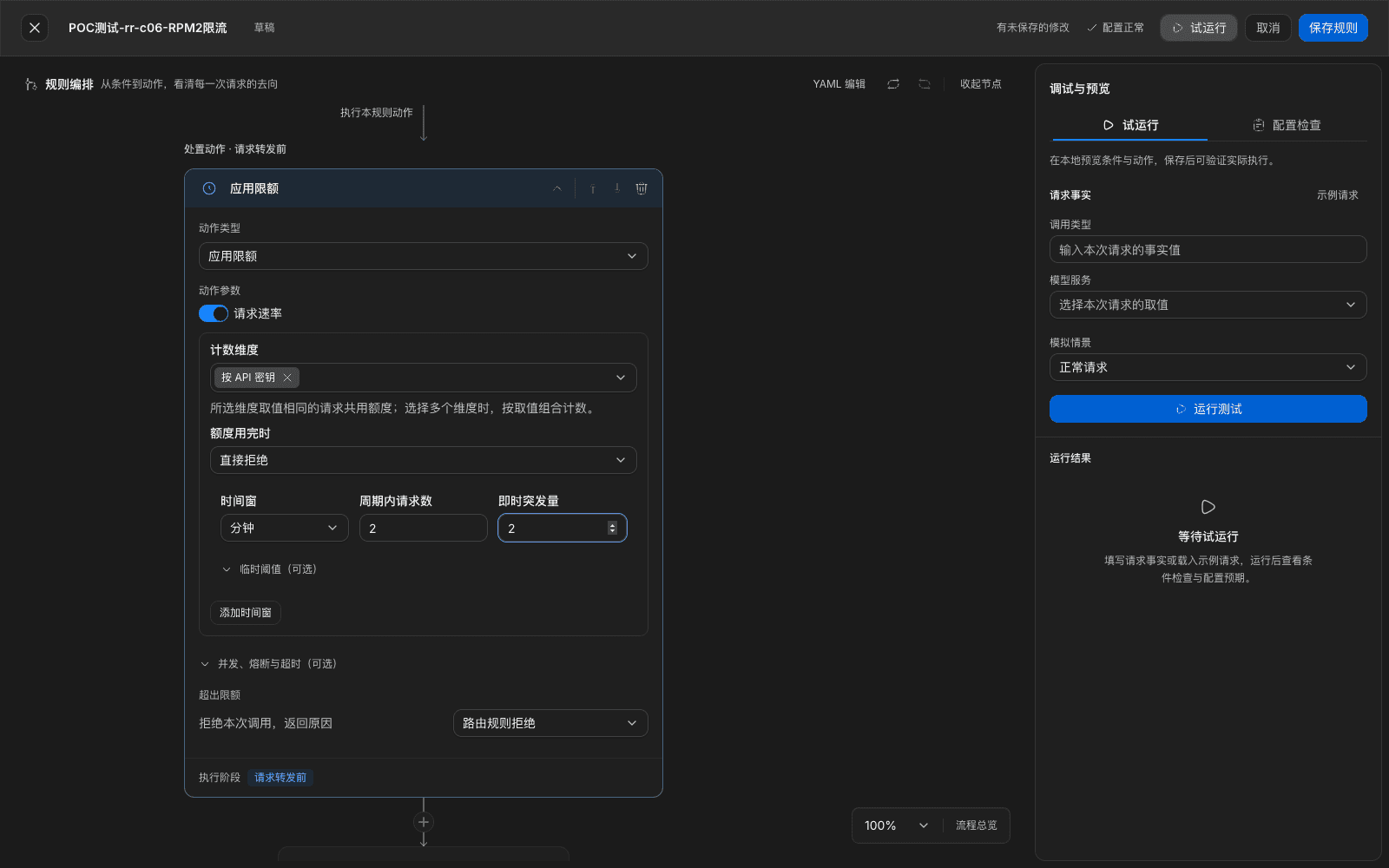
What you will see: after quota is used up, the request returns 429, error code rate_limit_exceeded, reason TRAFFIC_RATE_LIMITED, with Retry-After (the real seconds to wait). Details carry the matched rule's ID. A rejected request has upstream latency 0.
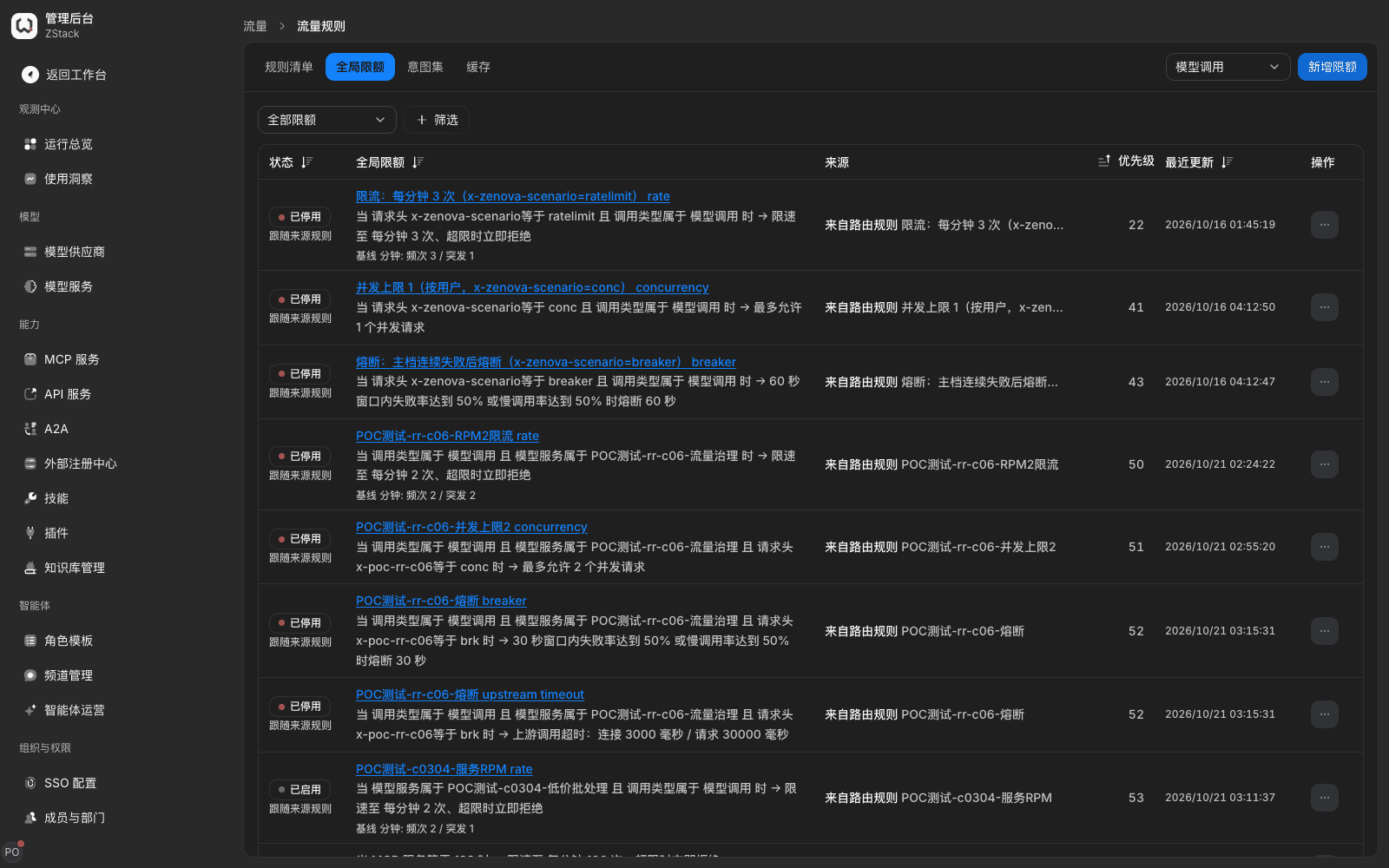
Configure in Global limits: on the right of the tab, pick a call type, then 「Add limit」, and fill 「Limit type」, 「Count object」, 「What this limit does」, 「When over the limit」 in order. The right 「Trial run」 can simulate both not-triggered and triggered. The list shows status, summary, 「Source」 (Global limits / From a routing rule / Platform hard floor), priority, and updated time. A 「From a routing rule」 row is read-only; to change it, click the rule name and edit in the source rule.
Operating discipline: narrow first, then widen
When you create a rate-limit, circuit-breaker, or budget rule, first narrow match conditions to a single model group or a single API key: add a 「Model group」 condition, or limit 「Count dimension」 and retained match clauses to one self-created key. After this range confirms that threshold, counting, and recovery match expectations, widen step by step to the whole group or the whole tenant.
The basis for 「matches expectations」 is: first let the threshold take effect in a small range you can watch at any time, confirm from which request it starts rejecting and how long recovery takes, then widen. The key or group used to narrow is best used only for verification, and its available scope contains no other members.
Note: a rate limit is a rolling window that refills continuously over time, not a quota that zeros at the clock hour. Several windows take effect together; a request must satisfy every window. When a limit on a rule is exceeded, the only action is reject. Queue, return a fixed reply, invalid-attempt protection, and temporary exemption are configured in Global limits. On a rule with a limit, conditions must be information the chosen call type actually produces. For example, an API-service-call rule cannot use a 「Data source」 condition. To rate-limit by MCP tool, you can also use the Global-limits 「By MCP tool」 count dimension. In a multi-replica deployment, rate and circuit-breaker state are kept locally on each replica and are not shared across replicas. When you plan a threshold, consider that actual allowed volume may be higher than the configured value, by replica count.
15.10 Concurrency limits and circuit breaking
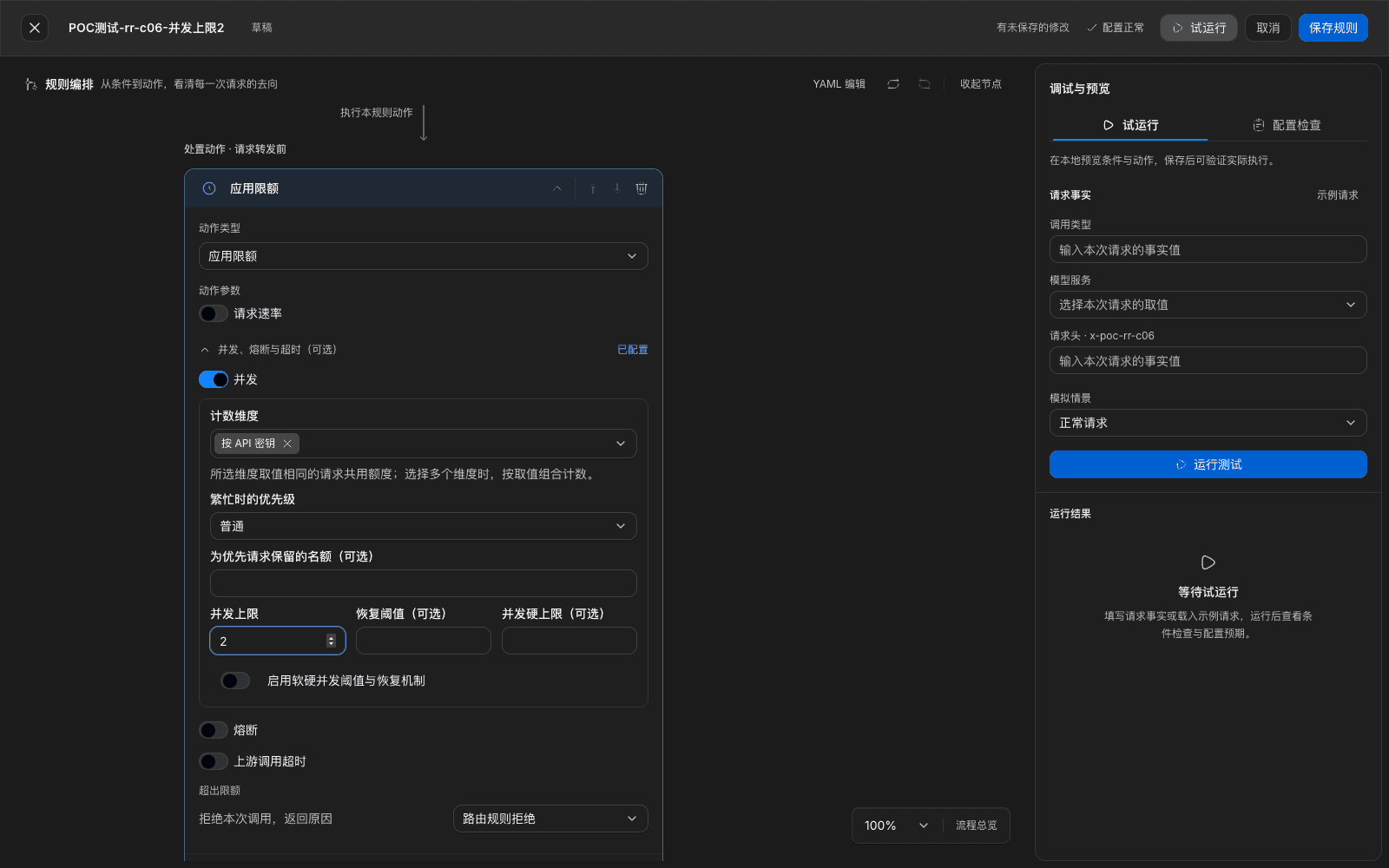
Concurrency limits count requests that are in flight at the same time. In 「Apply limits」, turn off 「Request rate」, expand 「Concurrency, circuit breaker, and timeout (optional)」, turn on 「Concurrency」, pick 「Count dimension」, set 「Priority when busy」 (Normal / Higher / Highest) and 「Concurrency cap」, and fill 「Slots reserved for priority requests」, 「Recovery threshold」, 「Hard concurrency cap」 as needed.
| Field | Notes |
|---|---|
| Concurrency cap | After in-flight requests of the same count object reach the cap, a new request is rejected immediately and does not enter a queue |
| Recovery threshold, Hard concurrency cap | Must be filled together, satisfying 「recovery threshold < hard concurrency cap ≤ concurrency cap」. After the hard cap, reject; after in-flight count falls below the recovery threshold, accept again |
| Slots reserved for priority requests | 0 to concurrency cap minus 1. When busy, ordinary requests may use at most 「cap minus reserved slots」; remaining slots are only for priority requests |
Overflow requests return 429, reason TRAFFIC_CONCURRENCY_LIMITED. After an in-flight request ends, admit again. A concurrency limit never interrupts a request that is already running. If save prompts 「Change preview is invalid」, reopen the rule, preview again, then confirm.
Circuit breaking, after a threshold is reached, rejects later requests fast for a period and no longer hits the upstream, then enters half-open probing when it expires. You can turn it on in 「Apply limits › Concurrency, circuit breaker, and timeout」, or create a 「Circuit breaker」 type in Global limits. Parameters are the same: stats window, minimum call samples, failure-rate threshold, slow-call threshold and slow-call-rate threshold, open duration, half-open probes. In the same place you can turn on 「Upstream call timeout」 and fill connect and request timeouts (connect must not be greater than request). When unset, the default is connect 5 seconds, request 30 seconds.
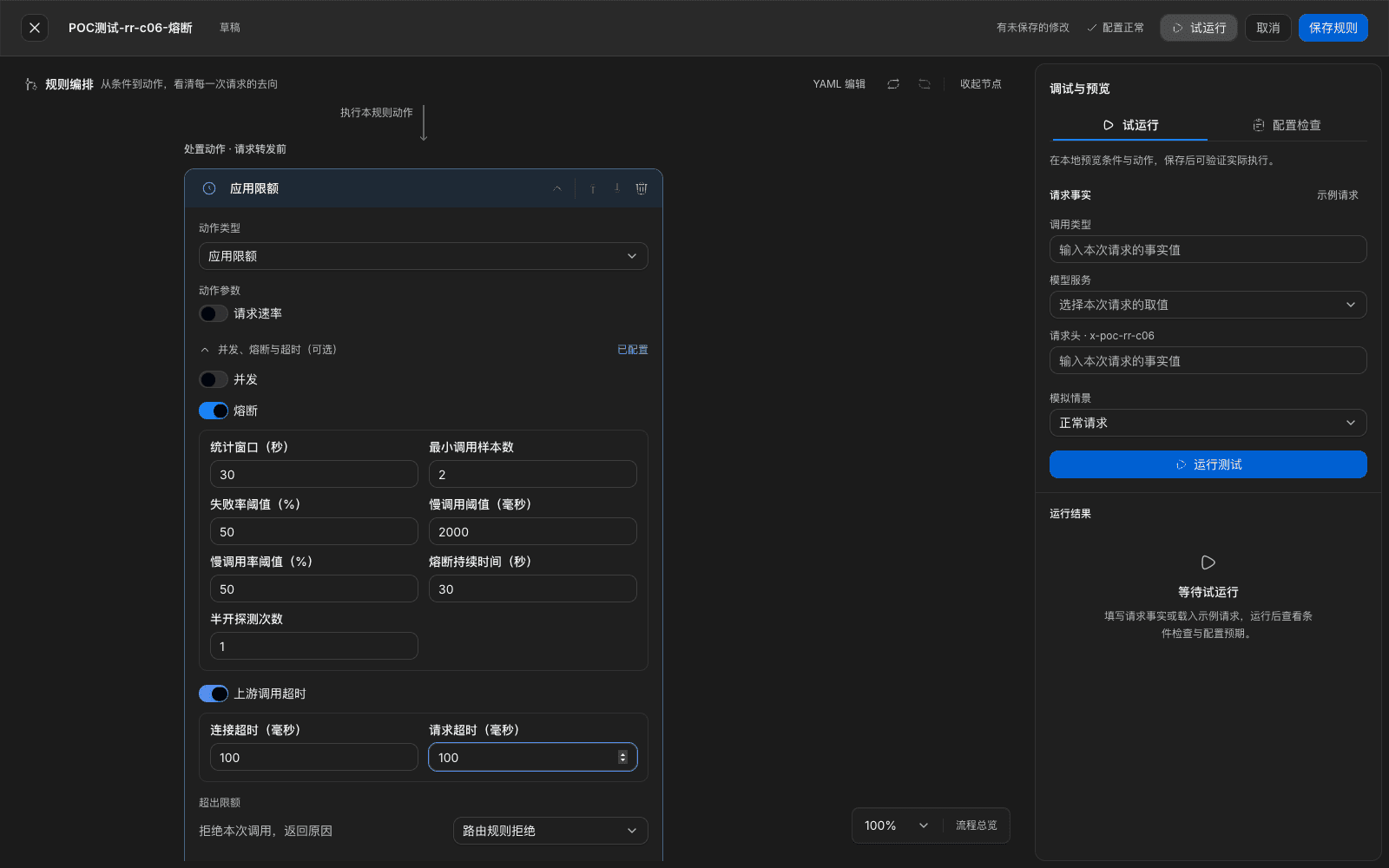
What you will see: before the breaker opens, a failed request returns the upstream error. A timeout is recorded as 504 timeout, reason LLM_TIMEOUT. During the open period it returns 503 circuit_open, reason TRAFFIC_CIRCUIT_OPEN, with Retry-After. Upstream latency in the request record is 0. At expiry it enters half-open. A successful probe restores; a failure opens again.
Note: circuit breaking only affects requests that match that rule or limit. It does not switch upstream by itself. Only a rule with failover skips a target that is circuit-open. The slow-call threshold is only for statistics; it does not interrupt a slow request. To interrupt, use 「Upstream call timeout」. Circuit breaking of an MCP call is at the whole MCP-service grain. If you see another reject reason during the open period, first confirm whether the provider account that target uses is available, and whether the rule was just changed — changing a rule redistributes and resets breaker state.
15.11 Overflow actions and temporary adjustments
Three overflow handlings: in 「Global limits › Add limit」, pick one of three in 「When over the limit」.
| Method | Behavior | Parameters and range |
|---|---|---|
| Reject the request | Return a rate-limit error and a retry hint immediately; do not call the upstream | — |
| Queue and wait | The request queues for quota and is admitted after recovery | Max queue depth 1–512; max wait 1–30000 milliseconds |
| Return a fixed reply | Do not call the model; return a preset assistant reply directly | Reply content is required, at most 64 KiB |
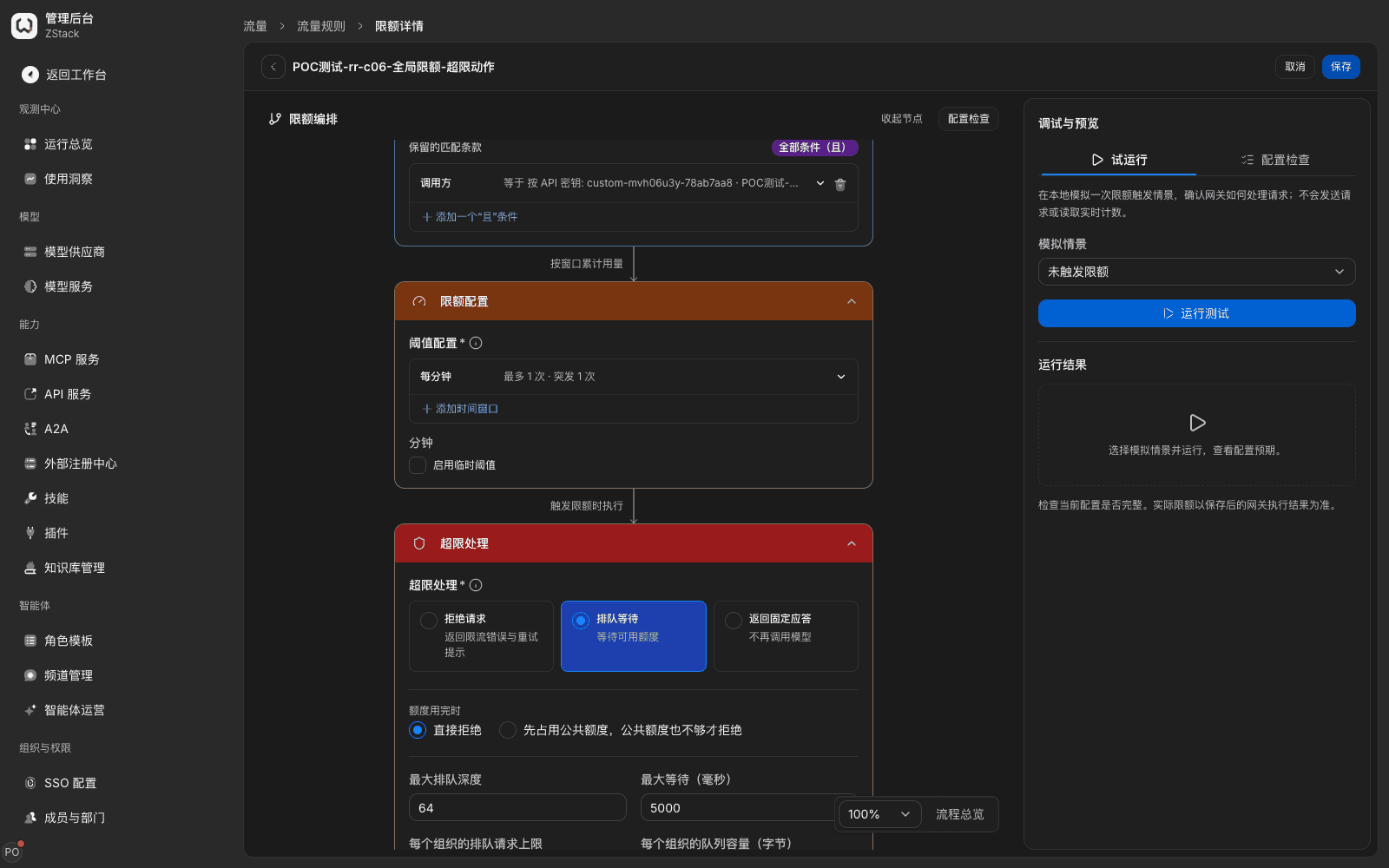
What you will see: 「Reject the request」 returns 429 rate_limit_exceeded, reason TRAFFIC_RATE_LIMITED, with Retry-After. 「Queue and wait」, when wait exceeds 「Max wait」, returns 429 TRAFFIC_QUEUE_TIMEOUT. 「Return a fixed reply」 returns 200, content is the configured reply, and response header x-zenova-default-result: true marks a degraded reply. It does not call the upstream and is not billed. When one request matches several limits with different handlings, the strictest wins (reject > queue > fixed reply). For an interactive request, queue shows as longer time to first token; use a fixed reply instead.
Temporarily raise a limit: under a time window, tick 「Enable temporary threshold」, fill 「Temporary」, 「Immediate burst」, 「Start time」, 「End time」, then save. Detail-page 「Limit summary」 shows the baseline, the temporary threshold, 「In effect」, and start/end.
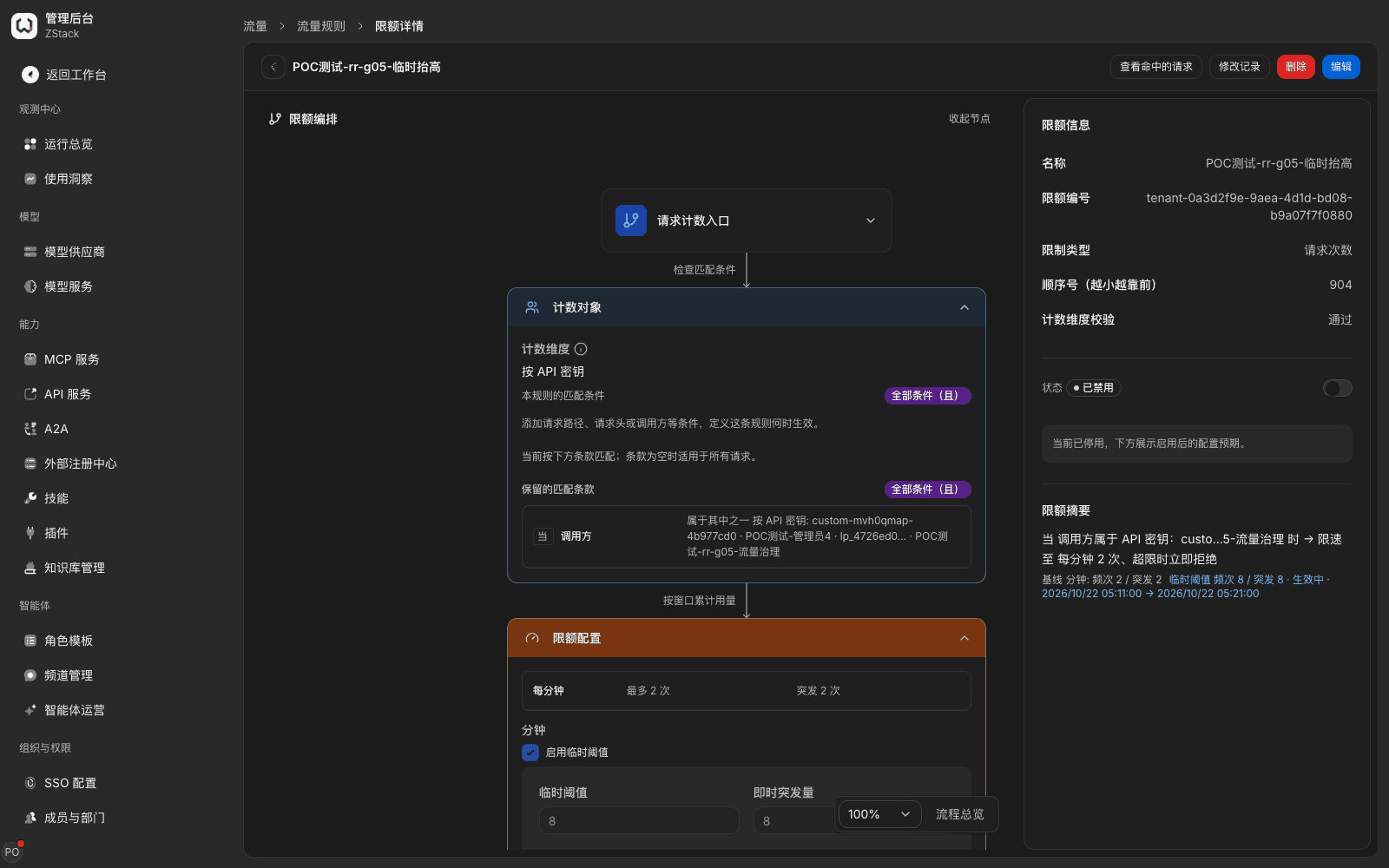
Note: a temporary threshold can only raise, and at least one item must be above the base quota, or it prompts 「Temporary values may only increase」. A temporary window is at most 30 days. End time must be later than start time and now. It only relaxes a traffic threshold; it does not extend credential validity, grant model access, or affect quotas and key allowances.
Invalid-attempt protection: in Global limits, pick MCP call, A2A call, or API-service call type, 「Add limit」, set limit type to 「invalid-attempt protection」, and set match conditions (for example by client IP), stats window, count threshold, and pause duration. What is counted is events produced when a capability call fails downstream credential checks. Ordinary 4xx is not counted. These requests often cannot get a caller identity, so narrowing by API key does not apply to them. Configure by dimensions such as client IP. When an egress IP is shared by many people, a too-low threshold may hurt normal users.
Temporary exemption: on an independent limit row's 「More actions」, choose 「Grant a temporary exemption」. The system creates an exemption configuration. The caller clause is prefilled as the same caller as the original limit (the original limit is not modified). Choose 「Exempt which limit」 (request count, concurrency limit, circuit breaker, invalid-attempt protection), fill 「Expires at」 and 「Reason」. An ordinary exemption is at most 7 days. Turn on 「Also bypass the hard floor」 only in an authorized emergency; validity is at most 2 hours.
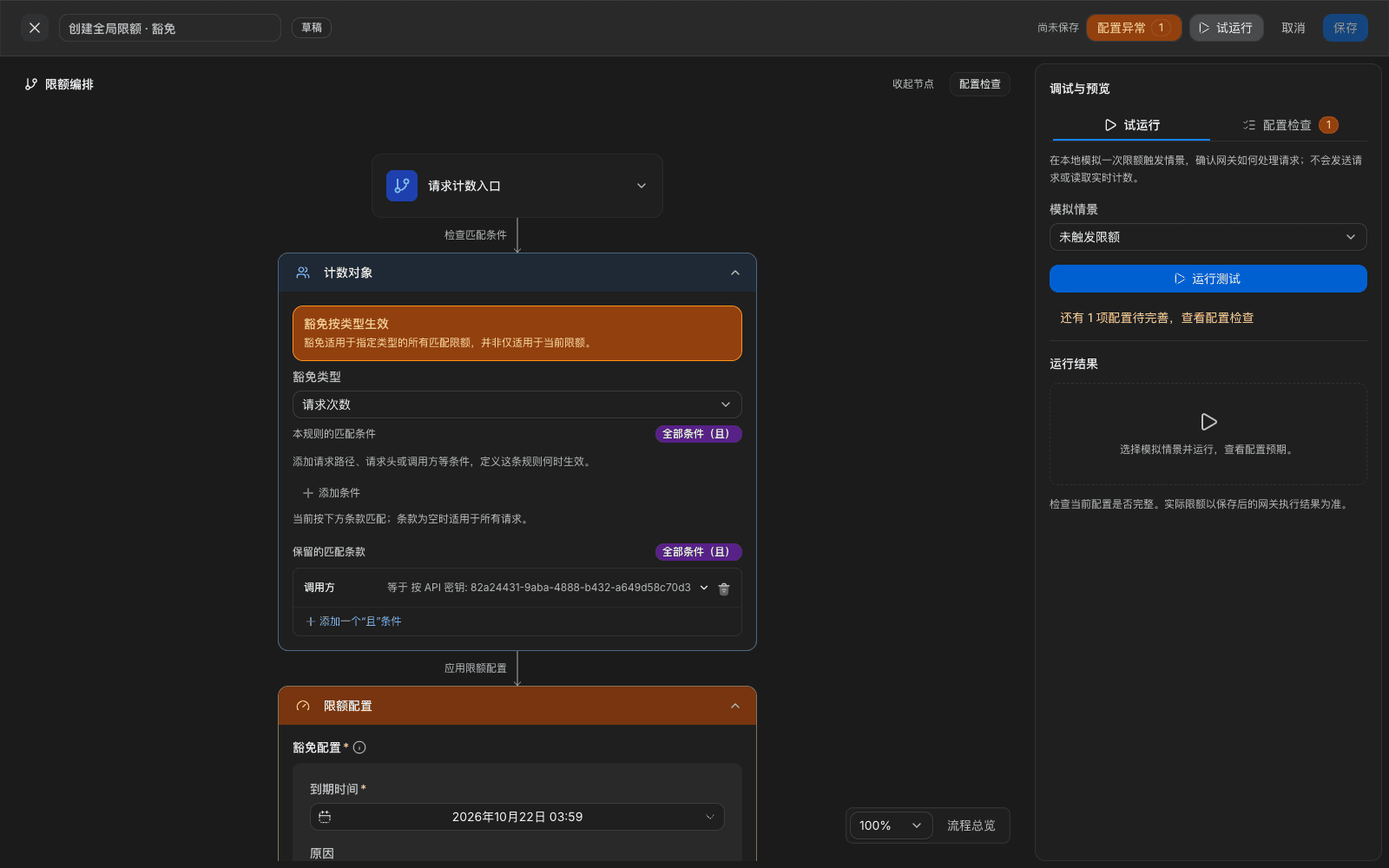
Note: the console prompts 「An exemption takes effect by type: it applies to every matching limit of the specified type, not only the current limit」, so pick the right type. An exemption is not identity authentication, model authorization, or a quota exemption.
15.12 Count dimensions
Match conditions decide which requests are constrained. Count dimension decides how those requests accumulate separately. For example, 「match a model group, count by API key」 means each key has its own quota on that group. 「By API key + by model」 means each key has its own quota on each model; several upstreams of the same model are counted together. Match conditions have two layers: 「This rule's match conditions」 use the same condition types as traffic rules. 「Retained matching clauses」 are configured as 「Match field / match method / match value」, and can match by caller, client IP, model, model group, actual upstream, capability, MCP service or tool, and similar. When both layers are empty, the limit applies to every request of the chosen call type.
You can pick several count dimensions. When you pick several, counting is by value combination. Options change with call type, including by API key, by user, by caller group, by client IP, by session, by route, by model, by actual upstream, by model group (counted by metering group, same definition as quota), by application, by department, by functional group, by MCP service, by MCP tool, by tag, and similar. 「By session」 is provided only for model call, MCP call, and connector call. A2A call and API service have no session identifier. MCP call also has 「By MCP service」 and 「By MCP tool」. When counting by session, a request with explicit session identity (platform run thread, x-zenova-conversation-id, the client's own session ID, or Responses continuation; see section 15.5) is counted per session; different sessions do not affect one another. A session identified by conversation-history continuation, and a request whose session cannot be identified, are not counted.
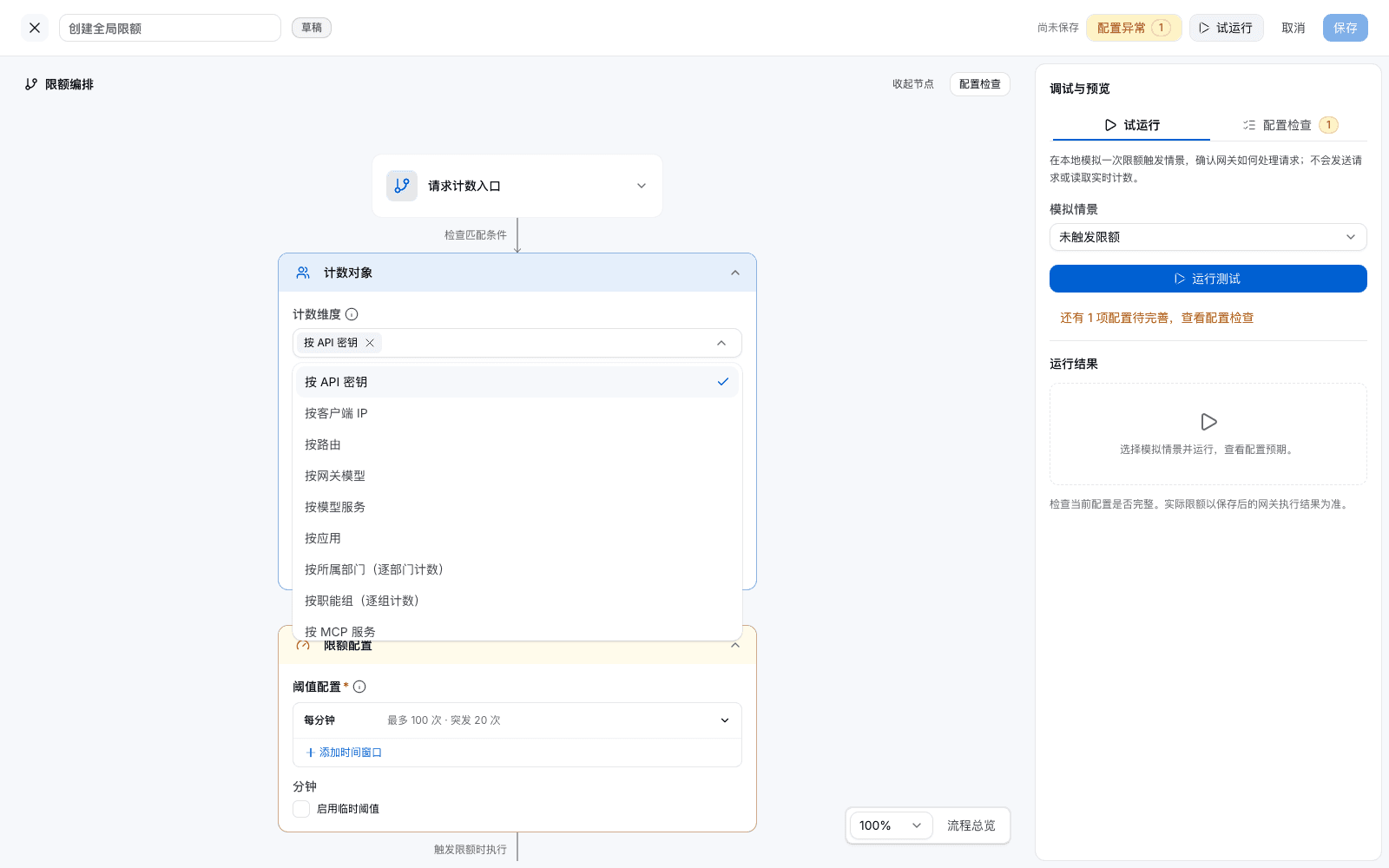
Note: when a request cannot take a value for a count dimension, this limit does not apply to that request. When a limit's count dimension can never take a value on the chosen call type, publish is rejected and it states that the dimension is not produced on that call surface — change the dimension; do not retry save. Detail-page 「Count-dimension check」 showing 「Pass」 is what means the limit can take effect. A limit summary only writes the rate value and overflow action; it does not show count dimension. When several people share one quota, write the dimension in the name.
Rate-limit by MCP tool: set call type to 「MCP call」, 「Count dimension」 to 「By MCP tool」 (you can add 「By user」), 「Retained matching clauses」 「By MCP service」 equals the target service, then fill the window threshold. An MCP-side reject is returned as JSON-RPC result.isError=true plus a reason code (HTTP 200). The client gets a clear reason and does not hang.
15.13 Budget hard wall
Procedure
- Open 「Admin Console › Organization & Access › Model Groups」, and open the target group's 「Visibility & quotas」 tab.
- On an object row (member, department, functional group, workspace), choose 「Edit quota」.
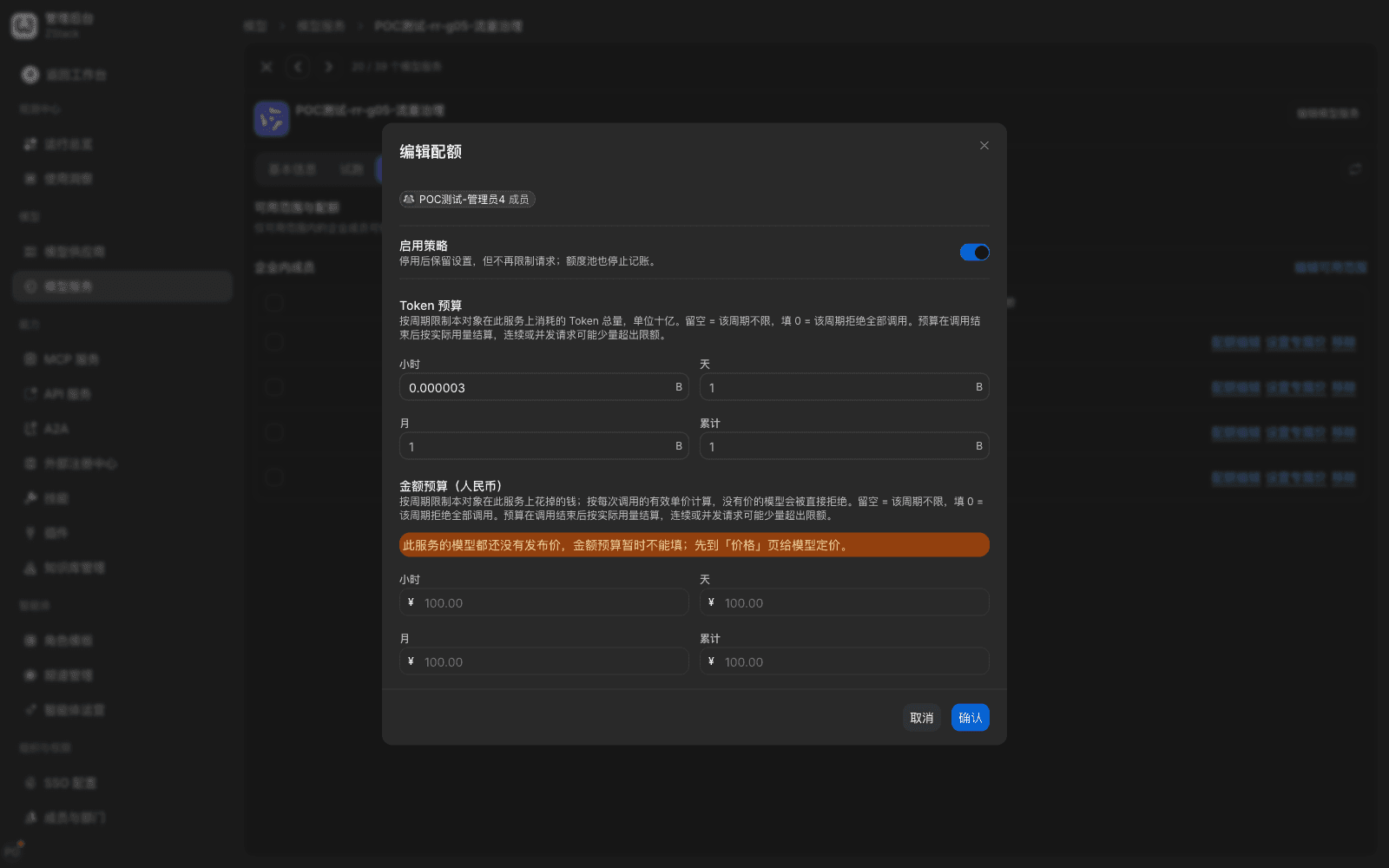
- Turn on 「Enable policy」, fill 「Token budget」 and 「Money budget (CNY)」 as needed, both by hour / day / month / cumulative, then choose 「Confirm」.
Key values
- The Token-budget unit is billion (B) tokens, for example
0.000003B is 3,000 tokens. - A money budget is computed at each call's effective unit price. A call with a money budget skips models with no published price. When every available model is unpriced, it returns 429, reason
POOL_MONEY_UNPRICED. Before you set a money budget, price the model on the 「Price」 page. - To cancel a period's limit, leave it empty: empty means that period is unlimited. Clearing a filled value restores unlimited.
- Filling 0 is a hard wall, not unlimited: any usage in that period is rejected.
Note: a policy must keep at least one period's budget. When you clear all four periods, the dialog does not save, and prompts 「An enabled policy must keep at least one period budget. To cancel every period's limit, turn off 「Enable policy」.」
Set an allowance on a single API key: in 「Model Groups › API key management」, open the key detail, and in the 「Quota」 area choose 「Edit quota」. Fields are the same. A child allowance can be set larger than the parent, but at call time every layer must pass; the strictest layer takes effect.
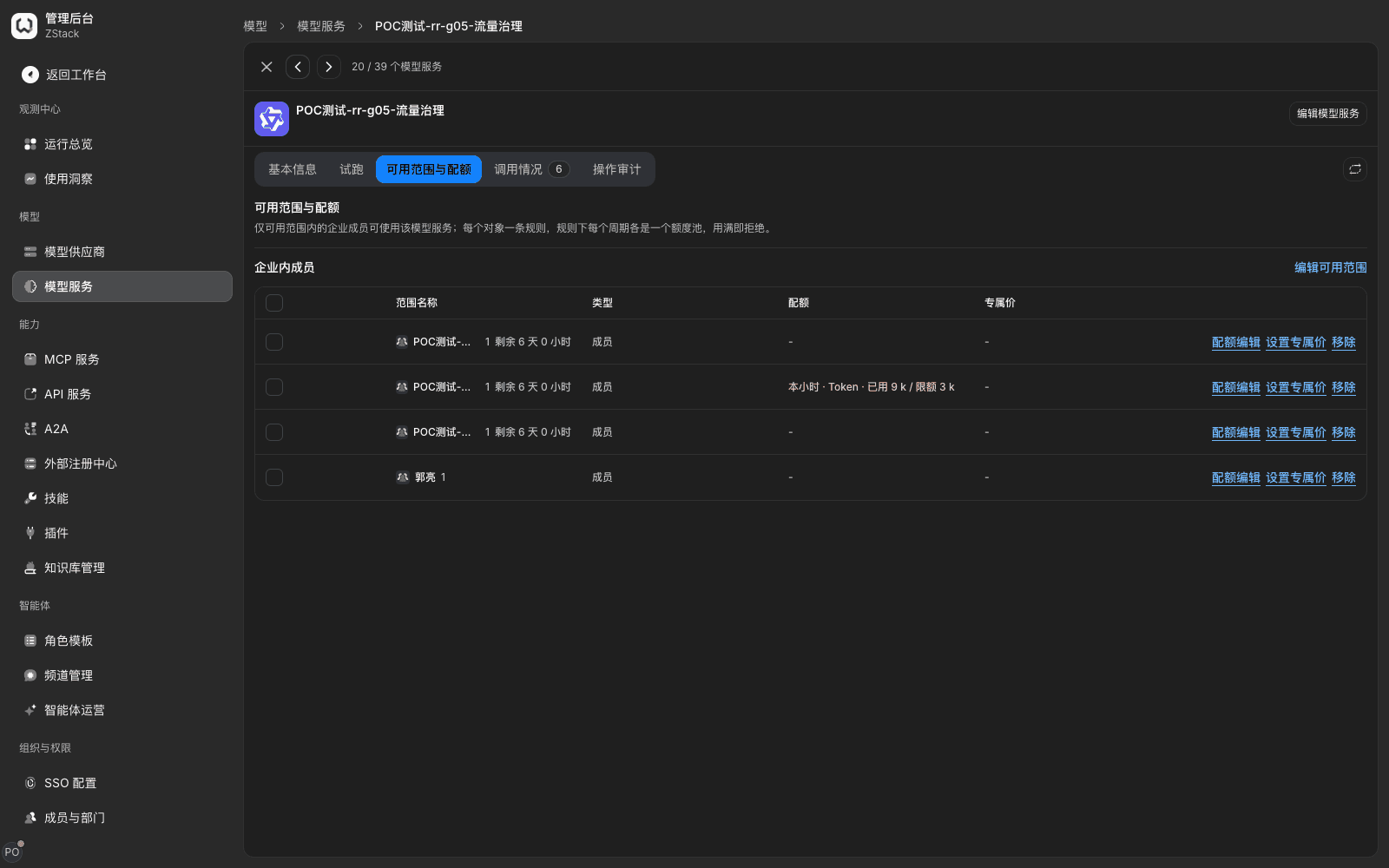
What you will see: the group's quota column shows current-period usage, for example 「This hour · Token · used 9 k / limit 3 k」. When exhausted, it is marked in a prominent color. After the budget is exhausted, the call returns 429 insufficient_quota, reason POOL_EXHAUSTED, x-should-retry: false. Details state budget type (token or money), period, used, limit, and window end.
Note: usage is accounted after the call completes. A single call may push used over the limit; rejection starts from the next call. After you fill 0 for a period, there is also a short distribute delay before the limit takes effect. Budget periods reset on the natural period, unlike a rate-limit rolling window. A single quota pool has no near-threshold push. Periodically look at the service quota column, the key-detail quota status, or the 「Budgets」 panel of 「Operations overview」.
15.14 Reason codes and common symptoms
| Status | Error code / reason | Meaning and handling |
|---|---|---|
| 400 | invalid_request / invalid_conversation_id | Session-identifier format is illegal |
| 400 | tag_not_defined | An undefined tag key was declared; define it in 「Tags」 first |
| 403 | permission_denied, deniedBy: routePolicy | Rejected by a traffic rule; details carry the configured reason code |
| 413 | request_too_large / LLM_PAYLOAD_TOO_LARGE | Exceeded the request-body size cap |
| 429 | rate_limit_exceeded / TRAFFIC_RATE_LIMITED | Exceeded a request-rate limit; retry after Retry-After |
| 429 | TRAFFIC_QUEUE_TIMEOUT | Queue timed out or the queue is full |
| 429 | TRAFFIC_CONCURRENCY_LIMITED | Exceeded the concurrency cap; retry after in-flight requests end |
| 429 | insufficient_quota / POOL_EXHAUSTED | Quota or allowance exhausted; do not retry automatically |
| 502 | upstream_credential_rejected | Upstream authentication failed; check the provider-account key |
| 503 | circuit_open / TRAFFIC_CIRCUIT_OPEN | Circuit breaker is open; investigate the upstream and wait for half-open recovery |
| 503 | upstream_unavailable | Every candidate target is unavailable |
| 504 | timeout / LLM_TIMEOUT | Upstream timed out; check timeout configuration and upstream status |
Common symptoms: a rule saved successfully but does not take effect. First use 「Validate rule」 to see whether it is 「Not reached」 (covered by a preceding stop-matching rule), then check enable status and call type. When you cannot tell which layer a 429 is, look at the reason code: TRAFFIC_* is a rule or a global limit, POOL_* is a quota or a key allowance. A backup target received no request: check whether failover is enabled, whether trigger conditions cover the actual error, and whether the attempt budget is used up. When you cannot see the reject reason, the concrete reason is in details[].reason and deniedBy.
Capability notes
| Capability not provided | What to do instead |
|---|---|
| Per-day / month call-count quotas, and period call-count quotas for MCP | A rate limit rolls at most by hour. For period totals, use a model-group quota or a key allowance (see 15.13) |
| Token rate limiting (tokens per minute) | Control token totals by hour with a model-group quota, or use 「Per-request token limit」 on a rule |
| A push when a single quota pool nears a threshold | Periodically look at the service quota column, the key-detail quota status, or the 「Budgets」 panel of 「Operations overview」 (see 15.13) |
| Preset service-level tiers and inheritance | Distinguish priority with concurrency-limit 「Slots reserved for priority requests」 and 「Priority when busy」 (see 15.10) |
| Observe mode for a rule or a limit (record only, do not execute) | Simulate with 「Validate rule」 first, then enable on a single key or a single service under the discipline in 15.9 |
| Enter overload protection by CPU / memory | Use a concurrency limit's soft/hard thresholds and recovery threshold |
| A Host condition on a rule | Use domain route bindings in 「Gateway Domain Access」 (see 15.7) |
| Attachment / file-type conditions, and data-classification conditions | Route by type with 「Request contains sensitive information」 (see 15.7) |
| Custom names for rollout cookies | Color with a 「Request header」 condition (see 15.6) |
| A time-window condition by weekday or date | A time-window condition only supports a daily hour:minute window |
| Percentage canary release of a whole traffic stream | Split by share with multi-target weighted 「Forward to」 (see 15.3). After the canary is past half, raise the new-target weight step by step until only the new target remains |
| Instance-level load balancing such as minimum request count, prefix-cache affinity, GPU-load awareness | The gateway schedules at provider-model grain. The closest is 「Fastest first」. Instance-level scheduling is implemented on the inference-service side |
| Semantic routing by vector similarity, and split and cost reports by scenario | Use intent routing (see 15.7). Look at hit count and cost in each rule's 「Live traffic」 |
| Dynamic forward where the request carries the target address | Register each backend as an API service, or configure several targets and split by condition |
| Multi-region nearest access and automatic cross-region switch | External intelligent DNS / load balancing decides where traffic lands. At the upstream layer, use multi-tier failover for disaster recovery (see 15.4) |
| Upstream-quota remaining awareness and shifting load in advance | After receiving upstream rate limiting, cool that account until the reset time the upstream gave, then switch accounts. To shift load in advance, give the same provider several accounts, or actively limit the rate sent to that provider with a rule limit |
| Circuit-break a single MCP tool | Register the tool that needs isolation as its own MCP service |
| Exact response cache and a custom cache key | Use semantic cache (first set the semantic-cache embedding model and rerank model in 「Default models」), and control read/write with x-zenova-cache-control |
| Share rate and circuit-breaker counts across gateway replicas | Consider replica count when you plan a threshold. For totals, use quotas accounted uniformly by the control plane |
Previous: 14. Configure content detection and safety fences · Next: 16. Gateway extensions and Open API
14. Configure content detection and safety fences
Full-length chapter. Content is checked against the 2026.10 mainline code and the live console; menus and features depend on the current license, account permissions, and delivered environment.
16. Gateway extensions and Open API
Full-length chapter. Content is checked against the 2026.10 mainline code and the live console; menus and features depend on the current license, account permissions, and delivered environment.